Blogs
|
Late last night I checked my email before bed and found a note from Nitesh Goel in Padlet's marketing department, announcing that Padlet has finally released a dedicated iPad app. The iPad app functions in all of the same ways as the web app with one additional feature that teachers are going to love. Now when you want students to join one of your Padlet walls you can have them scan a QR code with the Padlet iPad app to instantly join the wall on their iPads. To get the QR code you must create a Padlet wall then open the sharing settings to find the QR code to project or print. If you need help creating a Padlet wall, click here to find three Padlet tutorial videos.
Applications for Education
I've previously shared a number of ideas for using Padlet in the classroom. The five most popular of those ideas are outlined below.
Padlet as a simple blogging platform:
Padlet walls can be arranged in free-form, grid, or stream layouts. Creating a Padlet page in the stream format could be a good way to create a simple, collaborative blog for students. You could create the page, select "stream" format, and make the page accessible for students to write short posts on. Their posts could include images and videos. If you want to, you can password protect your Padlet pages and moderate messages before they appear on your Padlet page.
Padlet Mini as a bookmarking tool:
Padlet Mini is a Chrome extension that you can use to bookmark websites. When you click the Padlet Mini extension in your browser you will be presented with the option to save to one of your existing walls or create a new Padlet wall. Click here for a video on using Padlet Mini.
Padlet as a KWL chart:
Padlet can be used to create a KWL chart that students can contribute to anonymously (or not anonymously if you want them to sign-in). Create a wall, make it public, and ask students to share what they know and what they want to know about a topic. If you allow anonymous posting you might get contributions from shy students who might not otherwise speak-up in class. Of course, if you allow anonymous commenting you should have a conversation with your students about what an appropriate comment looks like. (You could also turn on moderation and approve all notes before they appear). Padlet works well when projected on an interactive whiteboard.
Padlet for group research and discussion:
A few years ago I showed my special education students a short (18 minutes) video about cultural changes that took place in the US during the 1920's. After the video we discussed what they saw. Then I had students search online for other examples of cultural change in the 1920's. When they found examples they put them onto a Wallwisher (Padlet's previous name) wall that I projected onto a wall in my classroom. The wall started with just text being added to the wall and quickly progressed to YouTube videos being added to the wall. Once every student had added a video to the wall we stopped, watched the videos, and discussed them.
Padlet as a showcase of your students’ work:
If your students are creating digital portfolios, creating slideshows, or producing videos you could use Padlet to display all of your students’ best work on one page. Create the wall, call it something like "my best work this year," and have your students post links to their works.
This post originally appeared on Free Technology for Teachers
if you see it elsewhere, it has been used without permission.
Related StoriesUse Tags and Labels on Classroom Blog PostsHow to Create Freehand Drawings in Google SlidesFormative - A Possible Replacement for Infuse Learning
Richard Byrne
.
Blog
.
<span class='date ' tip=''><i class='icon-time'></i> Aug 17, 2015 02:04pm</span>
|
|
Over the years I've used a lot of Google tools in my social studies classes. Some of those tools, like Wonder Wheel and Notebook, no longer exist, but many still do. Here are my five go-to Google tools for social studies classrooms. How to videos accompany each tool featured below.
1. Google Maps & Earth. In addition to zooming and panning across places in a way that a paper map could never replicate, Google Maps and Google Earth provide great tools for illustrating stories in a geographic context. The videos below demonstrate how to use Google Maps and Google Earth Tour Builder.
2. The Google News Paper Archive can be a great place for students to find old news articles about the topics they're studying in your classroom. Watch the video below to learn how to use it.
3. Google Books provides students with access to hundreds of thousands of books and periodical articles that are in the public domain. I like to create bookshelves within Google Books to help my students get started accessing some of the titles that will be useful to them.
4. Google Scholar is a research tool that is often overlooked by students. Google Scholar provides students with access to court opinions, patents, and peer-reviewed scholarly works. See the features of Google Scholar in my video embedded below.
5. Timeline JS is technically not a Google tool but it does work with Google Sheets. Timeline JS provides a template for creating and publishing multimedia timelines through a Google Spreadsheet.
This post originally appeared on Free Technology for Teachers
if you see it elsewhere, it has been used without permission.
Related StoriesHow to Create Freehand Drawings in Google SlidesPadlet Now Offers an iPad App - 5 Ways You Can Use It With StudentsUse Tags and Labels on Classroom Blog Posts
Richard Byrne
.
Blog
.
<span class='date ' tip=''><i class='icon-time'></i> Aug 17, 2015 02:04pm</span>
|
|
Jeopardy Rocks is a platform for building Jeopardy-style review games. I reviewed the service around this time last year. Just in time for the new school year Jeopardy Rocks released a couple of new features. You can now create an account on Jeopardy Rocks to save your games for later editing and re-use. You can also now save multiple games in your account. The previous version of Jeopardy Rocks did not have an account option.
Applications for Education
Like nearly all Jeopardy-style review games, Jeopardy Rocks is a simple tool that you can use to quickly create a review game to use with your students.
A couple of similar tools that you might want to explore are eQuizShow and FlipQuiz. Both of those tools offer galleries of public review games that you can use in your classroom.
This post originally appeared on Free Technology for Teachers
if you see it elsewhere, it has been used without permission.
Related StoriesThe Latest Plickers iOS App Update Includes Image Previews5 Good Google Tools for Social Studies Teachers - And How to Use ThemPadlet Now Offers an iPad App - 5 Ways You Can Use It With Students
Richard Byrne
.
Blog
.
<span class='date ' tip=''><i class='icon-time'></i> Aug 17, 2015 02:04pm</span>
|
|
Six months ago I published a selection of TED-Ed lessons about how the human body works. The latest additions to that playlist are a TED-Ed lesson about blood pressure and a lesson about blood types.
The lesson on blood pressure explains how blood pressure is measured and what the measurements mean. That same lesson explains hypertension and its associated consequences.
The TED-Ed lesson on blood types explains how blood type is determined and why some blood types don't mix.
This post originally appeared on Free Technology for Teachers
if you see it elsewhere, it has been used without permission.
Related StoriesThe Physical Effects of Heat Stroke - A TED-Ed LessonIt's a TED-Ed Lesson on ApostrophesChemical Reactions in a Safe, Online Environment
Richard Byrne
.
Blog
.
<span class='date ' tip=''><i class='icon-time'></i> Aug 17, 2015 02:04pm</span>
|
|
Last night I shared five good Google tools for social studies teachers along with videos on how to use each of them. While at times it might seem that the Internet revolves around Google, there are many good non-Google tools that I also recommend for use in social studies classrooms. Here are five of my go-to non-Google resources for social studies teachers.
HSTRY Timeline Creator.
HSTRY is a multimedia timeline creation tool that will work on your laptop, Chromebook, iPad, or tablet. With a HSTRY account you can build timelines in a vertical scroll format similar to that of a Facebook feed. To start the process pick a topic and upload a cover photo. To add events to the timeline just click the "+" symbol and select the type of media that you want to add to your timeline. You can add videos, images, audio, and text to the events on your timeline.
There are two features of HSTRY that make it stand-out from the crowd. First, as a teacher you can create an online classroom in which you can view all of your students' timelines. Second, as a teacher you can build questions into timelines that you share with your students. You can even build-in explanations of the answers to your questions.
For other timeline creation tools, check out this chart.
Outline concepts with Text 2 Mind Map.
Text 2 Mind Map offers a great way to turn your typed outlines into mind maps. To create a mind map on Text 2 Mind Map type out an outline in the text box. After typing your outline click "draw mind map" to have your mind map created for you. If after creating your mind map you need to add more elements to just add them into your outline and click "draw mind map" again. Your mind map can be downloaded as a PDF or PNG file. The mind maps that you create on Text 2 Mind Map can also be shared via email, Facebook, or Twitter.
Click here for more mind mapping tools.
Map data with MapStory.
MapStory is a free tool for creating mapped displays of data sets. Data sets that are time based, the travels of Genghis Khan for example, can be set to play out in a timeline style on your map. Creating a MapStory might look complicated at first glance, but it's actually quite easy to create a map. To get started select a data set or sets that you want to display on your map. You can choose data sets from the MapStory gallery or upload your own. After choosing your data set(s) select a base map. After that you can customize the look of the data points on your map and or manually add more data points to your map. The notes option in MapStory lets you create individual events to add to your map and timeline. Lines and polygons can also be added to your projects through the notes feature in MapStory.
Click here for other mapping tools to try.
The Commons on Flickr.
Flickr's The Commons hosts millions of pictures that are in the public domain. I've used images from The Commons in my history classes as prompts for discussion and my students have used them in short documentary videos they've made.
Classtools Fake SMS Generator
The Classtools Fake SMS Generator is a fun tool for creating fictitious text message exchange between historical characters. It is free to use and does not require students to register to use it. In the video below I demonstrate how to use it. As I mention in the video, the Fake SMS Generator could also be used to create visuals for lessons on cyber-safety and etiquette.
Some of my other favorite Classtools tools are featured here.
This post originally appeared on Free Technology for Teachers
if you see it elsewhere, it has been used without permission.
Related Stories5 Good Google Tools for Social Studies Teachers - And How to Use ThemUse Your Google or Edmodo Account to Create HSTRY TimelinesUse Tags and Labels on Classroom Blog Posts
Richard Byrne
.
Blog
.
<span class='date ' tip=''><i class='icon-time'></i> Aug 17, 2015 02:03pm</span>
|
|
Since I announced it last Friday, I've received a bunch of questions from people who are interested in participating in next week's Classroom Blog Jumpstart course. These are the most frequently asked questions and my answers to them.
1. Will it be recorded? I want to participate, but I can't make it to every webinar.
Yes, all three live webinars will be recorded. Links to download the recordings will be emailed to you within 12 hours of the end of each webinar.
2. Is there graduate credit for this course?
No, this course doesn't carry a graduate credit option. Later this fall I will be offering a version of the course that does carry a graduate credit option.
3. Can I receive a certificate of hours to use in my re-certification plan?
Yes, I will send a certificate of completion for the hours you spend in the course. Some schools and states accept these for re-certification. Check with your school or state office for clarification.
4. I've never blogged before, is this course for me?
Yes. No previous experience with blogging is required. I'll walk you through everything you need to know to get started. You'll also receive PDF handouts that contain directions along with each webinar recording.
5. Is there Q&A?
Of course, ask any questions you like during the webinars.
6. Why do you charge for the course?
Three primary reasons: 1. I have to pay for licensing of GoToTraining and hosting of recordings. 2. I want to work with people who are committed to the course. I've found that when I offer free webinars many people sign up, but few show up. 3. This is part of how I make my living, but believe me I'm not getting rich from this.
7. I wanted to register in time for the early registration discount, but I missed the deadline. Can I still get the discounted price of $65?
Sure, I'm easy (and a terrible businessman). The discount code "backtoschool" still works.
Classroom Blog Jumpstart starts on August 17th at 7pm EDT. Click here to register.
This post originally appeared on Free Technology for Teachers
if you see it elsewhere, it has been used without permission.
Related StoriesUse Tags and Labels on Classroom Blog PostsOnline Course - Blogs & Social Media for Teachers Begins Tomorrow Night5 Things Students Can Blog About to Start the School Year
Richard Byrne
.
Blog
.
<span class='date ' tip=''><i class='icon-time'></i> Aug 17, 2015 02:03pm</span>
|
|
I lead a lot of virtual and in-person workshops throughout the course of the year. For each of those workshops I create webpages that contain an outline, handouts in the form of PDFs, and video tutorials. I do this because I've learned over the years that even when people are 100% engaged in the workshop, there are still things that they might miss and or want to have reiterated after the workshop is over. Some people prefer tutorials that are text and image based while others prefer a video in which they can see and hear each step in action. I make all of the tutorial materials for a workshop available on a webpage that I create for the topic.
My tools for creating and sharing workshop materials:
WordPress: I now use WordPress for all of my online work except this blog and a classroom blog that runs on Blogger. I self-host WordPress through Media Temple. Doing that gives me the ultimate in design flexibility (not that I'm a designer by any means) and control including hiding and password-protecting pages. In the past I've used Google Sites and Wikispaces for workshop webpages. Those are both good choices too.
Skitch: I use Skitch to create screenshots. With Skitch I can draw and type on screenshots. I've also used Jing for the same purpose in the past.
Screencast-o-matic.com: This is my preferred tool for creating screencast videos. I use the pro version which costs $15. The pro version runs on my desktop instead of in my web browser. The free version is also good and is more than adequate for most situations. When making screencasts about iPad apps I use AirServer (not free, but cheap) to record. On a Chromebook, Screencastify is good option for making screencast videos.
PDFs: To make my PDF handouts I just create a document in Google Documents then hit "download as PDF." My PDFs will contain a mix of text and screenshots.
Hosting PDFs: I use Box.com to host my PDFs that I embed into webpages. You could accomplish the same thing with Google Drive. I use Box because it provides me with information about how many views and downloads each PDF has had. Box also allows me to password protect a file.
This post originally appeared on Free Technology for Teachers
if you see it elsewhere, it has been used without permission.
Related StoriesFAQs About Classroom Blog Jumpstart5 Good Google Tools for Social Studies Teachers - And How to Use ThemPadlet Now Offers an iPad App - 5 Ways You Can Use It With Students
Richard Byrne
.
Blog
.
<span class='date ' tip=''><i class='icon-time'></i> Aug 17, 2015 02:03pm</span>
|
|
The question that I am asked more than any other after a workshop or keynote is, "how can I keep up with everything?" Along the same lines, I'm also asked about how I keep with new ed tech information.
To answer those questions I have a few suggestions.
1. If you prefer to receive periodic updates, you might like my weekly PracticalEdTech.com newsletter email in which I share one tip and a list of the most popular FreeTech4Teachers.com posts of the week.
2. If you're the type of person who prefers to go to the information rather than have it come to you, I recommend subscribing to a few blogs through Feedly. You can find a short video tutorial on Feedly here.
3. If you like a more social flavor to discovering new ed tech information, jump on Twitter. I offer this list of people to follow on Twitter.
4. For the person who prefers Facebook or Pinterest, I share most of my posts there too. My Facebook page is Facebook.com/FreeTech4Teachers and my primary Pinterest board can be found here.
Finally, if you're just generally curious about the rest of my life, I am on Instagram and Strava but unless you like dogs, bikes, fishing, or slow runners you'll get bored following me on those services.
This post originally appeared on Free Technology for Teachers
if you see it elsewhere, it has been used without permission.
Related StoriesMy Formula for Creating Useful Workshop MaterialsFAQs About Classroom Blog JumpstartFive Good Non-Google Tools for Social Studies Teachers
Richard Byrne
.
Blog
.
<span class='date ' tip=''><i class='icon-time'></i> Aug 17, 2015 02:03pm</span>
|
|
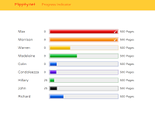
Flippity provides a handful of great Google Sheets templates. I've featured their Random Name Picker, Flashcard, and Jeopardy templates in the past. The latest Flippity template that I've tried is their Progress Indicator template. With that template you can create a progress chart that will update whenever you update the data in the chart. In the video embedded below I provide an overview of how to use Flippity's Progress Indicator template.
This post originally appeared on Free Technology for Teachers
if you see it elsewhere, it has been used without permission.
Related StoriesMy Formula for Creating Useful Workshop Materials5 Good Google Tools for Social Studies Teachers - And How to Use ThemPadlet Now Offers an iPad App - 5 Ways You Can Use It With Students
Richard Byrne
.
Blog
.
<span class='date ' tip=''><i class='icon-time'></i> Aug 17, 2015 02:03pm</span>
|
|
The BBC's iWonder website is a neat resource that provides answers to interesting questions. The answers are arranged as multimedia collections of information. For example, one of iWonder collections answers "what were the 20 key events of WW2?" That collection is arranged as a timeline that you can scroll through. Each event in the timeline is accompanied by text, image, and video (some videos might not play in all regions of the world).
In addition to academic questions iWonder tackles some lighter questions like "why can't I resist food cravings?" and "how can I cure hiccups?" Scroll to the bottom of the iWonder homepage and select one of seven categories of questions. The categories are arts, food, science, consumer, earth, history, and religion & ethics.
Applications for Education
The content on iWonder provides good, general overviews of a large assortment of topics. As such, it's not the kind of site that I'll send students to for research so much as for an introduction to a topic. iWonder is also the kind of site that I like to use when I want to find "bonus material" or "general interest" reading to give to students.
This post originally appeared on Free Technology for Teachers
if you see it elsewhere, it has been used without permission.
Related StoriesFive Good Non-Google Tools for Social Studies TeachersTwo Lessons on Blood Pressure & Blood Types5 Good Google Tools for Social Studies Teachers - And How to Use Them
Richard Byrne
.
Blog
.
<span class='date ' tip=''><i class='icon-time'></i> Aug 17, 2015 02:03pm</span>
|