Blogs
|
This terrific piece came to me via email (thanks Krisca Te) and it’s too good not to share. "20 Things Educators Need to Know about Learning Spaces" talks briefly about Stephen Heppell’s work including his Ingenium project, but the crux of the article is 20 of Heppell’s learning space design ideas in tasty, bite-sized morsels.While "imagineering" the classroom that is now our K4STEMLAB over the last six to eight months, I talked to talented learning space architects & educators like Christian Long, David Jakes, David Bill and Chris Johnson, and I read books like Make Space, The Third Teacher (by Christian’s own firm, Cannon Design) and The Language of School Design. (It was like having my own personal "dream team" of learning space designers at my beck and call. For FREE.)
It is great to see how well Heppell’s "20 things" describe our new classroom. Go ahead, take a look for yourself. If you haven’t seen our space, come by for a visit, we’d love to show you around.
Sorry for the lame low-resolution photo. As soon as my camera is back from the shop,
I’ll take some proper pictures of the finished space.
Kevin Jarrett
.
Blog
.
<span class='date ' tip=''><i class='icon-time'></i> Jul 15, 2015 07:19am</span>
|
|
I’m always looking for new ways to add meaningful interactions to courses and have been exploring Raptivity for this purpose.
Raptivity is a rapid development software tool that comes with a library of pre-built templates, most of which are interactive. The pre-built templates provide a way to quickly assemble an interaction or presentation segment and publish it to a Flash (.swf) format.
You can use Raptivity to create a stand-alone course or you can import the published file into another tool, like Articulate Presenter or Captivate. I’ve been working with the latter approach and have been pretty happy with the results.
The Libraries of Templates
The full Raptivity library of around a dozen products provides over 225 presentation and interactive templates for various audience groups. Many interactions are appropriate for adult learners, while others would only be appreciated by children.
The central product is the Raptivity Essential Pack, which provides a dozen different categories of interaction models, like Brainteasers, Presentation Aids, Interactive Diagrams, Interactive Questions, Software Simulations, Surveys, Glossary, etc. Within each category are several templates. For example, in the Brain Teasers category you’ll find templates for a jigsaw interaction, flash cards, analogous pair, wild cards and a classification exercise.
Some of the templates in the Raptivity Essential Pack
Many of the templates provide users with a quick way to design and build an interaction. A few of the templates, like building a screen of text bullets synchronized with audio, already come in most authoring tools, but are useful if you’re using Raptivity to make stand-alone courses and presentations.
Although the templates are quite customizable, they are not completely dynamic and are limited in the number of objects they allow. For example, an interaction might only allow 4 pictures or 8 sets of matching items.
Unique Features
One of the things that makes Raptivity unlike any product I’ve ever used is that it provides just-in-time support right in the design template. At first I found it confusing because it crowds the screen, but over time I’ve come to appreciate the assistance. Essentially, the documentation for using the template is on display as you work. It’s a unique approach.
Another unusual feature is that the product is immersed in instructional design models. As you browse through the library of templates, you can choose by the category types mentioned earlier, or you can browse by various instructional design paradigms, like Bloom’s Taxonomy, Gagne’s Nine Events, Keller’s ARCS Model and Experimental Learning. See the screen capture below. Even if you’re not familiar with these models or not interested in them, it does point out that someone at Raptivity is thinking about instructional design.
User Interface
In my opinion, Raptivity needs a redesigned look and feel. This is not a deal breaker, because the product works well. But the user interface of the product is its weakest aspect. The screen feels crowded and the look is dated. Where’s that bright and shiny web 2.0 feeling? And where’s the white space? (See below)
I think the intentions were good. In an effort to make everything easily available to the user at one time, they crowded it all in. If Raptivity had a Tabbed Interface, however, users could still have access to the tools and support documentation but the clutter would be gone.
In addition, the terminology needs tweaking. As you design, you select parts of the template, like the Title of the interaction, from the "Select Parameter" window. You change the text or number of items in the "Set Parameter Values" window. Huh? This is the kind of talk that makes sense from a programming perspective rather than the user’s perspective. On the positive side, there’s a cool little feature where you can take Notes.
Conclusion
Once you become familiar with the interface, it’s quite easy to quickly build new presentation aids and interactions from their templates. And I like the wide range of interaction types. If you go to their Products page and select pre-built interactions, you can view the categories and templates that are in each Pack.
Raptivity has a free 14 day trial period, so you can check it out without immediate purchase. Let me know what you think. The Raptivity Essential version sells for $750, with great discounts for education, government and non-profit organizations.
Other Reviews:
Lynda.com Online Training Library
Making Sense Of The iPad For Online Learning
10 Book Recommendations From Varied Fields
If you liked this article, please share it with the tools below.
Post from: The eLearning CoachRaptivity: A Review
Tweet This!
Share this on Facebook
Share this on Linkedin
Buzz up!
Share this on del.icio.us
Stumble upon something good? Share it on StumbleUpon
Connie Malamed
.
Blog
.
<span class='date ' tip=''><i class='icon-time'></i> Jul 15, 2015 07:19am</span>
|
|
Thanks to social media tools like Twitter, many of us who work in the technology-mediated learning arena find ourselves making lasting connections with fellow practitioners of this thing that we do with technology and learning from all over the world....
Ellen Wagner
.
Blog
.
<span class='date ' tip=''><i class='icon-time'></i> Jul 15, 2015 07:19am</span>
|
|
sharing a little science/technology truth… Use of Mobile Technologies in Science Education from Eric Demoncheaux
Chevin S. Stone
.
Blog
.
<span class='date ' tip=''><i class='icon-time'></i> Jul 15, 2015 07:18am</span>
|
|
This post is part of my continuing series of weekly lesson summaries. My goal is to give parents & caregivers in our school community the resources needed to extend student learning at home, and to share my professional practice with teacher colleagues around the world in the interest of improving my craft.
Synopsis: Kindergarten students enjoyed learning about healthy food while "feeding" our class mascot webkin, Gumdrop, online, via Webkinz.com. First graders answered the question "What is Technology?" and explored the courtyard (our outside classroom) looking for examples. Second, Third and Fourth graders finished resetting their Google Account passwords and practiced logging on (they are getting better and better every week)! And in the furniture department, we finally got the giant colorful work tables we ordered back in the summer; once we get the correct chairs, our room setup will be complete!
Please also note: due to our current "Day" rotation, three of my classes (Days 3, 4 & 5) haven’t had these lessons yet; they will this week. We will start with new material on Thursday (Day 1). These days change over the course of the year due to holidays, in-services, etc.
Week ending 10/12/12
Kindergarten
What we learned / did / explored together:
We have for the last few years used our class mascot webkin, Gumdrop, to learn about healthy eating via Webkinz.com. (Handy fun fact: this lesson was actually mentioned on CN8′s "Your Morning" TV show back in 2008.) Students took turns examining some "play" plastic food as we discussed which were healthy and which were not (and why.) Using the SMART Board, we logged on to Webkinz.com and went "food shopping," then we took turns feeding Gumdrop. When we were finished, we played some healthy food games from Sesame Street and PBS Kids (look for Cookie Monster), and some tried our "Healthy or Unhealthy?" food puzzles to work on their mousing skills.
The SMART Board makes it easy to randomly pick students so that everyone has a turn. I have a SMART Notebook file for each class like the one shown in this video (sorry about the annoying music, it was the best video I could find on YouTube.) It works wonderfully and ensures that no one is left out!
What I observed / inferred / connected:
This lesson is one of our favorites every year. I love how it connects something most kids know a lot about (healthy eating) and a popular website (Webkinz). The latter is not as hot as it was years ago, but it still works perfectly anyway, despite the ridiculous advertising.
The food puzzles are a little challenging for kids this age but they are definitely doable; http://www.jigzone.com/ is a wonderful free website you can use to make your own puzzles. Just upload a photo and go!
What students can do at home:
Ask your kindergartner to explain which foods are healthy and why. Have them create a picture comparison. Spend some time on the Kindergarten Symbaloo site for fun and practice.
.
.
First Grade
What we learned / did / explored together:
We asked and answered the question, "What is technology?" We had a LOT of fun offering ideas as to what "technology" meant (I wish I’d written them all down) before clearing things up with our definition: Technology is anything man-made that solves a problem. Using this definition, we were able to identify MANY types of technology around us, highlighted by a visit to our outside classroom (also known as the Courtyard) where students were challenged to find things that were and were NOT technology and have a classmate photograph them. (You can find more pics from the set here.)
We also asked and answered the question, "What is an engineer?" (An engineer is a person who designs and creates technologies.") It was great to see several students who had engineer parents or relatives literally bursting to tell the class about them.
Students then were divided into groups and given a "mystery" technology in a brown paper bag. Together they had to discuss why it was technology, what problem it solved, what is was used for, made of, etc. They also had to draw a picture of the item.
Once finished, students headed over to the Grade 1 Symbaloo page for a few minutes of fun. (Most chose to carve a virtual pumpkin.)
What I observed / inferred / connected:
Students worked together beautifully thanks to expert grouping by the classroom teachers. (They know these kids much better than I do and having groups of compatible kids together ensured that everyone got along and had fun.) It was amazing listening to them discuss their technologies as a group. I am going to have to make a better effort to record the things kids say in my class; some are really profound and well expressed!
This was the first exposure for these students to the Engineering is Elementary curriculum and it worked incredibly well. The activity was fun, got students thinking and talking, and the performance task (have to say I’m not a fan of worksheets) was appropriate. I look forward to building on the knowledge with our lesson for next week, designing a card tower!
What students can do at home:
Ask your child to identify something that is and isn’t technology. If it IS technology, ask them to explain why - what problem does it solve? Where does it come from? What is it made of? How does it work? Let their imaginations run wild as they explain the world around them! Have them use a digital camera to "record" their "observations."
Visit the Grade 1 Symbaloo page and explore the activities there.
Second, Third and Fourth Grade
What we learned / did / explored together:
Our adventures with password setting/resetting continued as I (think I) perfected the process to record and store student passwords. (We will be providing them to homeroom teachers to send home while they memorize them. In the meantime, if your student needs their password, use this handy password reset form.
Students also worked on Typing Pal keyboarding lessons, including the initial test.
What I observed / inferred / connected:
The highlight of the day was letting students change their desktop wallpaper. (They say "the little things" in life are what matter most; this is definitely a "little thing" that had a big impact on the kids this week. It really gave them a sense of ownership of the Chromebooks.)
What students can do at home:
The grade-level Symbaloo pages are worth exploring [ Gr2| Gr3 | Gr4 ] for fun activities. I’ll be adding to those pages constantly throughout the year.
Have your child explain to you what password they chose and why. Encourage them to use different passwords for different (i.e., more important) websites. Managing multiple passwords is a 21st century skill, that’s for sure!
Kevin Jarrett
.
Blog
.
<span class='date ' tip=''><i class='icon-time'></i> Jul 15, 2015 07:18am</span>
|
|
I’ve never done a formal survey, but I’m going to guess that the majority of online courses don’t have a strong emotional impact on their audience. This is true even though it’s been known for some time that appealing to the emotions is one of the keys to motivating people, attracting their attention and facilitating memory.
I have to admit, I don’t always think hard enough about the emotional dimension of my audience either. But I sense that if we were better able to recognize and speak to a learner’s emotions, it would help us escape the rigid design mindset that often prevails in our community. This is the first in a three-part series about this topic.
Emotion and Cognition
The idea that emotion and cognition are opposing phenomena comes from a long philosophical and scientific tradition. It was thought that if emotions were connected to feelings and bodily sensations then they must be quite separate from cognition, which was associated with logic and the mind.
Now sophisticated imaging tools like the fMRI have demonstrated the error in this thinking. We now know that emotion and cognition are dynamically intertwined and interdependent in terms of both neurology and psychology. Emotion and cognition not only interact, but their integration is necessary for adaptive learning.
The Amygdala and All That
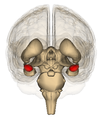
The amygdala is believed to play a key role in emotions
You can’t really discuss emotions without a nod to the amygdala. This is an almond shaped brain structure packed with neurons located as shown in this graphic (in red). Each half of the brain has one of these 1-inch long structures—not too far from the ear—thought to be part of the limbic system, which regulates emotion.
The amygdala is considered to be the primary component involved in emotional memory. Of interest to learning design, is that activation of the amygdala correlates with greater retention of information. In other words, increased emotional arousal following a learning event influences the strength of the memory for the event.
This makes sense in terms of survival. It’s important to remember the fearful and rewarding events in order to protect and enhance your life.
Emotions Are Our Alert System
Cognitive scientists define emotions as powerful, usually short-lived experiences that are a reaction to a specific stimulus. As part of the human evolutionary legacy, emotions arise from a rapid appraisal of an object or event’s significance in order to prepare us for action—similar to an alert system.
Emotions not only increase our general awareness and help us adapt to changes in an unpredictable environment, but they also facilitate social communication and interaction. That’s because we read the emotions of others through their facial expressions, bodily postures, gestures and tone of voice.
Related to this is the concept of feelings, which are the subjective experience of emotions. Whereas emotions are thought to be linked to survival, feelings are not. Emotions can be measured in terms of brain imaging, skin temperature, heart rate and blood pressure. Feelings are currently difficult to measure.
Rapid Decision-making
In terms of making decisions, emotions are thought to bypass the cognitive processes involved in decision-making. While decision-making through cognitive processes involves evaluating and analyzing the costs and benefits of an action, emotional decision-making relies on "rule-of-thumb" concepts and approximations. Emotions allow us to make rapid evaluations and exert less mental effort when making decisions. That’s why advertisers prefer to appeal to the emotions.
As designers, developers, educators and online facilitators, we can take advantage of a person’s emotional capacity to enhance learning. Read about it in Emotions and Learning: Part II.
Do you try to speak to the emotional dimension of your audience? Tell us how.
Related Articles:
Emotions and Learning: Part II
10 Ways To Design For Emotions (Part III)
Books You May Like:
Emotional Design: Why We Love (or Hate) Everyday Things
The Emotional Brain: The Mysterious Underpinnings of Emotional Life
Post from: The eLearning CoachEmotions And Learning: Part I
Tweet This!
Share this on Facebook
Share this on Linkedin
Buzz up!
Share this on del.icio.us
Stumble upon something good? Share it on StumbleUpon
Connie Malamed
.
Blog
.
<span class='date ' tip=''><i class='icon-time'></i> Jul 15, 2015 07:18am</span>
|
|
In the spirit of "a picture is worth a thousand words", here are a few snapshots from December roadtrips, including a trip to Berlin and another to northern Wisconsin. This time the travel itself became part of the story. Sonoma...
Ellen Wagner
.
Blog
.
<span class='date ' tip=''><i class='icon-time'></i> Jul 15, 2015 07:18am</span>
|
|
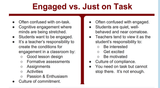
I got up and participated in #satchat this morning. 6:30am CST on a Saturday must mean I wanted to be there, huh? Glad I was, the discussion on student engagement was empowering. the first question focused us just right: What does it mean to engage students in learning? What DOES it mean? My thoughts? #satchat […]
Chevin S. Stone
.
Blog
.
<span class='date ' tip=''><i class='icon-time'></i> Jul 15, 2015 07:18am</span>
|
|
Just so you know, the challenge to collect 1000 pairs of socks by the students and staff of our school was accepted and not quite met. We did collect 984 pairs of socks though! Shout out to my community team member, D. Silvas, whose class won the Middle School Challenge with 154 pairs of socks! […]
Chevin S. Stone
.
Blog
.
<span class='date ' tip=''><i class='icon-time'></i> Jul 15, 2015 07:18am</span>
|
|
This post is part of my continuing series of weekly lesson summaries. My goal is to give parents & caregivers in our school community the resources needed to extend student learning at home, and to share my professional practice with teacher colleagues around the world in the interest of improving my craft.
Synopsis: Kindergarten students were challenged to re-think what they know as "technology" and were surprised to learn that an "engineer" isn’t necessarily someone who drives a train. First graders had a hands-on engineering design challenge and second, third and fourth graders officially mastered the Google Account login process. It was a great week!
Please also note: in our current "Day" rotation, Mondays are Day 3, which means three of my classes haven’t had these lessons yet, and will get this new material on Thursday (Day 1). These "days" change over the course of the year due to holidays, etc.
Week ending 10/19/12
What we learned / did / explored together:
We started off with a few fun games to warm everyone up: ABCYA’s Alphabet Order and Moon Rock Patterns.
We introduced Engineering is Elementary conceptual definitions of "Technology" (something made by man that solves a problem) and "Engineer" (someone who uses technology to build things that solve problems.") It’s great fun listening to the kids’ definitions and then blowing their minds when we talk about the fact that "technology" isn’t just something that plugs in or turns on.
We rocked a SMART Notebook lesson as a class in which kids had to identify items that were and were not technology - some were obvious, others not, and we even debated a few!
We also played with another SMART Notebook lesson as students took turns gradually erasing (revealing) a picture of something an engineer makes. Several students excitedly told the class about family members that are engineers. It was fantastic.
What I observed / inferred / connected:
Blowing kids’ minds (and challenging them to think in new ways) is crazy fun!
Never assume a SMART Notebook file is complete. Kids always find a way to change something or discover a new feature.
I really, really like the way the Engineering is Elementary curriculum is done so far. I can easily scaffold the material as I need to.
What students can do at home:
Have your child explain what "technology" is and what an "engineer" does. Sit back and enjoy. Then ask them to draw a picture with as much detail as possible. Ask them what they might want to engineer.
If you or someone you know is an engineer, have a conversation with your child about it. Let them ask questions!
Spend some time exploring the Kindergarten Symbaloo page: http://ncs-tech.org/embed/kdg.html for fun!
.
.
First Grade
What we learned / did / explored together:
For the second week in a row, our first graders were the first students in the school to try Engineering is Elementary "hands-on" lesson material. This week, students were challenged to work as a team to create the highest tower they could using the provided index cards, scissors (which I intentionally did not demonstrate) and a small amount of tape.
As students entered the room, I was in the "cube pit" working by myself trying to design a card tower. I asked the students to sit down and I explained what I was doing and asked for their advice. I used that as the beginning of my anticipatory set and transitioned into a conversation about the Engineering Design Process. I explained the challenge (design the tallest tower that could hold a small Beanie Baby) and we brainstormed some potential designs. I intentionally had mine fail so I could model the reaction (What happened? How could my design have been improved?) and the hook was set. We broke the kids into five teams and let them loose.
When time was up, each team’s creation was measured for height and tested by placing the Beanie Baby on the structure.
What I observed / inferred / connected:
Grouping students for a project like this is incredibly hard work. Pairs would be much easier (that’s what I’ll be doing in the future.) Effective teamwork is hard. We had many conversations about being a good teammate, the fact that our projects were not competitive (we acted as a single company of engineers all trying to find the right design.)
I love how the Engineering Design Process is explained by the EiE program, it is so easy for kids to "get" that they just take to it naturally.
I need to remember to take pictures of ALL the towers, especially during the test phase when we place the Beanie Baby on top!
What students can do at home:
This project is easy to replicate with index cards (any cards really) as long as there is a fixed supply, they are uniform and can be bent, cut or otherwise manipulated. Kids need the ability to mold the material into whatever shape they need. There should also be a time limit.
Check out the First Grade Symbaloo page http://ncs-tech.org/embed/gr1.html for fun activities!
Second, Third and Fourth Grade
What we learned / did / explored together:
We introduced the concept of the "Do Now," a series of instructions running on the screen when students come into class. (We used these last year with great results.) This was the first time we’d used a "Do Now" in the STEMLAB and I was curious if it would work. IT DID! The weeks of practice paid off as virtually every class was able to successfully log into their Chromebook, follow the instructions and accomplish the task (a warmup with Typing Pal.) This PROVES to me that the students are capable of self-directed work, and I now have to start designing differentiated lessons that take advantage of this ability.
When we were done, I took the opportunity to lead the classes through an abbreviated (but still riveting) conversation about "technology" and "engineering" along the lines of what we did with the First Graders. This is important because next week the students will be designing card towers as the First Graders did (but likely with a few extra "enhancements" I will throw in.)
What I observed / inferred / connected:
Dare I say it? Our network issues appear to have been resolved - most of Friday was an error-free experience! We are so excited!
What students can do at home:
The grade-level Symbaloo pages are worth exploring [ Gr2| Gr3 | Gr4 ] for fun activities. I’ll be adding to those pages constantly throughout the year.
Have your child explain to you what password they chose and why. Encourage them to use different passwords for different (i.e., more important) websites. Managing multiple passwords is a 21st century skill, that’s for sure!
Kevin Jarrett
.
Blog
.
<span class='date ' tip=''><i class='icon-time'></i> Jul 15, 2015 07:18am</span>
|