Blogs
|
This post is part of my continuing series of weekly lesson summaries. My goal is to give parents & caregivers in our school community the resources needed to extend student learning at home, and to share my professional practice with teacher colleagues around the world in the interest of improving my craft.
Week ending 09/28/12
Synopsis: we had another fun week getting used to our new classroom, our procedures, my expectations and the technology we have available to us. (I like to think of it as focusing on instructional situation awareness.) This means that in the short run there will be a lot of similarity in my lessons, but we are already moving ahead with the Engineering is Elementary curriculum in Ms. Crooks’ second grade class. Her leadership and drive will help me determine how best to integrate the EiE program into my other classes. Most of all, we managed to continue to stoke the children’s imaginations while we pegged their interest meters - they got to use the Chromebooks for the first time this past week! They were understandably thrilled (as you may have heard from them!)
Please also note: in our current "Day" rotation, Mondays are Day 4, which means two of my classes haven’t had these lessons yet, and we will start with new material on Wednesday (Day 1). These days change over the course of the year due to holidays, etc.
Kindergarten
What we learned / did / explored together:
Students used the Chromebooks for the first time! I boot all of them up and log all of them in before class starts so all they do is sit down and get right to work. Later in the year we will look to having students log in themselves but most are not ready right now.
We reviewed classroom expectations, then we explored the Chromebooks and the Chrome user interface (UI), practicing proper care and handling of the Chromebooks.
We used my Kindergarten Symbaloo page (http://ncs-tech.org/embed/kdg.html) to provide easy access to a terrific fine motor mousing activity (Bees and Honey), the ever-popular alphabet game at Starfall.com, and two great and fun keyboarding activities, Keyboard Climber and Keyboard Zoo. (They were allowed to choose the activities they liked best.)
What I observed / inferred / connected:
This year’s Kindergarten class (not surprisingly) is the savviest I’ve ever encountered in my ten years teaching. They understood tabbed browsing, vertical scroll bars and "x" to exit.
Their mousing skills are pretty good, which is saying a lot, considering most of their computer experience comes via tablets and touchpad-equipped laptops.
They are well behaved, follow directions easily, and are kind to each other.
What students can do at home:
Kindergarten Symbaloo page (http://ncs-tech.org/embed/kdg.html) will change (it already has) but you can use this page to explore some of the activities we do. If your child is asking you about "the sand art game" just show them that page and they will know what to do!
It would be great if the students could practice/play the activities listed but only if they are not frustrated. Those that know the alphabet will likely have no problem with the keyboarding activities, but developmentally, it’s still a bit early for some.
First Grade
What we learned / did / explored together:
First grade students were the only ones who did NOT get to use the Chromebooks this week. I never thought the "paper laptops" we’d be creating instead would be such a hit but they absolutely were!
Students used pre-cut materials we prepared for them, glue sticks, crayons and tons of imagination to create their very own "paper laptops." (A few more photos of the project are available here.)
What I observed / inferred / connected:
These students went absolutely BONKERS with this project! As soon as they got the concept they worked FEVERISHLY to customize their laptop screens, mice, keyboards and more. Every one of these projects tells a story and I can’t believe how many students asked if they could take them home. I am probably going to relent and let them do so, because I am told that things sent home rarely return - but perhaps enough of them will remain that we will have a complete set to use with other classes when needed.
What students can do at home:
Here is a variation of the project that would make a great home activity: http://kidgiddy.blogspot.com/2011_07_01_archive.html.
Second, Third and Fourth Grades
What we learned / did / explored together:
We started by reviewing class expectations based on all the ideas generated in our past classes. The list will change over time but it will always contain expectations we develop ourselves as a group. Expectations are "translated" from negative "Don’t" statements to positive "Do" statements. So far they are working as designed! These also run on the TV above the SMARTBoard all day for everyone to see.
Students logged into and used the Chromebooks for the very first time. The Google Account "CAPTCHA" was the bane of our existence, causing many delays and lots of frustration but all were eventually able to get in (with the exception of Mrs. Seals’ class, but I fixed the issue and they will be good to go this week.)
Some students were able to get to the Typing Pal program for the initial (pre) test but many were not. We’ll be catching up this week.
Students learned about the Chromebook keyboard, volume controls, headphone connections and more.
What I observed / inferred / connected:
Our four "temporary" tables are too crowded when we have 4th graders in with 25-26 students per class. I am going to have to locate additional tablespace until the proper work tables (36″ x 72″) arrive. Kids need room to spread out. I will begin letting select classes sit on cubes and work starting this week.
The Chromebooks are fantastic. They boot up quickly, run fast, don’t have errors other than an occasional dropped signal (our Meraki enterprise wireless solution is scheduled to arrive Wednesday and will be put immediately into use; I can’t WAIT to see how it performs!) Most of all, kids were as patient and understanding as I’ve ever seen them!
What students can do at home:
If you don’t already use Google’s Chrome browser, consider installing it: https://www.google.com/intl/en/chrome/browser/. You can definitely have multiple web browsers on a computer (all the school computers have Internet Explorer, Mozilla Firefox and Google Chrome). Just be sure you respond appropriately to the prompt about setting your "default" browser. In other words, if your kids are to use Chrome but you don’t want to, don’t allow Chrome to be set as the default browser.
It’s always a good idea for students to WORK AHEAD on the Typing Pal program. If they complete a lesson ahead of time, they might get the opportunity to be class photographer or videographer for the day!
Kevin Jarrett
.
Blog
.
<span class='date ' tip=''><i class='icon-time'></i> Jul 15, 2015 07:19am</span>
|
|
The 2010 Managing Online Education Survey went "live" this past week. This is the second annual survey, jointly sponsored by WCET and the Campus Computing Project, that documents the nuts and bolts of what it takes to successfully run online...
Ellen Wagner
.
Blog
.
<span class='date ' tip=''><i class='icon-time'></i> Jul 15, 2015 07:19am</span>
|
|
I had a extremely brief conversation with a coworker this week about my job as technology liaison and "other people’s edtech jobs". She said she was sorry I didn’t get a job in the district I’d applied for and that it must be awkward working with the person who did. I thought about that a […]
Chevin S. Stone
.
Blog
.
<span class='date ' tip=''><i class='icon-time'></i> Jul 15, 2015 07:19am</span>
|
|
The noise about the release of Apple’s iPad has been a bit overwhelming. Were you too busy to read the reviews, analysis and opinions? No problem. I summarized the gist of it in a quick handy dandy rating system focusing on the iPad’s future for online learning.
Size
As Apple says, the iPad is slightly smaller than a magazine. Its 9.7 inch diagonal screen bodes well for mobile learning. You’ll be able to display more content on the screen than on most other mobile devices. Detractors say that it’s too large to slip into a pocket, but why not slip it into your brief case or backpack? It’s only 0.5 inches thick.
Weight
Weighing in at 1.5 and 1.6 lbs (.68 kg and .73kg), it’s light enough to carry around, even for wimps. Lightweight technology makes learning. collaborating and communicating convenient.
User Interface
The iPad uses the iPhone’s basic user interface with additional multi-touch capabilities. Some applications apparently work more like what you’d find on a Mac. This high-touch type of interface should enable lots of interactivity, games and simulations. This is a great way to foster engaging learning experiences.
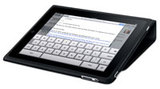
In terms of input, the iPad has a virtual keyboard and Apple offers an auxiliary physical keyboard that connects to and charges the iPad.
Flash Ready
For a variety of reasons that probably only insiders understand, both the iPad and the iPhone do not play Flash movies. Although there will be other types of content creation tools, I see the lack of Flash support as a huge limitation for course developers. [UPDATE: When Flash CS5 is released, developers will be able to package ActionScript 3.0 programs for the iPhone. See this article for more.]
Delivering Content
The iPad is well-equipped for delivering movies (sans Flash), music, narration, graphics and text. For eBooks, it’s using the ePub format, which is an open source standard allowing digital publications to work on different devices. Unlike the Kindle (at the time of this writing), the iPad has color capabilities. The operating system is not capable of multi-tasking, however, which could present obstacles when using the iPad for learning. Don’t you like to move between different content windows?
Collaboration
You’ll be able to collaborate on the iPad, but not through video. The tablet does not come with a video camera. It does have a built-in microphone and stereo speakers so it is audio ready. Text chat is an obvious use and VoIP services should work. The iPad then, can be used for audio-based synchronous learning, collaboration, meetings and just-in-time support.
Social Media
Because the iPad can connect through Wi-Fi and 3G (depending on the model) and has a screen size that makes text legible, it’s ideal for mobile social media activities. Users of social iPhone apps, like Facebook Mobile, LinkedIn, TweetDeck and Seesmic, will have an easy time integrating the iPad into their social media universe. On the other hand, you’re probably not likely to whip out the iPad to text someone like you would with a cell phone.
Applications
It looks as though users won’t be left behind on the iPad. According to Apple, 140,000 existing iPhone applications will run on their tablet. They have also redesigned iWork, the Mac productivity suite with Keynote (for presentations), Pages (for documents), and Numbers (for spreadsheets). Relevant to learning is the iBook app for downloading digital publications. I see hyperlinked and interactive textbooks in our future. In addition to specific iPad applications, users can access the Internet through the iPad’s web browser, Safari. As mentioned, the iPad is not multi-tasking and this can limit how one uses its applications for content creation and online learning.
Connecting To Other Devices
In my mind, connectivity is part of the informal learning paradigm. But the iPad doesn’t have a USB port. Instead, it has a 30-pin connector for docking and charging. The connector gives you access to iPad accessories like the Camera Connection Kit and the Keyboard Dock. To use your USB devices, you’ll need to buy a separate adapter that only works when the iPad is plugged into its proprietary dock connector.
For file management, you’ll need to sync the iPad with another computer in the same way that Apple’s iPod and iPhone work. The problem is that you can only associate your iPad with one other device. If you have multiple computers, just pick a favorite.
Open Development Standards
There are many objections to Apple’s closed development model used for both the iPad and the iPhone. Conventionally, creators of operating systems don’t control the software that users purchase or download. But Apple’s closed model means applications must be approved before they can be loaded onto the iPad, which can be an arbitrary process according to critics. The Free Software Foundation even staged a protest at the iPad’s launch event. In terms of online learning, this could potentially hamper innovation, though learning opportunities through iTunes seem to be plentiful. [UPDATE: Just to be clear, a content creator or developer can create a web application that could be accessed through the iPad's browser. Some current technologies, such as Flash, will be blocked, however. See the note about the coming change for CS5 in the Flash section above.]
Application Development
Course developers will be able to use Apple’s new version of the iPhone’s Software Developers Kit (SDK) which now supports the iPad. This proprietary environment comes with coding resources, libraries, some training and an interface builder. This is a definite advantage for those who have built iPhone applications. I’m leaving this unrated as I have no experience with their SDK.
Even though the iPad doesn’t have a full 5-star rating, I sure would love to own and play around with one!
What’s your take on the potential of the iPad for formal and informal learning?
Post from: The eLearning CoachMaking Sense Of The iPad For Online Learning
Tweet This!
Share this on Facebook
Share this on Linkedin
Buzz up!
Share this on del.icio.us
Stumble upon something good? Share it on StumbleUpon
Connie Malamed
.
Blog
.
<span class='date ' tip=''><i class='icon-time'></i> Jul 15, 2015 07:19am</span>
|
|
During the WCET Annual Meeting Thursday November 11, 2010 Luncheon presentation, during the session the Debate between Dr. Dave Longanecker and Dr. Peter Smith on the topic of Rethinking the Academy in times of Great Change, a question about higher...
Ellen Wagner
.
Blog
.
<span class='date ' tip=''><i class='icon-time'></i> Jul 15, 2015 07:19am</span>
|
|
I have a masters degree in educational technology and although I have been using my new found skills to make the education world a better place, it occurs to me that I’m missing out on something. As I sat in the holding room at the Drury Lane Theatre back in May with my fellow M.Ed […]
Chevin S. Stone
.
Blog
.
<span class='date ' tip=''><i class='icon-time'></i> Jul 15, 2015 07:19am</span>
|
|
This post is part of my continuing series of weekly lesson summaries. My goal is to give parents & caregivers in our school community the resources needed to extend student learning at home, and to share my professional practice with teacher colleagues around the world in the interest of improving my craft.
Week ending 10/05/12
Synopsis: The theme for this week is "What doesn’t kill you makes you strong." Our our Meraki enterprise wireless access point was installed Thursday, reducing the number of dropped wireless connections (and our "agita" levels) quite a bit, but, we still had problems the rest of the week. After researching the issues, we’ve decided to "wipe" and "re-enroll" all 26 Chromebooks on Monday, which should hopefully solve any remaining problems. (If it were not for the delay in obtaining the Meraki [several months] and our mold closure, I’m sure we’d have had these issues addressed by now. We’re doing the best we can.) Instructionally, it was an okay week, with slow but solid progress made by students in grades 2-3-4 regarding sign-on procedures, and, our first graders enjoyed using the Chromebooks for the first time.
The point of the graphic below? Failure is a *REQUIREMENT* because my lab is literally a crucible of technology innovation in our district. We try everything here. We figure out what works, discard what doesn’t, and in the process ensure others in the district (both schools) have as few technology problems as possible when it’s their turn to use the latest tech. I consider it a "cost of doing business."
Please also note: due to our current "Day" rotation, two of my classes (Day 4 & 5) haven’t had these lessons yet; they will this week. We will start with new material on Thursday (Day 1). These days change over the course of the year due to holidays, in-services, etc.
.Kindergarten
What we learned / did / explored together:
We reviewed important Chromebook keys, the location of the headphone jack, tabbed browser navigation tips, practiced connecting headphones and turning volume up and down. We learned a new, easier way to log off (hold the power button until the screen goes black) that also helped us reduce the number of wireless disconnects. We practiced transition procedures ("lids down, eyes on me") and kids are getting pretty comfortable with the Chromebooks. We continued to work on mouse skills with the Roly Poly game on PBS Kids as well as others on our Kindergarten Symbaloo page. We talked about the things we were good at with the Chromebooks and the things we still needed to improve. And, of course, we ended with some quality time on ThisIsSand.com (aka "The Sand Game").
What I observed / inferred / connected:
Students are taking to "tabbed browsing" easier than I thought. Must be because they are using tabbed browsers at home.
Since we have Kindergarten students for nearly an entire hour, it’s very important that we incorporate a variety of activities, lots of movement and free play into my lessons. It’s very easy to see when the kids have reached their learning limits and we can change things up instantly with a hop over to the SMART Board for some "Wheel of Fitness" fun or another program or two.
What students can do at home:
Hit up the Kindergarten Symbaloo page and explore together. Let them explain the activities and why they are important. There are a few we haven’t addressed yet but all are age-appropriate. Just have fun!
First Grade
What we learned / did / explored together:
First we gathered in the SMART Board area with the cubes set in a "Campfire" arrangement and passed around the paper laptops we’d made last week. We used a SMART Notebook lesson I’d prepared earlier (which I controlled using my iPad via Splashtop Remote for convenience and also to blow their first grade minds.) This allowed students to mark up the notebook in response to my questions ("can you find the key that makes the sound louder? Circle it for the class using a SMART Board pen.") It went really well.
We introduced them to the key aspects of tabbed browsing and showed them what to expect when they opened up the Chromebooks (which were already logged in for them.) We bounced over to the First Grade Symbaloo page and worked on mouse and keyboarding skills before letting them choose a fun activity for the last few minutes of class. We also practiced transition procedures ("lids down, eyes on me".)
What I observed / inferred / connected:
Students are taking to "tabbed browsing" easier than I thought. Must be because they are using tabbed browsers at home.
This class (first graders overall) are very helpful and kind to each other, it’s a wonderful sight.
What students can do at home:
Head over to the First Grade Symbaloo page and explore together. Let them explain the activities and why they are important. There are a few we haven’t addressed yet but all are age-appropriate. Just have fun!
Second, Third and Fourth Grade
What we learned / did / explored together:
This was "change your password" time and what a learning experience for everyone, especially me. My lesson changed dramatically from the first time I presented it through about the fourth or fifth iteration. By then I’d made adjustments that simplified things and made sure everyone got done with time to spare. The password change process is pretty straightforward, and I prepared a screencast, I ended up drastically shortening the process (and incorporating the EASY BUTTON just for fun.) Between that and transition process practice, the period was gone before we knew it.
What I observed / inferred / connected:
It is taking everyone a lot longer to master the login process than I had anticipated. The general lack of familiarity with email addresses is a real challenge for most kids. They are having problems finding the "@" symbol (I call it "Capital Number Two"), some put extra spaces in the email address, or they leave the .org extension off. I’m sure they will get better with practice, and, the login cards I prepared for everyone (see above) helped immensely. We will be keeping these on file in my room until kids can log on without them.
Kids really got the discussion about strong passwords. They came up with some excellent ones. Hopefully they will be memorable. We’ll soon find out.
I am starting to wonder if my plans to use the Haiku learning management system (LMS) for these kids will pan out. Right now it’s too early to tell.
What students can do at home:
The grade-level Symbaloo pages are worth exploring [ Gr2| Gr3 | Gr4 ]. My screencasts are there as well as links to important drill and practice programs. I’ll be adding to those pages constantly throughout the year.
Have your child explain to you what password they chose and why. Encourage them to use different passwords for different (i.e., more important) websites. Managing multiple passwords is a 21st century skill, that’s for sure!
Kevin Jarrett
.
Blog
.
<span class='date ' tip=''><i class='icon-time'></i> Jul 15, 2015 07:19am</span>
|
|
Help! I’ve been caught in an immersive 3D Learning Environment! Oh wait, this is just my office. I guess the book, Learning in 3D, has kind of rewired my brain. I’m sure this is an improvement.
According to the authors, Karl Kapp and Tony O’Driscoll, it’s just a matter of time until virtual immersive environments are commonly accepted as the learning mode of choice. So when 3D Learning invades your organization, will you be able to design or facilitate this type of experience?
If you understand the cognitive advantages underlying this approach, you’ll be way ahead of the game.
When Kapp and O’Driscoll refer to a 3D learning experience (3DLE), they’re talking about a rich interactive space in which the learner lives and interacts in real-time within an immersive virtual environment and community. The learners might collaborate to solve a problem, accomplish a task or overcome a challenge.
You may be surprised at the ways learning can potentially be transformed when people are engaged in a virtual immersive environment. Here are some of the key advantages to this approach that the authors highlight.
3D environment created in Thinking Worlds
Generative Learning
In a well-designed 3DLE, learning is transformed from a one-dimensional, directed and managed activity to a multi-dimensional collaborative activity. Learning is generative as it emerges from a participatory experience. Through this approach, peer-to-peer learners or a group of learners create shared meaning together.
Power of Being There
Learning in a virtual world creates the visceral effect of being present in that environment. This has the potential for increasing learning transfer because applying knowledge is more powerful than simply knowing something.
Accomplishing a series of tasks in a virtual environment creates an ideal learning experience. It connects the "visual and mental cues that make the recall and application of the learning" more effective.
Promotes Informal Learning
By now we’ve all heard that the majority of one’s learning occurs informally. Whether it’s related to work, recreation or personal development, an immersive environment can be designed for creating the appropriate context and conditions for informal teaching moments. As in real life, the learning experience will depend on the knowledge and skills of the learner.
3D environment created in Thinking Worlds
Individualized Guidance
One might imagine a 3DLE where avatars run wild and nothing is accomplished. Not so. The effective 3DLE is designed to provide guidance as learners engage in discovery activities that facilitate the learning goals of the experience. Because individuals enter the experience at different levels, the guidance they are offered will naturally vary.
Ultimately, effective learning is dependent on creating experiences that facilitate the learner’s cognitive processing. Learning in an immersive environment appears to have many advantages, but these will only be achieved if the designer uses new paradigms to match this innovative approach.
What are the advantages or disadvantages to learning in a 3D Virtual Environment from your perspective?
Resources:
Buy Learning in 3D from Wiley: Get a 20% discount. Use code L3D1 at the shopping cart.
Learning in 3D Site: Go to the book website to learn more.
Slideshare Presentation: Learning in 3D Thought Leader webinar.
Karl Kapp’s Resources: Good list of resources for 3DLE.
Tony O’Driscoll’s Nuggets: Get nuggets from the book here.
Buy from Amazon: Learning in 3D.
If you like this article … share it with the social tools below.
Post from: The eLearning CoachYour Brain On 3D Learning
Tweet This!
Share this on Facebook
Share this on Linkedin
Buzz up!
Share this on del.icio.us
Stumble upon something good? Share it on StumbleUpon
Connie Malamed
.
Blog
.
<span class='date ' tip=''><i class='icon-time'></i> Jul 15, 2015 07:19am</span>
|
|
Not sure if you’ve heard of this, but, its a great way to get kids involved in the fight against homelessness. Its important that children be aware of the issue of homelessness, poverty, and hunger in America. Our school is in the midst of a #Socktober drive where we hope to gather more that 1000 […]
Chevin S. Stone
.
Blog
.
<span class='date ' tip=''><i class='icon-time'></i> Jul 15, 2015 07:19am</span>
|
|
I attended the Indiana Computer Educators conference in Noblesville this week. ICE is the Indiana affiliate of ISTE. Among other business at this conference, the group will be changing their name to the Indiana CONNECTED Educators. This is a great thing; a way to acknowledge the change in HOW we interact with each other and […]
Chevin S. Stone
.
Blog
.
<span class='date ' tip=''><i class='icon-time'></i> Jul 15, 2015 07:19am</span>
|