Blogs
|
Follow pre-teen intuition to develop a good eLearning design document
Recently I had the honor of speaking to a group of middle school students in a FIRST Lego League, which is an international competition that introduces young people to the fun and excitement of science and technology. One of the components of the competition is to find a better or more innovative way to help someone learn. The team decided to help kids with ADHD learn how to play soccer by building a learning App for an iPad. I was asked to consult with the team on how to build their app.
My first reactions were:
"How do I get them to realize all the tasks they need to perform?"
"How do we pull this off?"
I’ve been working with industrial manufacturing firms to develop training programs for over 20 years. In that time it has been the rare occasion that a project team kicks off the development phase with all the information necessary to start production. There are usually gaps…sometimes canyon-sized.
Well, I was pleasantly surprised! The Lego team had nearly completed the groundwork necessary to begin production. Their terminology may not have been accurate by ID standards, but the tasks had been adequately performed and the groundwork laid.
This really reinforced my view that good instructional design is a clearly defined process for what is a fairly intuitive practice with good research, planning and strategy at its core.
When I received an email from the teacher the day before our team meeting, my fears were alleviated. The email contained notes of the research that they had already done including interviews with:
Subject matter experts about soccer technique
3 medical experts about the audience (ADHD and the best methodology for presenting the information to them)
Experts on how to best deliver the content to this audience
They even had a well thought-out list of questions that they needed answered before they began production.
Unknowingly to them, they had outlined a pretty clear production design document.
Intuitively, the Lego team is well on their way! Here is what they had; all key items for a good design document:
PROJECT GOALS
The Lego team had defined their goal of helping someone with ADD/ADHD learn how to play soccer by building an App for an IPad.
AUDIENC ANALYSIS
They defined their audience and had even done research into what methods work best for kids with ADHD.
DESCRIPTION OF THE TECHNICAL ENVIRONMENT
They had defined the iPad as the platform and even provided rationale for it.
CONTENT OUTLINE
A brief content outline had been provided and was expanded in the elaborate storyboard.
STORYBOARD/SCRIPT
They developed very comprehensive storyboards and even included:
Graphic look and feel
All content needed for the course
Simulation of the key elements of the course
Description of the gaming elements
List and description of all activities
LIST OF REQUIREMENTS
Most of the requirements were also outlined, including:
Game breaks and descriptions of how the games functioned
How the instruction is to be delivered (video, audio, pictures, etc.)
Use of music
Leaderboard
Assessment
Feedback
It was exciting to see a group of young adults so excited about developing e-learning. And it reinforced my belief that much of what we do to design eLearning is intuitive. If we could only bottle the commitment and enthusiasm that these kids had and apply it to our instructional design process….
Now there’s a winning combination.
Ron Trilling
.
Blog
.
<span class='date ' tip=''><i class='icon-time'></i> Jul 21, 2015 07:29am</span>
|
|
HTML, CSS and JavaScript can greatly expand the power of your eLearning software.
Your eLearning software has many built-in features that simplify programming. But what do you do when you want to add features or functionality that is not built into the software?
Some eLearning software features an "HTML object" or "web object." This is an object within the software (usually found under an Insert menu or ribbon) that can be placed on your slide or page along with your other content. The HTML object can then contain HTML, CSS, JavaScript and other web languages that you copy or hand-code into it.
Sounds fancy, but what would you need this for? Here are 4 examples of how to extend your software’s capabilities.
Calculators and Conversion Charts
Your training might involve teaching employees to use custom calculators or conversion charts. A custom tool can be coded in HTML or JavaScript outside of your authoring software and then included as an HTML object. It can then seamlessly be integrated within your course on any slide. Note that passing information from the object to the software and back can be a bit more complicated, but can be done.
Pre-existing Content
You can also include existing coded content like an animated graph, map, simple "To-do" list or custom video or audio player that you would like to feature in your program without having to re-create it from scratch. . The code can be copied and included inside an HTML object the same way.
Animation
If your eLearning module must be viewable on an iPad or iPhone, then your animation capabilities have been reduced by not being able to include Flash animation. The animation within your eLearning software is probably limited to simple moves, fades and transition effects. If you need to demonstrate a process or procedure with a more complicated animation, you might turn to other software like Adobe Edge Animate. It can output your animation as HTML, CSS or JavaScript which will run on iOS devices and can be added to your project as an HTML or web object.
Customizing your own effects
Sometimes you may have to customize the built in effects and animations to achieve your goal (i.e. images or text to move, scroll or pan behind other objects on your page). The way you order and layer your objects are key. I once wanted to mimic the look of a slot machine and scroll multiple rows of and columns of content. I was able to achieve this using the simple Move transition and just had to move the objects behind others to complete the effect. It took longer to setup, but the client was very happy with the results.
ELearning authoring software offers great time-saving benefits. But sometimes you need to step outside the box of built in features. Use html, CSS and JavaScript to expand the capabilities and enhance your training module.
Ron Trilling
.
Blog
.
<span class='date ' tip=''><i class='icon-time'></i> Jul 21, 2015 07:29am</span>
|
|
9 tips on how to save time and money developing eLearning
Maximizing the return on the investment of your eLearning course is an on-going concern. We all want to develop impactful courses, without over-spending our resources.
Before you begin development on your next course, use the following list of time and cost saving ideas to see if any are applicable to your project.
Finalize a design document
Before you begin production, make sure there is an approved, thorough design document. This document should outline the following.
goals and objectives
content outline
delivery platform
authoring tool
specific functionality needed
length of course
testing methodology
media to be used
timeline
budget
The design document will help to ensure that the program scope, content, technical environment and functionality is spelled out and agreed to, saving time consuming and costly changes down the road.
Secure approvals from all stakeholders
Be sure that all stakeholders have signed off on the design document before production begins. Stakeholders have different viewpoints and expectations. Be sure that all stakeholders are in agreement before production begins.
Edit out extraneous material
If you’re in the position to review and edit content, take advantage of the opportunity. Too many times I have seen content that is non-goal oriented included in a program. It is also tempting to include unnecessary contextual background information in courses. Be a critical judge of the content; only include the necessary.
Re-use resources
Judicious re-use of resources is a great way to save time and money in course development. Recycling code, tools, templates, videos and graphic icons are a great way to expedite production. But be mindful of developing cookie-cutter courses.
Schedule your video and photography at one time
If you need to interfere with a production line to shoot photography or video, schedule all the shots in one block of time, if possible.
Record narration after the video shoot
Scripts are quite frequently tweaked when faced with the real manufacturing world. Processes and procedures may not be performed exactly as described back at the office. Save the time and money of making narration changes by holding off on recording narration until after the video shoot. In addition, when you record the narration for quiz and assessment screens, have the format, instructions and feedback finalized before you record the audio.
Set the terms for the review
Typically more than one person reviews a beta program. Insist on receiving ONE review document that details the groups’ consensus on changes. I have received documents with columns from each reviewer that sometimes contradict each other or are non-directive. This often happens when the document gets passed around from one reviewer to another. Save time and money by meeting with all reviewers to go over the final document before sending it on to the developer.
Talk to a programmer
Reviewing a storyboard with a developer before production begins can uncover time saving methods to achieve the same goal. There could be a less time consuming approach to how a tool works, a story is presented or an interaction is developed that doesn’t affect the purpose, but is more efficient. Use your developers as efficiency experts when possible.
Explore animation alternatives
Training for manufacturing applications occasionally calls for animation. If you have determined that animation is the best method for delivering specific content, there are different levels of animation production. Perhaps you don’t need fully rendered 3D animation. Other less costly alternatives include: Series of photos or CAD drawings, line drawings with graphic enhancements or 2D drawings
Ron Trilling
.
Blog
.
<span class='date ' tip=''><i class='icon-time'></i> Jul 21, 2015 07:29am</span>
|
|
6 tips to deliver meaningful training by developing skills, not just "covering content"
A few weeks back a friend purchased a new car. It was a huge technological upgrade over the 12 year-old car she had been driving. The salesman assured her that when she picked up the car he would ‘teach’ her how to use them all! The salesman then spent 20 minutes racing through all of the functions, handed my friend the keys, wished her luck and said to call with any questions.
My friends’ experience reminded me of something I have often seen, and a point underscored by Ruth Colvin Clark in her book, Evidence-Based Training Methods, "Content covered is not content learned". The car salesmen had run through the features but he clearly hadn’t helped my friend develop the skills needed to perform the tasks to use her new car’s technology.
When trainers say that a lesson has "covered the content" they often mean that the content has been presented. Usually such instruction is in a lecture format and, at best, accompanied by slides, or graphics, or a video. And typically a learner is minimally involved. The thought that instruction offered through such an event, whether a lecture or online tutorial, is universally effective without the opportunity for overt engagement is most often case an illusion.
It’s fairly common to be tasked with delivering a lot of material without regard to the actual quality of the learning that takes place. It is easy to be trapped into focusing just on the content. However, there are some instructional elements you can incorporate into your learning to avoid similar mistakes:
Explain the standards of performance
Do so early in the lesson. Cover what has to be achieved for the task to be considered completed satisfactorily.
Train to the task
Present only those steps and decisions necessary to perform the task. This will keep the lesson shorter, allowing the learner to promptly return to his or her work area and apply the learning.
Avoid presenting too much information
Stick to what is critical to successfully perform the task. Avoid required ‘nice to know’ material.
Highlight task-specific safety or other hazard considerations
Cover safety issues as they would likely come up while completing the task and when they might be most commonly encountered.
Add interactivity
Provide opportunities to practice or try what is covered.
Offer frequent, instructive feedback
It’s best to give the learner opportunities to see how he or she is doing in developing the skills and knowledge being taught prior to getting back on the job.
You can avoid the trap of just covering content by: engaging your learners, pointing out what a successful performance looks like, and offering frequent feedback on how to successfully complete the job-task.
Ron Trilling
.
Blog
.
<span class='date ' tip=''><i class='icon-time'></i> Jul 21, 2015 07:29am</span>
|
|
These 3 tools will help organize the authoring process, keeping your project on track
When the design phase of your eLearning program is complete, it’s time to pass the project on to your developer. Organizing the resources needed to author the program is key to effectively communicate what needs to get done. Here are 3 resources that will help organize the project for your developer.
Flowchart of the program
A flowchart is a graphical representation of your eLearning program that maps out all the sections of the program and their relationship to each other. It’s a useful visual aid because it provides an overview of the learning flow of the program - navigation and branching - in a single glance. The flowchart is also a helpful tool for reviewing and troubleshooting the program, and answering questions from your developer.
Storyboard
The storyboard maps out the eLearning module. Three types of information need to be spelled out in the storyboard:
What the learner will hear and see when navigating the course. This can include narration, sound bites, sound effects, videos, animations, graphics, text, navigation buttons, and pictures.
How the learner will navigate through the program and step-by-step directions of what happens. What does the learner need to do to trigger an action? What kinds of interactivity needs to be built into the program? What happens when a navigation button is selected? How do you advance the program or replay a section?
File names for every audio and visual element . Every individual element called out in the storyboard i.e. narration file, sound effect, picture, video clip, animation, graphic, or PDF needs to have a unique file name. To help organize and keep track of the different types of files, I like to assign each type its own 3-letter prefix. For instance if I have 3 video files I’ll name them VID_01, VID_02, and VID_03. Pictures would have a PIC prefix; animation would be ANM, etc.
Revision Documentation
You are most likely going to have some updates and revisions during the development process. Any content changes need to be noted in the storyboard, clearly identified as a change. If there are any new or updated materials, these need to be provided to the developer. Again, be sure and give a unique label name to any new materials and note changes in the storyboard.
I also like to make notes on the first page of the storyboard that describe the change and call out the page title that was updated or revised. This way the developer can easily find what needs to be changed. These notes can also be useful when reviewing or troubleshooting the program. Be sure to revise the name of the storyboard file to reflect when a change is made, and replace the old storyboard with the updated one.
Good communication with your developer is essential in creating an eLearning program. Providing the information above in an organized manner will keep your project on track and moving forward.
Ron Trilling
.
Blog
.
<span class='date ' tip=''><i class='icon-time'></i> Jul 21, 2015 07:29am</span>
|
|
Increase the effectiveness of your course through instructive feedback
If you’ve played the guessing game, I Spy, then you realize how important good feedback is. The rules of the game limit feedback to your questions as "yes" or "no". Although that may be the game’s charm, structuring feedback throughout a lesson similarly undermines its integrity. Many courses, however, rely on similar response tactics when learners answer a question or complete an activity. The added risk is that when a learner guesses correctly, they may not understand why the answer is correct. Which begs the question; do you want a learner guessing how to apply a skill or information once back on the job?
Ensure that your learners are maximizing their eLearning experience by intentionally including quality feedback as an integral part of you lesson. Here’s how…
Design feedback that is instructive. It helps to anticipate what feedback may be needed to help a learner successfully complete the lesson. It is often more instructive when you explain why a response is correct or incorrect and with a focus on techniques or problem-solving processes. The role of feedback is to help ensure that an individual returns to the job recognizing how to apply what was learned.
Build time into your project plan to design feedback. Quality feedback does NOT require new content - it should be drawn from the lesson’s content. It is often only a matter of consciously setting aside time for writing explanations as to why an answer is correct or not. Depending on the types of instructional interactions designed into a lesson, I have found that the creation of instructive feedback usually only increases the writing phase of your project by around 5%.
Know your authoring tool. I sometimes find organizations are not aware of the range of interactions that can be built using related templates or features within their authoring tool. They miss opportunities to construct more engaging lessons that challenge people to apply what’s being taught and to present effective feedback that reinforces what is being learned. A template can serve as a checklist, drawing attention to what’s needed for an interaction to be effective and how to present feedback that is instructive.
You don’t need to explain why the response to every question or activity is correct or not. For example, if a learner only needs to pick the correct switch that will secure a device from a display of switches, then a simple ‘correct’ or ‘incorrect’ is probably sufficient. If, however, the wrong choice could lead to a hazardous situation, then greater guidance is necessary for both a correct or incorrect response.
A wrong answer doesn’t have to mean failure - it can be part of the e-learning experience challenging the learner to do better via guidance offered through feedback. All learners can benefit from instructive feedback.
Ron Trilling
.
Blog
.
<span class='date ' tip=''><i class='icon-time'></i> Jul 21, 2015 07:28am</span>
|
|
How to develop effective e-learning courses through strategic use of video
Use of video by large companies for their employees is exploding. By 2016, predicts Gartner Research, each employee will be viewing 45 minutes of business videos per day.
Video has some great benefits in the workplace. It can:
Show what can’t easily be seen or is difficult to explain
Provide convincing expert testimonials
Demonstrate procedures
Tell stories in a convincing manner
Engage the viewer emotionally, visually and personally in ways that text can’t
Increase retention by involving multiple senses
Illustrate realistic case studies
Plus, videos are in demand. Most employees would rather watch a video than read instructions.
So let’s get rid of instructional designers and hire video producers. Let’s give ‘em what they want! Right?
Well, not so fast. Keep in mind, viewing is not learning
Although video has many strengths, using video as the sole, stand-alone instructional technique has limitations. Video is:
Linear (even annotated, non-linear video is very limited)
Passive
Not customizable
Non-responsive - it cannot judge responses or provide feedback
As a standalone item, video can be effective as an on-demand resource, used in blended learning for instructor support and in limited applications as a demonstration tool. But relying solely on video to deliver self-paced training is generally not the most effective method for comprehensive training. Video is most effective when it is appropriately integrated into a -multi-layered training program that allows for practice, feedback, assessment, and the opportunity to dig deeper.
Videos do a good job of showing, but they don’t let you practice.
Performing activities is at the core of most training objectives. Video allows you to view, but does not let the learner internalize the training by practicing.
Adult learning theory suggests that retention and engagement is increased when adults interact and participate in their own learning.
Effective, immersive multimedia e-learning uses a strategic combination of training methods in addition to video to help students achieve their goals. Suggestions beyond standalone video for development of a fully interactive e-learning include:
Incorporate ACTIVE learning experiences such as use of scenarios and interactive activities
Offer learners the opportunity to dig deeper or seek assistance by linking to additional resources, providing embedded Help, or encouraging engagement in social learning to maximize their experience.
Build in games, simulations and other interactive activities that can result in a more engaging experience than linear video.
Develop opportunities for students to check their knowledge and be provided with customized reinforcement
Embed navigation controls so users have a self-paced learning experience.
Vary the instructional methodology used throughout the program
Video is only one of many tools in the Instructional Designer’s toolbox and used appropriately, it can offer great value and results. But it is rarely THE solution for comprehensive, self-paced e-learning. When developing a course plan, ask yourself, is video the best tool for me to help learners accomplish a certain objective?
Ron Trilling
.
Blog
.
<span class='date ' tip=''><i class='icon-time'></i> Jul 21, 2015 07:28am</span>
|
|
Design Quickly and More Efficiently with these Useful Tools
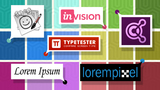
Design has an impact on learning. Design impacts how easy an interface is to use, calls attention to key items on a page, imparts an overall feel for the course and can enhance comprehension of course content. There are lots of great online tools that you can use to help you design a great user interface, envision typography, select complementary color combinations and position placeholder text and images.
Balsamiq - https://balsamiq.com/
Self-proclaimed as "Everyone’s Favorite Wireframing Tool", Balsamiq Mockups is an easy to use program that can help you quickly map your design using premade elements. Features such as Quick Add allow you to partially type the elements you need such as buttons, grids and forms and simply press Enter to add them to your screen. You can customize, resize, and drag and drop elements right on to the screen, making this tool an excellent starting point for helping you visualize your layout. Balsamiq lets you build your designs online or download a trial version. It’s free to try, with more options that come along when you upgrade to a paid version.
InVision - http://www.invisionapp.com/
InVision is a multipurpose tool. Create a prototype of your work to begin, then collaborate with members of your team to get direct feedback right on the design itself. The feedback is then transformed into a neat to-do list that you can check off and that everyone can see. This way your whole team can stay in the loop. It integrates with Sketch http://bohemiancoding.com/sketch/ (a great design app for Mac users) too. You can export artboards or single parts of a design as well.
Adobe Color CC (formerly Kuler) - https://color.adobe.com
Adobe Color CC helps you find colors that work well together for your e-learning projects. You can upload images, build color schemes around an image, and explore color palettes created by others around the world too. And, you can use the presets based on color theory, and create and save color libraries to use with other Adobe software in the future.
Lorempixel - http://lorempixel.com/
Lorempixel is great for finding placeholder images. It has an image size generator that instantly creates images you can use for positioning only. You choose the width and height, and the generator spits out a perfectly sized image.
Lipsum - http://www.lipsum.com/
Lipsum is a simple site that creates dummy placeholder text for you to place in your designs when actual content may not be available. You can create a few words, or entire paragraphs in just a few clicks.
Type Tester - http://www.typetester.org/
Typetester allows you to compare up to 3 different fonts on the same screen. You can change and compare font styles, line spacing, alignment and more with immediate results. This site is currently being updated, but is still a great resource to use in the meantime.
There are great free tools to help with the design of your e-learning courses. Give ‘em a try. Let me know some of your favorites by Replying to the article.
Ron Trilling
.
Blog
.
<span class='date ' tip=''><i class='icon-time'></i> Jul 21, 2015 07:28am</span>
|
|
eLearning Developers - Expand Your Authoring Capabilities with these Tools
Popular eLearning platforms are fairly robust. But there are occasions when you need to break outside the built-in tools or seek additional resources. Here are a few references and tools that come in handy for an advanced eLearning developer.
Introducing the W3C
The W3C, or World Wide Web Consortium is the main international standards organization for the world wide web. This is where coding standards are gathered and agreed upon in order to ensure that your web-page or web-based eLearning program looks and functions the same across browsers. It is also a great reference for you, the developer.
For instance, before you even begin your eLearning program, you are likely to target the hardware platforms and browsers your users will be using to view your program. The W3C keeps up to date statistics on browser usage so that you can make the best decisions in this area. Find browser statistics at: http://www.w3schools.com/browsers/browsers_stats.asp
External HTML Objects
All the major eLearning platforms allow you to insert your own HTML. Since the output of your online eLearning project is likely to be HTML read by a browser, these external objects are simply additional customized HTML snippets (pieces of code) inserted into the page. The W3C has handy references for HTML tags and other languages for you to grab correct syntax from, or just learn about what is possible. For instance, if you would like to add an interactive graph or animation that goes beyond the capabilities of your authoring tool, it can be hand-coded as HTML, CSS and javascript and be added to an HTML object.
HTML reference http://www.w3schools.com/html/default.asp
CSS reference http://www.w3schools.com/cssref/
Animation
If you are somewhat skilled in coding HTML and javascript, you can develop advanced animation techniques to enhance the learning by creating code to add to an html object in your authoring platform. Examples of using animation in learning are: animated graphs, animating a manufacturing system or process, or anything more complex than a move or a fade. Incorporate these advanced capabilities with helpful tools such as the Greensock Animation Platform. http://greensock.com/gsap
Debugging
Finally, when testing your course or an added piece of code, you might notice something doesn’t look right. For instance a color, a font-size, or the location or size of a graphic. In cases like this, the developer tools that come with most browsers can be useful. They are found in the menu of your browser of choice (in Chrome they are in More tools>Developer tools; Firefox uses an add-on called FireBug). When you open these tools, they enable you to click on anything on the page and view the html, css, and javascript that make up that element.
Use tools like these to enhance your eLearning authoring. They will make you more efficient, enhance your courses and help with troubleshooting. Don’t sit down to author without them!
Ron Trilling
.
Blog
.
<span class='date ' tip=''><i class='icon-time'></i> Jul 21, 2015 07:28am</span>
|
|
4 ways iBeacons can be a powerful tool for instructional designers when used appropriately
Recently, I have been prototyping the new iBeacon technology. The more I work with them, the more possibilities I see for use of this technology in e-Learning applications.
For those not familiar, iBeacons are small (about the size of quarter), inexpensive pieces of wireless technology that give location-based information to smart phones and tablets via a low energy Bluetooth signal. Apple released iBeacon technology with iOS7, but the technology is also available on Android devices.
The purpose of a beacon is to enhance the user’s overall experience, connecting the online world with the physical world. Beacons allow you to push location-based information to anyone who has the app. They can detect how far the iBeacon is away from the user and perform a function like open a website, push a location-based reminder or notification, offer up a video, animation or audio file, or even help guide the user to the beacon.
Beacon applications are just starting to emerge in many industries - from retail and education to hospitals and airports. Retail will be a key application. Imagine shopping in a store or mall and receiving special promotions or additional information about a product when you are within its proximity. Or even be able to find a product’s location via mapping technology. I can pretty much guarantee you’ll be seeing this new technology in a store near you soon.
So, how can this powerful new technology be used in training?
Location-based job aids - Imagine iBeacons on the manufacturing floor pushing just-in-time help or safety information. Handy machine-side information such as videos, Material Safety Data Sheets, customized line set-up procedures or technical specifications can be immensely helpful, on-site resource materials.
Location or audience specific information - Your training can be set up for different audiences. Installers, assemblers, service techs and quality inspectors may all need role-specific content. When a learner opens the app, they can select the job function they perform and then be served the specific content that is applicable to them.
Specific learning zones can be set up in a classroom based on the piece of equipment they are training on, area of the classroom or factory that the training is taking place or even type of learning that needs to be communicated.
Learning scavenger hunts - iBeacons can provide discovery learning experiences by placing them in different areas or on different pieces of equipment or help guide learners through an assembly process.
Like most other techniques available to an instruction designer, iBeacon technology can be powerful if used appropriately. It has some very positive qualities, such as it is:
location-based
easily updatable
customizable by audience
able to push a variety of content
able to provide more contextual learning
cost savings - no more printing brochures, training material or maps that become useless when the information changes
Please share your ideas about how you can envision iBeacon technology enhancing your audience’s learning experience.
Ron Trilling
.
Blog
.
<span class='date ' tip=''><i class='icon-time'></i> Jul 21, 2015 07:28am</span>
|