Blogs
|
How to go about changing attitudes, values and beliefs through training.Post from: The eLearning CoachA Quick Guide To Attitudinal Training
Connie Malamed
.
Blog
.
<span class='date ' tip=''><i class='icon-time'></i> Jul 15, 2015 06:45am</span>
|
|
This post is part of my continuing series of weekly lesson summaries. My goal is to give parents & caregivers in our school community the resources needed to extend student learning at home, and to share my professional practice with teacher colleagues around the world in the hopes of improving my craft.
Week ending 03/14/14
Image credit: http://ljpskindergartenteam.blogspot.com/
Kindergarten
What we learned / did / explored together:
Using Skype and Google Hangout technologies, we connected with Kindergarten students as far away as Plymouth, Massachusetts (and as close by as Somers Point) to learn about their schools, their home towns, and their classrooms.
Students prepared artwork responses to questions about Northfield including images of life at the beach, Birch Grove Park, our favorite sports teams, the weather, and more. We also "visited" the school’s locations in Google Earth.
We were so excited I forgot to take any pictures; the photo above is a good approximation of the experience.
What I observed / inferred / connected:
Few of these students knew what "Skype" was but the majority knew about "Face Time" - so that is how we explained it.
Having the kids draw photos in advance was helpful as the papers gave the kid confidence when speaking. (In the past, kids have been so shy they did not participate at all.)
What students can do at home:
If you have relatives you can communicate with via webcam, I strongly recommend you check out one of these free video connection technologies. They are easy to use, fun and a great way to stay in touch.
Check out the Kindergarten Symbaloo for fun learning activities!
First Grade
What we learned / did / explored together:
Students located, opened and edited their Microsoft Word projects from last week, reviewing what they learned, and exploring additional navigation and text formatting techniques.
Since students worked so hard in our past two classes - for the full 42 minutes without a break (which is unusual) - we made sure everyone had some ‘free time’ this week.
What I observed / inferred / connected:
For some, fine motor skills at this age make it hard to accurately manipulate the cursor during text selection (highlighting).
What students can do at home:
Basically, my advice is the same as last week - if kids can do some basic word processing at home, that will help a lot. The formatting skills they are learning here are applicable to just about every word processor ever made.
Check out the First Grade Symbaloo for fun digital learning activities!
Second Grade
What we learned / did / explored together:
Second graders have been doing quite a bit of work in their ELA classes using Microsoft Word so I decided to have them work through some basic formatting exercises to ensure their skills were up to snuff. I created five different sample documents, which, when displayed on the screen in two-page view, provide a helpful "before and after" comparison. I was able to show the kids subtle tricks like using the cursor to identify formatting, techniques for text selection, formatting changes, adding images, and so on. We opened and worked through as many as we could.
What I observed / inferred / connected:
I’m grateful that the second grade team has their students working so diligently in the lab during ELA and other class time. It’s critically important that kids get time to work with technology outside my classroom. Working as a team in this way we will achieve better results than either of us can working alone.
What students can do at home:
Most computers have basic word processing capabilities. Anything you can do to give your child a chance to write at home will help. They can keep a journal, write to a relative, help you make your grocery list, anything at all will help - particularly authentic tasks.
Check out the Second Grade Symbaloo for fun learning activities and KEYBOARDING PRACTICE!
Third Grade
What we learned / did / explored together:
We spent this week finishing up our PowerPoints from last week and exploring fun, new features of PowerPoint 2013 to make presentations more visually interesting, including page transitions (shown above) and object animations.
Students who needed extra time (or who were absent the week before) got caught up.
What I learned / observed / inferred:
This was an interesting lesson. It was fun to see the reaction on kids’ faces as they saw the transitions play; they are, to be sure, pretty spectacular. The best part was explaining the purpose for the transition and explaining that they can easily DISTRACT from a presentation rather than ENHANCE it.
But, then I told them they were in third grade and they get a "pass" until they are grownups - and to go to town and just have as much fun as possible with as many different effects as possible. Why? Because PLAYING is how we LEARN…
What students can do at home:
Check out the Third Grade Symbaloo for fun learning activities and KEYBOARDING PRACTICE!
Fourth Grade
What we covered / did / explored:
We took a break from our school design project for a quick two-week unit on databases. First we talked about databases and what we knew about them (not much.) Then we went shopping at Amazon.com for iPhone cases to illustrate an exceptionally powerful database in action - and how our ‘search terms’ reduce the number of ‘hits’ (matches.) This graphic example of a database in action drove the point home that databases are everywhere, extremely powerful and very fast (when done correctly).
We talked about the structure of a database (tables, fields, records), what a query is (see my Amazon example above), what reports are, etc.
Since we need a database of our own to work with, we use a Google Form (partially shown above) to gather general (i.e., non-personally-identifiable) information to populate the database. This has a number of advantages, including a) making the database more fun and relevant to work with and b) saving us the time and drudgery of manually building one.
With the results posted, we then reviewed the summary chart, making predictions about the data and seeing how accurate we were.
What I observed / inferred / connected:
We’ve done this for years and it’s always one of our favorites. Kids really enjoy it. They relate to the questions and have fun guessing the trends.
Next week, we will combine all the data from each class into a single database and use Microsoft Access to query the data and possibly run some reports. For example: among 9 year olds, who is more likely to make their beds - boys or girls? Does it change for 10 year olds? How many students get up before 7:30 am and do more than one hour of homework per night? The kids find these kinds of questions fun and engaging.
What students can do at home:
Check out the Fourth Grade Symbaloo for fun learning activities, in particular, keyboarding!
Kevin Jarrett
.
Blog
.
<span class='date ' tip=''><i class='icon-time'></i> Jul 15, 2015 06:45am</span>
|
|
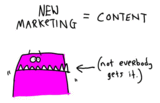
This new cartoon from Hugh at Gaping Void made me smile but also fills me with dread. The new marketing may be all about content but it has to be authentic content - the thought of thousands of corporate marketing drones pushing out content that is ‘written’ to attract new customers via the searchosphere is deeply depressing. Let’s hope that web savvy surfers will see through the corporate marketing speak.
John Curran
.
Blog
.
<span class='date ' tip=''><i class='icon-time'></i> Jul 15, 2015 06:44am</span>
|
|
This post is part of my continuing series of weekly lesson summaries. My goal is to give parents & caregivers in our school community the resources needed to extend student learning at home, and to share my professional practice with teacher colleagues around the world in the hopes of improving my craft.
Week ending 03/21/14
Kindergarten
What we learned / did / explored together:
We warmed up with a keyboarding activity for a few minutes then had a conversation about the most important event this past week - the first day of spring. We talked about the changes in the weather, the things we are all looking forward to, and things we notice when the season changes. It was a lively discussion!
We headed over to Kerpoof.com to whip up a quick illustration for the occasion. Kerpoof is great because it’s simple but powerful. The interface is easy to explain. I demonstrated how to add images and change their size & orientation; how to remove them; how to add text and change its appearance; and how to print/save their files. With that, the kids were set free, and had to select an appropriate setting, add appropriate images, add the provided text for a title and their name, changing its color and font, and finally, printing in color.
What I observed / inferred / connected:
This went about as well as I expected; we are making progress with our keyboarding skills and text entry was quick. Students took what I asked of them to heart and created images like the one above with well-sized and well-placed graphics and text. Printing in color was the final reward - kids love taking their work home!
What students can do at home:
Head over to Kerpoof.com and let them explore. We used "Make a Picture" (the yellow square) for this activity. Check the others out, too, but be forewarned some are for older kids!
Check out the Kindergarten Symbaloo for fun learning activities!
First Grade
What we learned / did / explored together:
This week’s theme was online safety - specifically, going places safely on the Internet. We discussed what the Internet actually "is," how a website address is like a person’s address, and why it’s important to have an adult nearby when going online. We also watched the brief and helpful video above and learned three tips for online safety: 1) Ask permission before going online; 2) only talk to people you know; and 3) stick to websites that are just right for kids. This activity was derived from the excellent Common Sense Media lesson entitled "Going Places Safely."
After finishing the video and our discussion, students had to complete an illustration of their favorite website (using paper and crayons). They had to explain what they do on the site, what it looks like or includes, and how they get there.
What I observed / inferred / connected:
Kids are getting smarter and smarter about online safety, largely due to immersion at home. Most reported having some sort of computer or handheld device they use for accessing the Internet. Years ago this was not the case; children are now coming to school with a solid foundation of Internet surfing skills including how to get to a website for the first time and the importance of having an adult nearby when surfing.
It was heartening to see how many kids chose the First Grade Symbaloo as their favorite source for website surfing at home. I’m glad they find it useful and fun.
What students can do at home:
Review the three safety rules above.
Talk with your child about websites they visit, how they get there, how they know it’s right for them.
Check out the First Grade Symbaloo for fun digital learning activities.
Second Grade
What we learned / did / explored together:
We started a new Engineering is Elementary (EiE) unit on Civil Engineering. "Javier Builds a Bridge" is the storybook that is part of EiE’s "To Get to the Other Side: Designing Bridges." As is customary for these units, we read the first half of the story, working in comprehension questions as we progressed. This time, however, at the end of the reading, students had to complete an "Exit Ticket" (quiz) as a class. (I am experimenting with using quick surveys as Exit Tickets to check for understanding.) We also built in some time for keyboarding practice at the start of class.
What I observed / inferred / connected:
This lesson went very well overall; students were able to get logged onto their Chromebooks and into Typing Pal to complete an exercise without much difficulty. The story was fun and fast-moving; the Exit Ticket also worked as planned and gave me valuable feedback that helped me in future classes during the week.
What students can do at home:
Spend some time talking about bridges in the area. See which ones they can name. Have the students describe the bridge, what it’s made of, it’s shape, etc. We will be discussing bridge types in this coming weeks’ lesson.
Check out the Second Grade Symbaloo for fun learning activities and KEYBOARDING PRACTICE!
Image credit: http://www.everythingkids.co/
Third Grade
What we learned / did / explored together:
After a brief keyboarding warmup, students gathered some quick Internet safety tips utilizing resources I provided including the image above and this link from the New York Public Library. Students put tips into their own words on a worksheet I provided then used Quozio.com (above) to create graphics. The images they create will be used this coming week in part 2 of the project.
What I learned / observed / inferred:
This went well, about as I expected, the research & rewriting/restating was done quickly, and Quozio.com was fast and easy to use. Kids were easily able to save their images for next week.
What students can do at home:
Internet safety is always a worthy conversation at home. You may be surprised how much your kids know. Ask them!
Check out the Third Grade Symbaloo for fun learning activities and KEYBOARDING PRACTICE!
Fourth Grade
What we covered / did / explored:
Students used Microsoft Access to explore a database of information about 4th grade students. We reviewed some vocabulary about the structure of databases (i.e., tables, fields, records) and how information can be extracted (e.g., queries, reports). We then challenged the kids to answer questions like: a) how many students skip breakfast? b) What is the most popular birth month? c) Who does more homework - boys or girls? Students used the ‘Filter’ function in Access to determine the answers.
What I observed / inferred / connected:
This was great fun, as it always is, because once the kids "get it" - they can find trends in the data - they immediately start wondering things - things that can be answered with a query - and they literally jumping out of their seats with suggestions and ideas to explore. The database, built in this fashion, did exactly what I wanted - it made the process of generating queries more personal and a lot more fun.
What students can do at home:
Check out the Fourth Grade Symbaloo for fun learning activities, in particular, keyboarding!
Kevin Jarrett
.
Blog
.
<span class='date ' tip=''><i class='icon-time'></i> Jul 15, 2015 06:44am</span>
|
|
This post is part of my continuing series of weekly lesson summaries. My goal is to give parents & caregivers in our school community the resources needed to extend student learning at home, and to share my professional practice with colleagues around the world in the hopes of improving my craft.
Week ending 03/28/14
Sample e-mail exchange (circa 2013)
Kindergarten
What we learned / did / explored together:
Last week, Kindergarteners learned how the Internet is both a source of information and means to connect with others. This week, we showed them what it meant in real time as we demonstrated e-mail with a live example. The classroom teacher went back to their room and I entered a message from the students. They received it and replied (unintentional hilarity often ensued.) We contrasted that with how "classroom messengers" get information to the office - on foot. Kids then used ABCYa’s PaintGo app to create images of what happened.
What I observed / inferred / connected:
This lesson is always fun and effective. New this year: the number of students who claim experience with e-mail - about two thirds of the class, which seems extremely high. (Hey, they tell me it’s so, and I take their word for it, okay?) Again, the kids were nonplussed by the immediacy of e-mail as a form of communication, as "instant" is all they have ever known in life. They were more impressed by their teacher’s witty responses to our questions!
What students can do at home:
If you don’t already, involve your child in the process of e-mailing relatives. Let them ask questions, maybe even keyboard a bit. Watch in awe as they react when replies arrive. It may not be as cool as FaceTime but it’s important for them to understand the medium as a communication tool.
First Grade
What we learned / did / explored together:
This week we introduced students to the use of Internet-based maps. We began by asking how many students knew their house number and street. Consistently, only about half did. I mentioned that it would be a good thing to know and moved on, showing them an aerial view of our school using Bing Maps, whose imagery blows Google’s out of the water. (In one version of the images you can actually see Kindergarten students on the "Greentop.") We talked about addresses, ZIP codes, compass roses, and satellites. After I demonstrated the process, students entered the school’s address, entered ‘Bird’s Eye’ view, and saw the details themselves. We then passed out strips of paper with everyone’s home address, which they used to locate their houses. The completed the worksheet above (the artwork was the best part - kids chose to illustrate the most amazing things.)
What I observed / inferred / connected:
We do this lesson for a couple of reasons. First, the Cumulative Progress Indicator for NJCCCS Standard 8.1.2.F.1 says that by the end of Grade 2, students should be able to "Use mapping tools to plan and choose alternate routes to and from various locations." This is an introductory lesson that lays the foundation for work we do in Second Grade. To be honest, many of the kids already know how to look up places on a mapping site, even if they don’t know their home number and street (which is another reason we do it.) We also do it because it’s ridiculous amounts of fun.
The lesson did not go off without a hitch; in every class, someone can’t find their house. Usually it’s due to a misspelled street, or an out-of-date map (new houses don’t always show up), but most often, it’s just WRONG, identifying the wrong house a few doors down. I use this as a great teachable moment, because kids are more likely to believe that "if it’s on the computer, it has to be true." Might as well start helping them develop their sense of "healthy skepticism" now.
It’s also fun for kids to find each other’s houses, and realize some friends are just a block away (or less), when they didn’t know. (Exciting times for your typical First Grader.)
What students can do at home:
First, be sure your child knows their house number and street name. It’s just a good idea. Second, head over to Bing Maps and have them enter their address to bring up the location. Remember to click "Bird’s Eye" on the top toolbar and then to zoom all the way in. Prepare to be amazed…the resolution is truly incredible. Now ask your child to see if they can recognize local landmarks - the school, Birch Grove Park, Rita’s Water Ice, etc. Challenge them, you’ll be amazed at what they find.
Check out the First Grade Symbaloo for fun digital learning activities.
Image credit: Museum of Science, Boston / Engineering is Elementary
Image credit: Museum of Science, Boston / Engineering is Elementary
Image credit: Museum of Science, Boston / Engineering is Elementary
Image credit: http://commons.wikimedia.org/
Second Grade
What we learned / did / explored together:
We finished the storybook, "Javier Builds a Bridge" and found out how Javier responds to the challenge of designing a new bridge to cross the creek and get to his fort. We learned about different types of bridges (suspension, beam and arch) and discussed some real-life examples (local and otherwise). We took a quick "Exit Ticket" (quiz) as a class to see how well they remembered what we just talked about. We finished with some keyboarding - I wanted to make sure we had time to complete the lesson, which we did.
What I observed / inferred / connected:
This story was okay, not one of the best I’ve seen from EiE, but not one of the worst, either. The premise is good and the dialog is too. The ending could have been more dramatic and powerful but it got the job done. Overall the story is believable and is very solid realistic fiction.
That said, the kids were happy to see the story end because they know that means we start BUILDING bridges in our next class. They’re very excited. I hope they enjoy what we have planned.
What students can do at home:
We introduced some new vocabulary - bridge types (beam, suspension, arch) and components (piers, span and abutment). See if your child recalls those details. I didn’t think I’d get through the week having to say "abutment" without snickers and comments from the kids, but, we managed to do so.
We are going to start building bridges so it would be great if kids could notice and try to identify bridges in the area, as it will help them with their designs.
Check out the Second Grade Symbaloo for fun learning activities and KEYBOARDING PRACTICE!
Third Grade
What we learned / did / explored together:
As a quick follow-up to last week’s lesson in which students created catchy graphics with Internet Safety tidbits, they added them to a Google Presentation, which we will be using later this year in another lesson involving collaboration with another Third Grade class designed to emphasize online teamwork.
What I learned / observed / inferred:
This was a fairly simple lesson, especially in comparison with one we did recently utilizing PowerPoint, which has more features and is therefore more complex. I actually prefer the slimmed-down interface in Google Docs; it allows the user to focus on content, not nifty effects.
Students like and appreciate the auto-saving nature of Google Docs; it’s great to know their work will never be lost.
What students can do at home:
Internet safety is always a worthy conversation at home. You may be surprised how much your kids know. Ask them!
Check out the Third Grade Symbaloo for fun learning activities and KEYBOARDING PRACTICE!
Fourth Grade
What we covered / did / explored:
After taking a couple of weeks for a brief tangent to study databases, we returned to our "ideal school" design project with a visit to the PC-equipped computer lab (equipped with Google Sketchup, which does not run on the Chromebooks.) Students are using what they know about existing school buildings and those they can only imagine and are creating mockups which will be printed on our Makerbot Replicator 2 3D printer for them to take home.
What I observed / inferred / connected:
After a quick orientation, students learned the basics far more quickly than I expected, and they are all successfully designing structures - some of which are very traditional, others, not so much. We will be continuing this design exercise next week.
What students can do at home:
Talk to your child about what an "ideal school" would look like to help them flesh out details.
Check out the Fourth Grade Symbaloo for fun learning activities, in particular, keyboarding!
Kevin Jarrett
.
Blog
.
<span class='date ' tip=''><i class='icon-time'></i> Jul 15, 2015 06:44am</span>
|
|
I’ve just received an invitation to join the second tranche of beta testers for Articulate Storyline, the new e-learning authoring from those great people at Articulate. I downloaded the software and installed it on my Windows 7 machine without a hitch and so far I am really impressed. I can’t say anything more than that because as a Beta tester I’m not able to disclose detailed functionality but I’m really looking forward to putting this innovative software through its paces. Maybe I’ll even start developing my first Storyline Training Course - I seem to have been telling my Articulate Studio course participants about the ‘new product’ for ages now. I wonder if anyone is writing a book? Now there’s an idea…don’t tell Patti Shank or Jennifer Bircher though.
John Curran
.
Blog
.
<span class='date ' tip=''><i class='icon-time'></i> Jul 15, 2015 06:44am</span>
|
|
Stories are the oldest communication form and are proven to be easily recalled and repeated. Read the interview.Post from: The eLearning CoachVisual Storytelling: Interview with Nancy Duarte
Connie Malamed
.
Blog
.
<span class='date ' tip=''><i class='icon-time'></i> Jul 15, 2015 06:44am</span>
|
|
This post is part of my continuing series of weekly lesson summaries. My goal is to give parents & caregivers in our school community the resources needed to extend student learning at home, and to share my professional practice with teacher colleagues around the world in the hopes of improving my craft.
Week ending 04/04/14
PowerPoint ABC book, Kindergarten
Kindergarten
What we learned / did / explored together:
Kinders this week got their PowerPoint on with a template created to get them comfortable with the basics of the program - icons, menus, input boxes, slide layouts, images and text entry. They logged into the PCs on their own using the Kindergarten credentials and then navigated our network folders (!) to locate the template to begin working. They learned how to enter words onto a slide and type into a text box to search for images. For those who might need help spelling (or thinking of words for each letter), I provided a one-page sheet with some common words and images. When we were done, students saved the files with their first names.
What I observed / inferred / connected:
This went well, thanks primarily to our amazing kinders, and to the slow, methodical, step-by-step approach we took with explaining the template. Kids who grasped the concepts quickly were able to move on to more letters while those who needed extra help were able to get it (from a teacher or sometimes a classmate.) These kids are extremely hard workers and are very eager to please. PowerPoint’s novelty is significant and they enjoyed "making the show go" to see their progress.
What students can do at home:
Even without PowerPoint at home, kids can still benefit from keyboarding simple words using any word processing program. If the program includes clip art, that can be searched too. I do not recommend image searches on the Internet unless you have web content filtering software at home or are familiar with Google SafeSearch, one of Google’s free and very effective safety tools.
There’s always the Kindergarten Symbaloo for fun learning games and keyboarding activities!
PowerPoint Adjectives Project, First Grade
First Grade
What we learned / did / explored together:
A conversation with First Grade teacher Amanda Jakimowicz led to this lesson, which builds upon work the students are doing in ELA while strengthening their technology skills, specifically in this case, PowerPoint. Before we began, we brainstormed visible signs of spring (using our imaginations since there are few around us these days) and then thought up rich adjectives that described them in terms of our senses of sight, touch and smell. After we had a few examples, students accessed a PowerPoint template with a prompt to complete, i.e., "I see…" They entered text and searched for clip art which they inserted and resized. We planned to have them also change fonts and colors but were unable to given the short time we had in class.
What I observed / inferred / connected:
The brainstorming "signs of spring" part of this lesson was the hardest as kids provided examples that, while correct, weren’t the most suitable for our task at hand. One sign of spring: "warm air." You can’t see it, you can’t touch it, but you can smell it … sort of. We were able to steer the conversation in directions that worked, and, once everyone had a few nouns and adjectives that were usable, off they went.
Technically speaking (with regards to PowerPoint), kids did very well, easily navigating the program, entering text, locating, inserting and resizing images, etc. We had covered it earlier in the year and it was gratifying to see so many retained the knowledge.
What students can do at home:
Check out the First Grade Symbaloo for fun learning activities!
Second Grade
What we learned / did / explored together:
Kids could hardly contain their excitement as they entered the STEMLAB this week … they knew this was the week we started building! Preparing the materials for a class of 20 (times five, remember) is a challenge for these STEM activities but it’s worth the effort. Kids began by diving into the "Imagine" phase of the Engineering Design Process by working with their partner to sketch out four preliminary designs incorporating the available materials. They spent some time deciding which was best and then sketched out a "Plan" before they began construction, also known as the "Create" phase. They were provided with a bridge deck, several sheets of 8.5″ x 11″ paper, four paper cups, some string, scissors, tape and straws. They also were given some steel nuts and a plastic cup to test their structures. The goal is to design a bridge a toy car can cross that is also capable of allowing the "Crayon Barge" to pass underneath. Once successful, students use the nuts, placed one by one into a cup at the center of the bridge, to determine its strength. In addition, the bridge could not be attached to the table or support cubes in any way.
What I observed / inferred / connected:
This was the first of a planned two-week effort and it went well. Students were able to build bridges that worked but quickly discovered they were not as strong as they could be (the toy car used to test is very small and light.) The failing bridges provided excellent feedback, demonstrating where the designs were weakest, prompting rethought and redesign. Teamwork was evident (though we still have some work to do in this area…) as we worked to ensure everyone contributed to these initial designs. The class went by very quickly! Everyone was proud of their accomplishments and excited about finishing next (this coming) week, embracing the final "Improve" phase of the Engineering Design Process.
What students can do at home:
Talk to your students about bridges - there are many around us - ask them what they know about the design, what type (suspension, beam, arch) it is, why it was created, what other design elements they can identify (perhaps a bridge that combines different design elements.) Ask them how they might have designed it differently, and why.
For online practice and skill development, the Second Grade Symbaloo awaits!
Third Grade
What we learned / did / explored together:
Robotics and coding were the theme last week (and will be this week as well) as students either constructed and successfully programmed an animated LEGO model (using our LEGO WeDo kits, provided by the Northfield PTO) or explored programming concepts via the lessons at BotLogic.us. (We can only accomodate five teams using the WeDo kits at a time, and to keep the team sizes down (pairs), I could only have half the class using them at one time. So, I needed a second activity for the rest of the class and chose BotLogic (Mrs. Heenan’s class will be using it this week; they used the excellent online LEGO simulator BuildWithChrome (Google Chrome browser required) instead.) The BotLogic activities start easy but get progressively more complex; students found them challenging but no one got frustrated.
What I learned / observed / inferred:
This lesson was inspired by our work with the LEGO WeDo kits in Second Grade earlier this year, but with a twist: the programming activity was more involved as students needed to customize and alter the code after it was completed, adding visual and sound effects, changing operating parameters, and more.
The BotLogic.us lessons were among the most popular activities during the "Hour of Code" initiative back in March. The lessons have great online help and do a fine job explaining what’s required to progress successfully through the activities.
What students can do at home:
Those with LEGOs might want to download the free and fabulous LEGO Digital Designer (LDD) software, here, for hours of virtual LEGO building fun.
Check out the BotLogic.us lessons and see how far they can go! If they need more, I highly recommend a free account on Tynker.com.
Check out the Third Grade Symbaloo for fun learning activities and KEYBOARDING PRACTICE!
School Design, Trimble Sketchup, 4th Grade
Fourth Grade
What we covered / did / explored:
Students continued working on their 3D renderings using Trimble (Google) Sketchup, adding details to their designs and additional "features" from the 3D Warehouse, a collection of user-created models of amazing detail and complexity that can be easily added to a project. The pool furniture and beach ball in the model above came from the 3D Warehouse.
What I observed / inferred / connected:
Kids loved this, almost without exception. The software can be challenging - I am still learning it myself and wish I had a better command of it - but we worked to ensure everyone was proficient and successful by the end of the class.
I will start rendering these models using our 3D printer this week for delivery to the students, as promised.
What students can do at home:
Sketchup is free to download - click here - and I know several students have already done so (because they told me!) I recommend the Sketchup MAKE version only because it’s the most current and will get regular updates. I actually dislike what they’ve done with the interface and prefer the version we use at school, which is Sketchup 8 (available here.) Don’t take my word for it, have your kids try ‘em both and decide! The good news is that anything they design in Sketchup can be rendered in 3D, all I need is the .SKP file!
Check out the Fourth Grade Symbaloo for fun learning activities, in particular, keyboarding!
Kevin Jarrett
.
Blog
.
<span class='date ' tip=''><i class='icon-time'></i> Jul 15, 2015 06:44am</span>
|
|
I’ve always wanted to make it to DevLearn - the US ‘future of learning’ conference and show. This year it took place in Sin City (Las Vegas) which is a little too far for us Europeans to go unless we are are on some corporate sponsored jolly. My colleague Kate Pasterfield at Sponge however combined a trip to her US relatives with a visit to conference - will be keen to hear what she thought of the event when she gets back. In the meantime here is a nice summary of the topics covered on the Twitter backchannel from the conference plus the ‘curated’ backchannel page from the DevLear11 web site. Not quite the same as actually being in Sin City but useful nonetheless.
DevLearn11 Backchannel Summary Page
Twitter Backchannel Summary from DevLearn11
John Curran
.
Blog
.
<span class='date ' tip=''><i class='icon-time'></i> Jul 15, 2015 06:44am</span>
|
|
This post is part of my continuing series of weekly lesson summaries. My goal is to give parents & caregivers in our school community the resources needed to extend student learning at home, and to share my professional practice with teacher colleagues around the world in the hopes of improving my craft.
Week ending 04/11/14
Kindergarten
What we learned / did / explored together:
We spent another session in the PC lab (also known as Elementary School Lab #1 or ESLAB1) working on our PowerPoint Alphabet Books. We will need one more session after this to complete the project.
Kids logged in with the "Kindergarten" username and password, traversed the network to locate and open their files, and continued adding text (alphabet words) and graphics (matching clip art) to their books.
What I observed / inferred / connected:
The kids genuinely seem to be enjoying this, far more so than I expected. Several students are going ‘above and beyond’ by coming up with their own ABC words, rather than using the ones I provided. All are engaged, working diligently, and without complaint.
What students can do at home:
Even without PowerPoint at home, kids can still benefit from keyboarding simple words using any word processing program. If the program includes clip art, that can be searched too. I do not recommend image searches on the Internet unless you have web content filtering software at home or are familiar with Google SafeSearch, one of Google’s free and very effective safety tools.
There’s always the Kindergarten Symbaloo for fun learning games and keyboarding activities!
First Grade
What we learned / did / explored together:
We have been working for the past several weeks on use of the Internet, exploring ways it can be used safely to learn new things, entertain us, and connect us with people we know. For this week’s lesson, we introduced the students to the concept of Internet research via the site http://www.borrico.com/, a sister site to the fabulous (but a little more confusing) http://www.kbears.com/. First, kids offered observations why and how Borrico.com was "just right" for kids and how they could tell; we explored site navigation, including identifying and following hyperlinks; using site navigation controls to access the information we want; reading animal facts and putting them into our own words; and finally, creating a colorful "research page" with some of those facts.
What I observed / inferred / connected:
This was very successful - even more than I’d hoped - as kids enjoyed both the digital (using the website, locating information) and analog (coloring by hand) aspects of the work. They enjoyed reaching into the "mystery bag" I’d prepared to get a small card with a photo of the animal they were to research; they enjoyed paraphrasing the animal facts and writing their sentences.
What students can do at home:
Borrico.com is a great site suitable for use at home. Let your child show you around, including how to find information on the site and print the coloring pages. Then, explore http://www.kbears.com/ together - there’s even more to see and do.
Check out the First Grade Symbaloo for fun learning activities.
Second Grade
What we learned / did / explored together:
Students completed the second of two planned weeks’ work on bridges for our STEM project, this time, finishing bridge designs and performing strength tests. The final bridges needed to a) allow for a ‘crayon barge’ to pass underneath and b) allow a toy car to drive across. Then, students had to place a plastic cup over the spot where the barge passed through and add successive amounts of weight (3/8″ steel nuts) until the bridge failed (defined as flexing more than 1″ from its starting point.) Each time the bridge failed, students were challenged to notice why and how it failed, then to redesign their bridge to strengthen it, recording data along the way. Next week, we’ll be reflecting on the design and testing process.
What I observed / inferred / connected:
Everyone enjoyed the testing phase and there was plenty of evidence throughout the week that kids were applying their knowledge (and leveraging others’ ideas) to make the strongest bridges they possibly could. Creativity and enthusiasm were on full display as bridge designs (some very unconventional/unusual) either held up to the weight tests or didn’t. At the end of the lesson, kids could take the bridges home (playing Rock/Paper/Scissors to decide who got it).
All the bridges were a combination of styles - beam, arch and suspension - and some needed reminders of the various elements in order to be successful. (Which isn’t surprising considering the terminology was introduced to them in this unit.)
It’s a shame we didn’t have more time (i.e., a longer class period) to do this project as I think we could have completed the design and testing in one go, but it was just too much for a single 42-minute lesson.
What students can do at home:
Talk to your students about bridges - there are many around us - ask them what they know about the design, what type (suspension, beam, arch) it is, why it was created, what other design elements they can identify (perhaps a bridge that combines different design elements.) Ask them how they might have designed it differently, and why.
For online practice and skill development, the Second Grade Symbaloo awaits!
Third Grade
What we learned / did / explored together:
This week was the same as last week, except that we rotated activities - kids who built and programmed LEGO WeDo Robots last week worked instead on BotLogic to learn the basics of coding, and vice-versa.
What I learned / observed / inferred:
It was another exciting day of creation, experimentation and learning by doing marked by hard work, furrowed brows and spontaneous cheers!
What students can do at home:
Those with LEGOs might want to download the free and fabulous LEGO Digital Designer (LDD) software, here, for hours of virtual LEGO building fun.
Check out the BotLogic lessons and see how far they can go! If they need more, I highly recommend a free account on Tynker.com.
Check out the Third Grade Symbaloo for fun learning activities and KEYBOARDING PRACTICE!
Fourth Grade
What we covered / did / explored:
Students finalized their 3D "dream school" renderings using Trimble (Google) Sketchup. We started printing their designs using the 3D printer (above.) My goal is for every student to have a work product to take home. We also grabbed ‘screenshots’ of their designs for use in presentations about the project.
What I observed / inferred / connected:
Sketchup is tough, but, once the kids have the basics, look out - their creativity and imagination will run wild!
What students can do at home:
Sketchup is free to download - click here - and I know several students have already done so (because they told me!) I recommend the Sketchup MAKE version only because it’s the most current and will get regular updates. I actually dislike what they’ve done with the interface and prefer the version we use at school, which is Sketchup 8 (available here.) Don’t take my word for it, have your kids try ‘em both and decide! The good news is that anything they design in Sketchup can be rendered in 3D, all I need is the .SKP file!
Check out the Fourth Grade Symbaloo for fun learning activities, in particular, keyboarding.
Kevin Jarrett
.
Blog
.
<span class='date ' tip=''><i class='icon-time'></i> Jul 15, 2015 06:44am</span>
|