Blogs
|
The Tech Educator Podcast is a weekly round table discussion about current topics in educational technology. For more information, please visit www.techeducatorpodcast.com.
Many great ways to participate in the TechEducator Podcast.
TechEducatorPodcast.com
Follow us Live on Video: http://www.TeacherCast.tv
Leave a Voice Mail: http://www.TeacherCast.net/voicemail
Email: feedback@Teachercast.net
Twitter: @TechEdShow (http://www.twitter.com/techedshow)
Hashtag: #TechEducator
Hosts:
Jeff Bradbury - TeacherCast.net - @TeacherCast
Jeff Herb - InstructionalTechTalk.com - @InstTechTalk
Sam Patterson - MyPaperlessClassroom.com - @SamPatue
Chris Nesi - Education the Nesi Way - @MrNesi
David Saunders @DesignSaunders
Josh Gauthier @mrgfactoftheday
Guests:
Show Information
Keynote Jeff
icloud based
Sounds
Sharable
animations
speech
PPT Josh -bring it back
you can add audio
Design Templates
Google Slides presented by David
add images from illustrator
Add gifs
different size settings
Link to a video about Google Presentation http://youtu.be/oparGO1xz0E?list=UUMERnCduSnA1zZWrwPj9aVw
Prezi
Web-based
Zoom-tastic
Voiceover
Ipad app
SlideShare
HaikuDeck Sam
http://www.mypaperlessclassroom.com/2013/10/teaching-ted-talk-skills.html keep the focus on presentation
design towards good practice
Please join the TechEducator Podcast LIVE every Sunday night at 7:00 P.M. EST on http://www.TeacherCast.tv
Please contact TeacherCast with any Questions or to become a guest on the show
Host: Jeff Bradbury @TeacherCast
Email: info@teachercast.net
Voice Mail: http://www.TeacherCast.net/voicemail
YouTube: http://www.TeacherCast.net/YouTube
iTunes: http://www.TeacherCast.net/iTunes
Watch LIVE: http://www.TeacherCast.tv | Broadcasting Schedule (http://www.teachercast.net/showcal) TeacherCast Broadcasting Community: http://www.TeacherCast.net/broadcastingcommunity
Interested in starting your own podcast? Check out our Educators Guide to Podcasting today! | Video | Slideshare Presentation
Hire TeacherCast to Speak or Broadcast at your conference
Jeff Bradbury (@TeacherCast) is available as a Keynote Speaker, Presenter, or to Broadcast your conference LIVE! Contact Jeff Today!
Check out more TeacherCast Educational Broadcasting Network Shows
TeacherCast Podcast (http://www.teachercast.net/education/teachercast-broadcasting/)
TeacherCast App Spotlight (http://www.teachercast.net/education/teachercast-broadcasting/the-teachercast-app-spotlight/)
The TechEducator Podcast (http://www.techeducatorpodcast.com)
The post Podcast: 5 Great Presentation Apps for your classroom | #TechEducator 68 appeared first on TeacherCast.net: Educational Blogs, Podcasts, App Reviews and more.
… Read more
Jeffrey Bradbury
.
Blog
.
<span class='date ' tip=''><i class='icon-time'></i> Jul 23, 2015 07:23am</span>
|
|
Have you ever wondered what SKITCH is all about? In this video excerpt from the TechEducator Podcast, we show you how to file and annotate a PDF file using SKITCH and save it or share it with evernote. For more information, visit http://www.TechEducatorPodcast.com
http://www.TeacherCast.net |
TeacherCast Educational Broadcasting Network
Video recorded by Jeff Bradbury: @TeacherCast
For more information about having TeacherCast broadcast at your event, please visit www.TeacherCast.net and follow @TeacherCast
Please subscribe to our YouTube Channel today!
The post Video: Using @Evernote and Skitch to annotate PDFs for classroom learning appeared first on TeacherCast.net: Educational Blogs, Podcasts, App Reviews and more.
… Read more
Jeffrey Bradbury
.
Blog
.
<span class='date ' tip=''><i class='icon-time'></i> Jul 23, 2015 07:23am</span>
|
|
Have you ever wanted to write something in INK and have it save to your Evernote account? In this video excerpt from the TechEducator Podcast, we show you how Livescribe Pens can connect to Evernote and help streamline your lesson planning.
http://www.TeacherCast.net |
TeacherCast Educational Broadcasting Network
Video recorded by Jeff Bradbury: @TeacherCast
For more information about having TeacherCast broadcast at your event, please visit www.TeacherCast.net and follow @TeacherCast
Please subscribe to our YouTube Channel today!
The post Video: Learn how to take hand written notes using your @LiveScribe Pen and save it to @Evernote appeared first on TeacherCast.net: Educational Blogs, Podcasts, App Reviews and more.
… Read more
Jeffrey Bradbury
.
Blog
.
<span class='date ' tip=''><i class='icon-time'></i> Jul 23, 2015 07:21am</span>
|
|
Welcome to the first lesson! Here are the skills you’ll have at the end of this lesson:
Set microphone preferences
Use the monitor function
Make a recording in Audacity
How to examine a waveform
Use the solo and mute functions
Open up Audacity and let’s dive in!
Set microphone preferences
Good news! Audacity will select your computer’s default microphone, which is normally the built-in microphone. If you want to use a USB or another external microphone, click the pull down menu next to the little microphone icon and select the mic you wish to use.
Use the monitor function
At the top-middle of the window, there is a monitor for your mic.
Click on it and you should see red bars appear. Go ahead and speak into your mic, the red bars should get bigger. They represent the sound level of your mic. Strive to speak and get the bars to be 3/4 full, this indicates a good volume for recording. If you need more volume: Speak louder, move your mic, or adjust the mics volume on your system’s settings.
Make a recording in Audacity
We are all set to record! Hit the record button and say anything to create your first recording. Hit the stop button when you are finished. Press play to hear what you recorded. Press stop when you are finished listening. Every time you press the record button, Audacity will record a new track.
How to examine a waveform
What you see is a waveform, the visual representation of the sound you just recorded. The taller the peaks, the louder the sound. You’ll notice you’ve made two waveforms, this is a stereo recording. Two waveforms, but one track.
As your recordings progress, this could get rather confusing. So let’s learn how to name our tracks.
Click where it says ‘audio track’ and select ‘Name’. A dialouge box will pop us and ask you to enter a track name. Feel free to name it whatever you would like. For example, if you are recording a test to be read to a student, you could label it question 1, 2 etc…
Use the solo and mute functions
The mute function does just that, it mutes the track so it will not be heard when you press play. Notice the track turns gray.
The solo function does the opposite. When clicked, it mutes all the other tracks.
Congratulations! You know how to make a recording in Audacity! In the next lesson, we’ll learn how to master your recordings.
The post Learn to record audio like a rock star with Audacity! | A TeacherCast University Online Lesson by @mrparkmusic appeared first on TeacherCast.net: Educational Blogs, Podcasts, App Reviews and more.
… Read more
Jeffrey Bradbury
.
Blog
.
<span class='date ' tip=''><i class='icon-time'></i> Jul 23, 2015 07:20am</span>
|
|
Here is what you know how to do so far:
Set microphone preferences
Use the monitor function
Make a recording in Audacity
How to examine a waveform
Use the solo and mute functions
In this lesson, you will learn how to master your recording. Basically, this means preparing your recording to be exported. Here are the skills you’ll get from this lesson:
Use the select and mover tools to edit recorded audio.
Use the gain control
Master your audio using the equalization presets.
Open up Audacity. For this lesson, you will need to record two short tracks. Record two short tracks of whatever you want and let’s get started!
Use the select and mover tools to edit recorded audio
For this section, we are going to focus on the two of the tools in this section at the top of the window:
The select tool works just like the cursor in Word or Google Docs. You can use it to highlight audio and do many different things. Try highlighting a section of audio and deleting it by pressing backspace. Now, go to the Edit menu and select ‘undo’. Undo is going to be one of your best friends when using Audacity. If you need more precise views, use the View menu and select ‘Zoom In’. This will give you a closer view of your waveform and allow for more precise editing.
Next, let’s use the mover tool. This tool moves any chunk of audio within and between tracks. Select the mover tool. Click and drag any chunk of audio around. This tool is helpful when you record audio on different tracks. Notice when you move the audio to the beginning of a track or right next to another chunk of audio, a yellow line appears. This is Audacity telling you the track is lined up perfectly.
Use the gain control
Now it’s time to use the gain control. This will help you control the final volume of your track.
Think of gain like the hot water control on your kitchen faucet. The recording is a steady flow of water, and when you increase the gain, you make the water hot. Experiment playing your recording and manipulating the gain, you’ll hear the difference you can make with the gain. (Bonus: If you hold Shift and click play, you’ll loop your recording so it will repeat until you press
stop. This is easier than repeatedly clicking play over and over again).
Master the audio using Equalization presets
One of the coolest tools to use is Equalization, EQ for short. EQ is one of the tools recording engineers use to manipulate audio, and a whole course could be developed to cover the intricacies of this great tool. For this course, we will learn how to use the presets that come with Audacity. Let’s have some fun with our audio and make it sound like it would on a telephone.
Using the select tool, highlight the audio you want to manipulate.
From the Effects menu at the top of the window, choose ‘Equilization’
A window will pop up, find ‘Select Curve’ This menu has preset EQ for your audio.
Select ‘Telephone’
Click ‘OK’
Now you know the basic tools to master your audio! In the next lesson, we’ll learn how to export your audio for use on your computer and mobile devices as an mp3.
The post Learn how to master your audio like a pro using Audacity | A TeacherCast Univ Online Lesson by @MrParkMusic appeared first on TeacherCast.net: Educational Blogs, Podcasts, App Reviews and more.
… Read more
Jeffrey Bradbury
.
Blog
.
<span class='date ' tip=''><i class='icon-time'></i> Jul 23, 2015 07:19am</span>
|
|
Here are all the skills you’ve acquired so far:
Set microphone preferences
Use the monitor function
Make a recording in Audacity
How to examine a waveform
Use the solo and mute functions
Use the select and mover tools to edit recorded audio.
Use the gain control
Master your audio using the equalization presets.
Right now, your recording is an Audacity file with the extension .aup. This works well for Audacity, but isn’t recognizable for any other program or device. We need to export our audio in order to use it.
.mp3 is a compressed audio format that is recognized by many devices and is the same format as any song you download. It’s wildly popular, so we are going to use it to render (export) our audio.
You will first need to download a library in order to export from Audacity as an .mp3. The directions for this step can be found here.
Once you’ve downloaded the library, here are the final steps to render your audio!
Listen to your recording to make sure it sounds exactly as you want.
From the File menu, select ‘Export
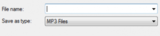
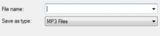
From the ‘Save as Type’ menu, select ‘mp3 files’
Name your track, choose a location to save it, and click ‘Save’.
A window will appear, feel free to click ‘Ok’ without entering any information. It won’t effect your final recording.
That’s it! You’ve now created an .mp3 of your audio! You can play it in iTunes, Windows Media Player, or any other media player that recognized mp3. Now you have the basic tools to create anything: your own ringtones, podcasts, or anything else you would like to do with audio.
Check this Help menu for the manual, which is full of more great tutorials and tips. Enjoy creating!
The post Learn how to share your audio recording into the world using Audacity | A TeacherCast Online Course from @MrParkMusic appeared first on TeacherCast.net: Educational Blogs, Podcasts, App Reviews and more.
… Read more
Jeffrey Bradbury
.
Blog
.
<span class='date ' tip=''><i class='icon-time'></i> Jul 23, 2015 07:19am</span>
|
|
"I could do it in class, but I don’t remember how when I get home!"
"When I hear the teacher explain it, I can do it!"
Have you ever wished you could keep your voice in your students’ ear when they get home? Do you need a program to record your students work? Do you like free stuff? Are you a secret jazz bassoon and ocarina virtuoso that wants to record their own demo?
Audacity is what you need!
Audacity is a great piece of free audio recording software for both Mac and PC. It is a tool that records, masters, and exports audio you import or record. It’s stable, supported by great documentation and can help you improve your student’s learning. Best of all, it’s perfect for the absolute beginner to audio recording!
Audacity is also accessible for students to use as well. It can be a great way for your students to create and is a perfect compliment to the flipped classroom, project based learning classroom, and any classroom ever! Record any audio and export it for use on any desktop, laptop or mobile device.
TeacherCast University is adding an Audacity course for beginners called (insert title here). After you finish this course, you will be ready to rock and record! Take this free course and have a great new tool for your classroom!
.
The post TeacherCast announces a brand new online course | Learn Audacity from @MrParkMusic appeared first on TeacherCast.net: Educational Blogs, Podcasts, App Reviews and more.
… Read more
Jeffrey Bradbury
.
Blog
.
<span class='date ' tip=''><i class='icon-time'></i> Jul 23, 2015 07:19am</span>
|
|
The Tech Educator Podcast is a weekly round table discussion about current topics in educational technology. For more information, please visit www.techeducatorpodcast.com.
Many great ways to participate in the TechEducator Podcast.
TechEducatorPodcast.com
Follow us Live on Video: http://www.TeacherCast.tv
Leave a Voice Mail: http://www.TeacherCast.net/voicemail
Email: feedback@Teachercast.net
Twitter: @TechEdShow (http://www.twitter.com/techedshow)
Hashtag: #TechEducator
Hosts:
Jeff Bradbury - TeacherCast.net - @TeacherCast
Jeff Herb - InstructionalTechTalk.com - @InstTechTalk
Sam Patterson - MyPaperlessClassroom.com - @SamPatue
Chris Nesi - Education the Nesi Way - @MrNesi
David Saunders @DesignSaunders -designsaunders.com
Josh Gauthier @mrgfactoftheday -Mr Gauthier’s Tech Chat
Please join the TechEducator Podcast LIVE every Sunday night at 7:00 P.M. EST on http://www.TeacherCast.tv
Please contact TeacherCast with any Questions or to become a guest on the show
Host: Jeff Bradbury @TeacherCast
Email: info@teachercast.net
Voice Mail: http://www.TeacherCast.net/voicemail
YouTube: http://www.TeacherCast.net/YouTube
iTunes: http://www.TeacherCast.net/iTunes
Watch LIVE: http://www.TeacherCast.tv | Broadcasting Schedule (http://www.teachercast.net/showcal)TeacherCast Broadcasting Community: http://www.TeacherCast.net/broadcastingcommunity
Interested in starting your own podcast? Check out our Educators Guide to Podcasting today! | Video | Slideshare Presentation
Hire TeacherCast to Speak or Broadcast at your conference
Jeff Bradbury (@TeacherCast) is available as a Keynote Speaker, Presenter, or to Broadcast your conference LIVE! Contact Jeff Today!
Check out more TeacherCast Educational Broadcasting Network Shows
TeacherCast Podcast (http://www.teachercast.net/education/teachercast-broadcasting/)
TeacherCast App Spotlight (http://www.teachercast.net/education/teachercast-broadcasting/the-teachercast-app-spotlight/)
The TechEducator Podcast (http://www.techeducatorpodcast.com)
The post Podcast: Digital Communication Strategies that work… featuring @RemindHQ| #TechEducator 69 appeared first on TeacherCast.net: Educational Blogs, Podcasts, App Reviews and more.
… Read more
Jeffrey Bradbury
.
Blog
.
<span class='date ' tip=''><i class='icon-time'></i> Jul 23, 2015 07:19am</span>
|
|
For the last month, my students have been engaged in a digital challenge. I am writing this blog post to ask you, (the reader) to help me understand what is happening with students today.
As an educator, I’m a digital creature. I love technology just as much as my students love technology. To help them understand how to be good digital citizens, I have dedicated my classes this year to being high tech, flipped, and as much as possible… paperless.
Our first project of the year required students to infuse a variety of technologies into a single digital project. Students used Garageband to record voice over audio tracks to commenting on the song of choice. They then learned how to use Google Drive and Google Docs to write blog posts about these songs. The audio and written content was then combined with a digital poster created on SMORE to post their final project on Kidblog. We even had a contest to see which student could gain the most hits and comments on their blog by engaging members of the student body and faculty. The project was paperless, crowd sourced, and created a completely flipped environment.
Each day, students were able to work on their projects in class. I am lucky to be in an environment with 25 iMacs and the students had the opportunities to use their mobile devices as well.
What student wouldn’t want to be in a class where they could use a ton of tech toys and create a project where they were allowed to share their love of their favorite band…. or so I thought.
At the beginning of the year, I polled the class and asked them if they had technology they would be able to bring in and use. About half of the class raised their hands and agreed to bring in their personal tablets and laptops. They were then asked if there were any problems completing this project outside of the classroom. De discussed how the majority of this project was able to be done by simply using their phones and downloading the free Google and Kidblog apps.
Three weeks went by. In class, we would work on the projects step by step. To help guide the class, I created rubrics, and gave them weekly bench marks where they would have to have a certain part of the project due by the end of each week. I created an iBook complete with custom screencasts demonstrating how to use all of the websites and apps needed for this project. When students asked "how do I use SMORE?" my answer was always… "Watch the video" and for the most part, this was effective and they found the videos helpful.
This project spanned three and half weeks. The final project was due on September 24. The last day of school before a long 4 day weekend. To complete the project students needed to simply hit the publish button on their Kidblog post after completing and including all of the steps in the project. September 24th came and students hit the publish button. It was time to step back, check out some amazing student work and reflect on the first month of our class.
Overall, I must say that I was very impressed with student work. The average student received a 94% on their project. The rubric was very clear and for the majority of the project, everything was clean, and well written as any high school project should be. Then I looked at the grade book after finishing up the last project. I was shocked to see that out of 26 students, 14 projects had not been turned in. I investigated by looking at those students Kidblog accounts and again I was surprised to see that many of the students were near to being finished but simply did not take the time to complete the project.
Why would a student not complete the project? How do these projects get graded? How can I help out these students?
I did what any teacher in this situation would do. I turned to my Voxer PLN. I asked several administrators from around the country what I should do in this situation. Some of them told me to give them extra time, some told me to give them a zero, and some suggested I give them a 50% with the hopes that they may turn in their project in the near future.
My decision was to take all of the advice given and do a hybrid method. I went into class on Monday and we discussed the project. I praised the projects that were turned in and even shared with students that some of the members of my VoxerPLN had taken the time to check out and comment on their blogs. The students were very excited about getting comments from "outsiders" as we called them. We talked about the project and the work that happened over the last 4 weeks and I told the students that where I was a bit surprised at the high number of projects not turned in, I was confident that with a bit of extra time, students would be able to finish the project. I told them they had an extra 24 hours to finish the project without penalty. I encouraged them to come in after school, or during their lunch /study hall periods for help and extra time on the computers.
Two days went by and out of the 14 projects not accounted for, only 1 student turned in their projects.
At this point, I have given a project and provided students with 4 weeks of in class support. I have given extra time for the project and at this point, students have still not decided to complete and turn in this project. Am I a bad teacher? Am I not providing them the extra time and opportunities for this? In the situation we live in today, an administrator would have the ability to open my grade book up, notice that many of my students are failing and judge me as a professional educator. They might even tell me I’m not doing my job to help my students out. My only rebuttal would be to share with them the iBooks, Screencasts, websites, and other supporting documents that show how much support I created to provide the students a great experience. The fact remains …. I’m teaching the class, and due to a high number of zeros on this project… my students at large are failing my class.
I’m determined this year to provide a high tech, paperless, high energy class to my students. They are good students who are all capable of learning and learning in the same ways as any other student in any other part of the country. I don’t believe that my students are incapable of "caring" about their learning.
In the words of a good friend, I am trying to get my students to understand that their hard work "matters" and that the work they are producing IS being read by educators worldwide and will be the basis for their classes and lessons. But just the same… I’m feeling like I should scrap the tech all together and go back to lecture, worksheets, and packets.
Thanks for listening… Please feel free to use the comment section below for any thoughts, suggestions, or personal stories that may be helpful as we move throughout this year.
Jeff
The post My Paperless, Digital, Flipped Learning Experiment is over… an honest self reflection appeared first on TeacherCast.net: Educational Blogs, Podcasts, App Reviews and more.
… Read more
Jeffrey Bradbury
.
Blog
.
<span class='date ' tip=''><i class='icon-time'></i> Jul 23, 2015 07:19am</span>
|
|
Podcast: Play in new window | Download (Duration: 1:02:53 — 28.8MB) | Embed
The Tech Educator Podcast is a weekly round table discussion about current topics in educational technology. For more information, please visit www.techeducatorpodcast.com.
Many great ways to participate in the TechEducator Podcast.
TechEducatorPodcast.com
Follow us Live on Video: http://www.TeacherCast.tv
Leave a Voice Mail: http://www.TeacherCast.net/voicemail
Email: feedback@Teachercast.net
Twitter: @TechEdShow (http://www.twitter.com/techedshow)
Hashtag: #TechEducator
Hosts:
Jeff Bradbury - TeacherCast.net - @TeacherCast
Jeff Herb - InstructionalTechTalk.com - @InstTechTalk
Sam Patterson - MyPaperlessClassroom.com - @SamPatue
Chris Nesi - Education the Nesi Way - @MrNesi
David Saunders @DesignSaunders -designsaunders.com
Josh Gauthier @mrgfactoftheday -Mr Gauthier’s Tech Chat
Guests:
Natalie O’Neil @TeachNV
Goobric
Gmath
Doctopus
Goobric
Please join the TechEducator Podcast LIVE every Sunday night at 7:00 P.M. EST on http://www.TeacherCast.tv
Please contact TeacherCast with any Questions or to become a guest on the show
Host: Jeff Bradbury @TeacherCast
Email: info@teachercast.net
Voice Mail: http://www.TeacherCast.net/voicemail
YouTube: http://www.TeacherCast.net/YouTube
iTunes: http://www.TeacherCast.net/iTunes
Watch LIVE: http://www.TeacherCast.tv | Broadcasting Schedule (http://www.teachercast.net/showcal)TeacherCast Broadcasting Community: http://www.TeacherCast.net/broadcastingcommunity
Interested in starting your own podcast? Check out our Educators Guide to Podcasting today! | Video | Slideshare Presentation
Hire TeacherCast to Speak or Broadcast at your conference
Jeff Bradbury (@TeacherCast) is available as a Keynote Speaker, Presenter, or to Broadcast your conference LIVE! Contact Jeff Today!
Check out more TeacherCast Educational Broadcasting Network Shows
TeacherCast Podcast (http://www.teachercast.net/education/teachercast-broadcasting/)
TeacherCast App Spotlight (http://www.teachercast.net/education/teachercast-broadcasting/the-teachercast-app-spotlight/)
The TechEducator Podcast (http://www.techeducatorpodcast.com)
The post Podcast: Goobric, Doctopus, Flubaroo and GMath . . . GAFE Add-Ons | #TechEducator 70 appeared first on TeacherCast.net: Educational Blogs, Podcasts, App Reviews and more.
… Read more
Jeffrey Bradbury
.
Blog
.
<span class='date ' tip=''><i class='icon-time'></i> Jul 23, 2015 07:19am</span>
|