Blogs
|
Here’s a list of the EdTech Twitter accounts that you can’t afford to miss.
Source: edtechreview.in
See on Scoop.it - Educational News and Web Tools
Mr Kirsch's ICT Class Blog
.
Blog
.
<span class='date ' tip=''><i class='icon-time'></i> Jul 23, 2015 10:46am</span>
|
|
A quick screencasting (record your screen to make a movie) tutorial "how to" on an Apple Computer (Snow Leopard or higher operating system)
Click here to view: Screencasting How To Screenshots
Pablo Diaz
.
Blog
.
<span class='date ' tip=''><i class='icon-time'></i> Jul 23, 2015 10:46am</span>
|
|
Use your mobile device to rapidly scan and print through The Cloud.Believe me, as a teacher I hate scanning things. First of all, you have to find a ready to use scanner at school; second, scan dozens of pages while bearing the annoying noise and unbelievable slowness of the scanner; and, third, edit the results in an easy to manage format (e.g, a PDF document). All of that can take you hours of hard work.Fortunately, mobile applications have improved dramatically, and through their help and the so called Cloud we can make life easier. Let me explain how to scan and print several pages just in the blink of an eye, and how to directly print the resulting PDF through your mobile.To do so you’ll need the following applications:MDScan (you have both the lite and pro versions), or a similar one: https://play.google.com/store/apps/details?id=com.stoiktechnology.mdscanliteGoogle Cloud print: https://play.google.com/store/apps/details?id=com.google.android.apps.cloudprintOnce you have installed them have a look at this video for instructions:
Adoni Sanz
.
Blog
.
<span class='date ' tip=''><i class='icon-time'></i> Jul 23, 2015 10:46am</span>
|
|
It was a pleasure to speak to all of the young, pre-service teachers today at Santa Ana College’s Road to Teaching Conference. Please do not hesitate to contact me with any questions you may have. I am very willing to help aspiring teachers. If you decide for this to become your profession, you are joining ranks of the selfless and the very giving.
Road to Teaching Conference: Using the iPad/iPod in Education on Prezi
Pablo Diaz
.
Blog
.
<span class='date ' tip=''><i class='icon-time'></i> Jul 23, 2015 10:45am</span>
|
|
Edutopia blogger Vicki Davis, in the first half of a pro-and-con discussion about social media in the classroom, positions it as a vital life skill and provides 12 positive examples of classroom use.
Source: www.edutopia.org
See on Scoop.it - InformationCommunication (ICT)
Mr Kirsch's ICT Class Blog
.
Blog
.
<span class='date ' tip=''><i class='icon-time'></i> Jul 23, 2015 10:45am</span>
|
|
Cloud Printers ease people's lives as you can print from any devices connected to the Internet in an easy and clean manner.Setting up a Cloud Printer is a really easy thing if you know how to do it! To set things up we need a printer connected to a computer (let's call it PR), and another computer from where to print (CL). Both have to be connected to the Internet.1. In PR install Google Chrome: https://www.google.com/intl/en/chrome/browser/2. Then, open Chrome and set up a Google account for PR (you can call it myprinterserver@gmail.com, or the like).3. Install the Google Cloud Print plug-in (https://chrome.google.com/webstore/detail/print-using-google-cloud/ffaifmgpcdjedlffbhenaloimajbdkfg)4. Go to settings, and type in the search box "print". The option will appear immediately. Chrome will search for all the devices, your printer included. Select what interests you most (you can also add mobile devices, Google Drive...).5. Now, in PR navigate to: https://www.google.com/cloudprint. You should see the previously installed printer. Click on the printer and push the sharing button. In the new window add your regular gmail account (the one you'll be using in CL).From that moment on, everything’s set up in your "server". Both the computer and the printer should be switched on in order to be able to print. It’s not necessary for Chrome to be opened all the time.6. In your regular laptop do the same as in #1, #2 and #3.7. Open your Gmail and you should see a post inviting you to accept the printer. Open it and click on accept. Once you have done that you should see it on your Chrome’s settings (point #4).8. Install the Windows plug-in, so you can print from any program (https://tools.google.com/dlpage/cloudprintdriver).Let’s try it!9. Open Chrome and navigate to some site. Click on print. Google Cloud Print should appear.10. Do the same with another Windows application. Click on print.To clear things a little more check this video:
Adoni Sanz
.
Blog
.
<span class='date ' tip=''><i class='icon-time'></i> Jul 23, 2015 10:45am</span>
|
|
On a frigid Saturday morning, droves of educators gathered in West Hollywood, CA at the The Center for Early Education to talk technology and education, all for FREE! Yup, this was an un-conference called EdCampLA, where participants are invited to post 45 minute sessions on something they are passionate about and lead a discussion, how-to or just sit back and enjoy all of the great information being delivered. The following is a second look at wonderful presentations, ideas, resources and thoughts that I was fortunate to be part of!
EVERNOTE
Evernote was the first session on my agenda and in un-conference fashion, the speaker had posted the session on Evernote but wanted to learn more about it, rather than lead the session, and quickly, educators chimed in about their experiences. Just like that we had a full blown discussion on Evernote. Evernote is an online based product that can store notes, documents, audio and much more. Use it with students, share information anywhere, anytime from multiple devices.
Resources:
@nerdyteacher for hands-on experiences using Evernote
Laurence School has great resources for teachers regarding Evernote
artsonia art online gallery for displaying kid’s art (can also monetize)
Apps! App Differently
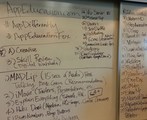
This was the second session of the day for me and as the title states, apps! Jo Ann Fox (@appeducationfox) moderated this discussion and many apps discussed. Below is a small list and some of their attributes. See the image below for a more comprehensive list of apps that were discussed in this session. My favorite by far was MyScript Calculator (see video below)
-madlip app- free version gives you 15 seconds of audio. Have students make a talking book cover using
-imovie app. Use to make trailers with your content
-explain everything
-haikudeck
-bugsandbuttons, bugsandnumbers, etc (for lower grades)
-imotionhd for creating stop motion movies
-remind101 - a single directional text for parents and students (can set up groups and for field trips )
-vintagio (for silent films)
-creative book builder
-pickplaypost (create collages) idea: take pictures that relate objective, make collage and explain
-myscriptcalculator (Microsoft version is mathmatica for PC). My favorite of the day (see below)
-join.me (cost?)
-commoncorelookfors
-camscanner
Apps mentioned in a session at EdCampLA
MyScript Calculator Demo
The 1 iPad classroom
John Stevens (@jstevens009) and Eduardo Rivera led this session on how they use a single iPad in the class to teach 8th grade and 9th grade algebra respectively. They utilize both Apple TV and/or the Reflector app to connect their iPads wirelessly to create an interactive and collaborative experience. Here are a few of the apps and resources they recommended:
-www.appsinclass.com
-haikudeck
-educreations and explaineverything (.99)
-appshopper (track apps for pricing)
-class dojo for participation
-Jumbo Stopwatch
-teacherkit
-wordcollage
Subtext
After a great lunch I headed off to John Omekubo’s (@jumekubo) session on Subtext. Subtext is an app that allows students and teachers to collaborate on the same book. Students can be invited to a group by their teacher and then both parties can interact by asking questions, tagging and highlighting text , adding resources for the students and much more! Below are a few ideas and resources to support this app.
-readlist.com: turn web articles into chapters
-make an epub file
-ipadbootcampforstudents.com
-ipadbootcampforteachers.com
-ipadbootcampforparents.com
Slam!
The day culminated in a Slam session, where educators stood up and presented their favorite thoughts, apps, websites or whatever they wanted to reflect on, from the day’s events. My favorite is listed below. I actually stood in line to present my slam of the day(MyScript Calculator) but @jstevens009 beat me to the punch, SLAM!
video 514.mov for playing youtube
- upload any video from google using google docs
Here are some other links that might be useful for finding information on sessions that I did not attend or did not cover in this blog post. You can also peruse the EdCampLA website to search for specific information. Thanks to all of the folks @EdCampLA for a great day!
EdCampLA
EdCAmpLA Blog
EdCAmpLA Wiki
Pablo Diaz
.
Blog
.
<span class='date ' tip=''><i class='icon-time'></i> Jul 23, 2015 10:45am</span>
|
|
In the beginning, there was the worker. He (or she) had long stretches of time for focused attention, as well as limited access to media. Times have changed -- but has your training? Take a look at how technology has significantly altered the attitudes and behaviors of the modern learner.
Re-Thinking the Business of Learning Blog
.
Blog
.
<span class='date ' tip=''><i class='icon-time'></i> Jul 23, 2015 10:45am</span>
|
|
As students and teachers are allowed and empowered to write about what they are interested in and what stokes their passions, paper blogs might eventually leap off the page.
Source: www.scoop.it
See on Scoop.it - Educational News and Web Tools
Mr Kirsch's ICT Class Blog
.
Blog
.
<span class='date ' tip=''><i class='icon-time'></i> Jul 23, 2015 10:45am</span>
|
|
Knowing a bit of HTML can make a big difference when configuring your LMS, site or other things.The magnificent educational platform called MOODLE lets us insert a great bunch of things inside the courses. It goes the same with Google Sites, despite they are more strict with some tags.But when we want to improve things a bit more we need to know how to hack it, i.e, how to embed generic things from any other website. Have a look at the video below in order to learn the secrets of embedding.Note: the iframe tag showed in the video is the following one. Paste your URL in the SRC label, and change the width and height to fit it.<iframesrc="YOUR_URL_GOES_HERE&embedded=true"style="width:400px; height:500px;"frameborder="0"></iframe>
Adoni Sanz
.
Blog
.
<span class='date ' tip=''><i class='icon-time'></i> Jul 23, 2015 10:44am</span>
|