Blogs
|
Cairo University (previously King Fuad I University, Egyptian University) is a public university in Giza, Egypt. It was founded on 21 December 1908. It is the second oldest institution of higher education in Egypt, notwithstanding the pre-existing higher professional schools that later … Continue reading →
Eliademy
.
Blog
.
<span class='date ' tip=''><i class='icon-time'></i> Aug 20, 2015 08:58am</span>
|
|
Today we are happy to welcome Educare Online from Australia to the expanding family of associations and academic organisations that are utilising Eliademy. Educare Online has been established to promote understanding and practice of universal Human Values in daily life through formal … Continue reading →
Eliademy
.
Blog
.
<span class='date ' tip=''><i class='icon-time'></i> Aug 20, 2015 08:58am</span>
|
|
Informational technology needs to be holistically integrated into our learning environments. The integration of information technology into our unique learning environments can be greatly enhanced if we apply constructivist approaches. Such approaches could include, but are not limited to discovery learning, inquiry based learning, play-based learning and making. But they also include listening, reflecting, and […]
Deborah McCallum
.
Blog
.
<span class='date ' tip=''><i class='icon-time'></i> Aug 20, 2015 08:58am</span>
|
|
Originally created and shared by Deborah McCallum on https://sites.google.com/site/guidetoholisticeducation/librarianship: The purpose of this post is to provide examples of holistic instructional strategies involving information technology in any learning environment. Rather than solely focusing on objectives, assessment outcomes and a heirarchy of subject matter, which are important, the role of the Teacher-Librarian is to help learners […]
Deborah McCallum
.
Blog
.
<span class='date ' tip=''><i class='icon-time'></i> Aug 20, 2015 08:57am</span>
|
|
Genius Hour encompasses many new pedagogies for fostering deeper learning. With more traditional pedagogies, all students work on the same worksheet, task, or iPad app at the same time with minimal modifications and accommodations. Sometimes the tasks are even conducted as centers. By contrast, Genius Hour is about creating a balance of tech use based […]
Deborah McCallum
.
Blog
.
<span class='date ' tip=''><i class='icon-time'></i> Aug 20, 2015 08:57am</span>
|
|
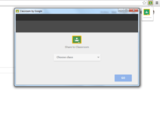
With the release of the Google Classroom API I decided to make a Chrome Extension that adds the web site you are currently on to Google Classroom. So when you come across a useful website you can quickly share it with your class. Click here to download.
Instructions for Use
1. Download the extension from the Chrome Web Store.
2. When visiting a website that you want to share with your class, press the Classroom Button. It will check the site can be shared and load a larger button, press it again.
3. A new window will open for you to select the Classroom (the group you are sharing with) and then if you want an announcement or assignment.
4. Finally you can add a comment and post it to your Google Classroom.
If you have any comments on the Chrome Extension - please leave them below..
Andrew Caffrey
.
Blog
.
<span class='date ' tip=''><i class='icon-time'></i> Aug 20, 2015 08:57am</span>
|
|
iPad critics everywhere like to point out that the device, about to celebrate its 4th birthday, wasn’t designed as a content creation device, but a content consumption device.
While that may have been true of the initial iPad apps available upon release in 2010, the iPad now has tens of thousands of amazing apps designed to do just that: create content.
In this review, I take a look at Halftone 2, from Juicy Bits software. Join me as I demonstrate this powerful interface for making high-quality comicbook like pages with user-generated content. Enjoy!
Halftone 2 from the iOS App Store
Jason Neiffer and Mike Agostinelli
.
Blog
.
<span class='date ' tip=''><i class='icon-time'></i> Aug 20, 2015 08:57am</span>
|
|
For this first interview, we interviewed Chelsie Jolley, a third grade teacher in Stillwater, MN. We interviewed Chelsie via Google Hangouts and she joined us from Stillwater, MN. She has some very insightful comments about classrooms with a handful of mismatching devices, how she uses an interactive Whiteboard, her use of SmartNotebook software and her own mission to help kids use technology to discover their place in the great outdoors.
Chelsie refers to a few different lessons she has created in the interview. She was kind enough to share her "Morning Messages", Math lesson, Reading lessons, and Engagement activities she uses with her SmartBoard (*note you have to have the SmartNotebook software to open this file).
Morning Messages
Math Lesson
Reading Lesson
Engagement Activites
I hope you enjoy the podcast/vodcast!
Jason Neiffer and Mike Agostinelli
.
Blog
.
<span class='date ' tip=''><i class='icon-time'></i> Aug 20, 2015 08:57am</span>
|
|
Many teachers have seen or heard the power of online collaboration using Google Docs. Google Docs allows the creator to add collaborators through email. An often overlooked feature is that you can create a document for your students to collaborate without them having an account. Let’s take a look at why and how you could go about this in your classroom. The biggest answer to "why" use Google Docs in this way: Many elementary students do not have email accounts and the time/management of trying to set them up for an entire class can be too much of a process to dive into. The process I will demonstrate next requires only the classroom teacher to have a Google account. If you are brand new to using Google Docs, check out this Getting Started Guide. Once you are ready to get started, follow the steps below to get your students collaborating.
Making Predictions
Making predictions is a tried and true way to engage students and have them start to think about what they are going to learn. The Common Core standards weave making predictions throughout all content areas. One of the reasons you may want to have your students make collaborative predictions is to help differentiate your instruction. I will touch on this more later in the post, but for now let’s look at the process.
The first step is to create a new document. After your document is created and named, click on the "Share" button in the upper right hand corner of window. This screen shot illustrates the process:
Notice that I have my Title, Question, and generic placeholders for teams. This could be an individual placeholder if you wanted every student to make a prediction. After clicking the share button, a pop-up window appears. By default all newly created Google Docs are private (Meaning accessible by only you). This is where we need to make a change: Click on the "Change…" linked text.
After you click on the "Change" link an option appears to make the document visible to "Anyone with the Link". Click on the button next to "Anyone with the Link" and then change the access to "Can Edit". This will allow your students to have access to the document and enter their predictions. If the setting is left as "view only" they will only be able to view the document. Now click the green Save button.
You have created a publicly (with link) available document that can be shared. The last part of getting this to students easily is sharing the link. Google Docs notoriously has long links. The shorter the link the better for students. Best practice is to have the link online somewhere for students to just click, but this doesn’t always happen. Let’s look at a URL shortening service to address this issue. Bit.ly is the service I use most often. Bit.ly takes a long URL and turns it into a short address. You can copy any URL address to Bit.ly to get a shortened URL. If you take one more step you can truly be Tech-Savvy. By signing up for a Bit.ly account you can save and edit your Bit.ly links.
So if I take my shared Google Doc address (located in the Share Settings pop-up window we were just looking at) and copy the link address to Bit.ly, I can then shorten the URL.
Shortening your URL link
Now jump over to Bit.ly. You could just paste the Google Doc URL in the shortening box, but let’s take the time to sign up for an account.
After you have an account you can paste the Google Doc URL into the shortening box.
The last step is the coolest. Bit.ly automatically generates a random combination of letters after Bit.ly/, but you can edit and change the random letters to something that will make sense to your students. This is a public link which means it has to be unique so things like bit.ly/dog will already be taken, but by adding a few more meaningful characters you can almost always get what you want. I always use CRA (My middle school initials) as the starting point and then whatever the link is about. So in this case the link is http://bit.ly/cracandypre
It all comes together
Students enter the lab or grab iPads and enter the URL http://bit.ly/cracandypre and they are ready to make their predictions. Remember how I was talking about differentiation at the start of this post? A cool thing happens when all students are making predictions in one collaborative document, some jump in right away and answer, while others sit back and wait to see what others say. This allows all students to have a voice while helping some students, who on their own will struggle, find success in making predictions. My objective is to get students to start thinking about what will happen. Even if they are straight copying someone else’s idea, they have taken the time to write a prediction. This is a powerful way to get ALL students to engage with predicting what will come next.
As always, share your thoughts in the comment section below…
Jason Neiffer and Mike Agostinelli
.
Blog
.
<span class='date ' tip=''><i class='icon-time'></i> Aug 20, 2015 08:57am</span>
|
|
I am often asked, "What would you get for your classroom if…..?" I thought I would tackle that question today in the context of a $500 gift.
Assumption #1 - Why $500? Mainly because I found the awesome cover picture of a $500 bill from WikiMedia Commons (A great resource if you are looking for Creative Commons licensed media). The other reason for the $500 limit is that seems to be a reasonably attainable amount through grants, donations sites (like donorschoose.org and adoptaclassroom.org), or your own money.
Assumption #2 - I am going to approach this like my room has the fairly standard one computer and projector setup.
And now the list:
iPad 2 - $350 at Walmart
Given the limited budget and the lack of mobile technology in this fictional classroom, the iPad 2 is the best overall option. The larger screen allows the iPad to work great as a center with up to 3 students using it at one time. It is important to note that the iPad 2 still retails for $399. At that price you might be tempted to purchase a 1st generation iPad Mini for $299. The reality is the 1st generation iPad Mini specs are almost identical to the iPad 2 in the areas that are important (Graphics Memory and Processor). There are always deals to be found on iPad 2 if you spend a little time searching on the internet. You can count on finding an iPad 2 for at least $50 off. I usually start with Amazon and then move my way through all the big retailers. If you can plan on doing your purchasing around Black Friday you can up the discount to $100 off. The next step is to purchase a device that will maximize the iPad 2 in the classroom, the Apple TV.
Apple TV - $74 - Apple Refurbished Store
The Apple TV usually retails for $99, but Apple is constantly offering it at $74 from the Apple Refurbished Store. The refurbished store is often overlooked on Apple’s website but it is one of my first places to look when purchasing Apple products. I have purchased monitors, computers, iPods, iPads, and accessories (like the Apple TV) from the refurbished store and have always had a great experience. On average you can save 25% - 50% which makes the items much more affordable. Everything comes with a 1 year warranty and you can still purchase Apple Care to extend the warranty to 3 years.
Using Airplay this classroom now has the ability to project through the Apple TV (attached to the projector) everything that is on the iPad. Students can display their group work to the class and the teacher can integrate the iPad 2 into lessons.
HDMI to VGA/w Audio Converter - $30 - MacMall **(Check your projector)**
This may be an item you don’t need if you have a new projector (purchased in the last two years). The Apple TV only has HDMI out (pictured on the left). However, most projectors in the classroom only have a VGA connection. If the projector does have a VGA connection, then you need a way to convert the HDMI to VGA. Cue the Kanex ATV Pro, it is available at MacMall for $30.00 as a refurbished item (50% off buying new from Apple). I prefer this converter because it doesn’t require external power.
iOS Apps - $46
The remainder of the gift will purchase apps. This procedure varies widely between districts depending on your policies (VPP or iTunes). Jason and I will continue to add to our list of our top apps (Jason just reviewed Halftone 2). The best resource we have found for app discovery in education is http://ipadapps4school.com/
So there it is! With this setup the teacher will be able to integrate apps into their daily instruction and throughout the day students can be rotated through the iPad2. They can present their work, findings, creations to the entire class easily. I have found that if you present your principal with a plan of action like this they are much more willing to get you the resources. Feel free to use this as a proposal if you like the idea of this setup!
I am very interested in what you would do with $500 given your current classroom environment. Please let us know in the comment section below…
Jason Neiffer and Mike Agostinelli
.
Blog
.
<span class='date ' tip=''><i class='icon-time'></i> Aug 20, 2015 08:57am</span>
|