Blogs
|
Today, I'm just sharing an interesting tool that I was introduced to at the "Teaching With Technology Conference" from Maricopa Community Colleges. The excellent presentation and hands on workshop was done by our ASU folks, Celia Coochwytewa, Jinnette Senecal & Steven Crawford from The College of Health Solutions. They gave a demo, and shared a really nice handout "Planning and Preparing for a DIY Presentation" for "scripting" out your video, which is really important to do before recording. They also presented the idea that creating a great video is like telling a story, and the scripting will help professors think through their video.The tool was Adobe Voice, which is a free app available on Ipads and Iphones. I was really pleased at how quickly my table could put together a professional video (about 10-15 minutes), from concept to output. Adobe Voice allows you to narrate images and text to create short videos that can be uploaded to Blackboard or emailed. Here's a sample of what my table quickly put together: Summary of What We Liked VideoSome of the nice features included:wide assortment for images from a gallery, your webcam, or searching through Creative Commons licenses.Easily add music for a backgroundEasy to add voice on each image, and it even told you when you were talking too long!Some of the disadvantages were that it is currently only available on Ipad and Iphones, and you do need to create a free account. Here are some ideas for how to use it in the "classroom":Have students show the process in their labs, by taking photos of each step, and then recording a summary of what happened.Have students create a case study, where there is a verbal description at each stage. Then have the class go through and discuss each case.Students can find an image of a famous scientist and tell what were the key points of their research, or an image of a plant, and describe the history of the use of it. Instructors can create short videos to give additional information on assignmentsInstructors can create a video on the top 5 most difficult questions on the exam.Easily replace in-class presentations with short videos that are reviewed by others in the classFor more information, try these resources:Adobe Voice Website Adobe Voice: Tell Your Story
Amy Pate & Peter Van Leusen
.
Blog
.
<span class='date ' tip=''><i class='icon-time'></i> Aug 23, 2015 02:17pm</span>
|
|
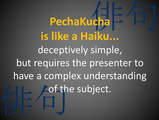
June 2, we conducted a webinar for TeachT@lk on alternative presentation formats. (Click here for the full recording) The most popular of these is PechaKucha (PK), where students are given 20 slides for 20 seconds per slide for a total of 6 minutes and 40 seconds. The slides are auto-forwarded, the emphasis is on very little text, and engaging visuals. There are many versions of this format that can be modified to meet the objectives of your individual courses.The benefits are that students prepare more thoughtful, refined and polished presentations. The format requires students to be creative, focus on key elements, and engage an audience quickly. The challenges include getting students to "buy-in" to this format, by reminding them of the importance of conveying their research to non-scientists, pitch their research to a publisher or a donor. It is also important to give students time to prepare, and faculty are encouraged to do "mid-point" checks to monitor progress. We shared the following documents to use with the students, to help support their understanding:Handout to help start students thinking about the layoutTimed Template for PowerPointHandout for students to evaluate other presentationsVideo on "How to Develop PK Presentations" Dr. Carolyn Compton shared her experiences in having her BIO302 honor students do a PechaKucha style "Cancer Day" event, and the group shared ideas about using this format as an alternative for:"Book" reportsPoster presentationsTeam reportsWeekly summaries of key points, to be used as a review for final exams.Lab summaries using photos of the lab PK Presentations can even be combined with term/research papers for more depth, or posted in discussion boards for online courses.Carolyn Compton, PhDASU School of Life Sciences"The hardest part of implementing PechaKucha presentations into my class, was learning how to say it!"- Carolyn Compton, PhDFor more information, please see the links below and contact amy.pate@asu.edu+++++++++++++++++++++++++++++++++++++++++++++++++++++++ How to Say PechaKucha? Video: http://youtu.be/gdghID66kLsAmy's Slides: https://dl.dropboxusercontent.com/u/12594701/V2_PKWebinar060215.pptxExamples of PKs: Science: http://www.pecha-kucha.org/presentations/200 Business (sales): http://www.pecha-kucha.org/presentations/53 Social Studies (urban planning): http://www.pecha-kucha.org/presentations/88 Environmentalism: http://www.pecha-kucha.org/presentations/169Activism: http://www.pecha-kucha.org/presentations/195The Art of Good Scientific Presentations: http://blog.lib.umn.edu/stgeorge/artofscientificpresentations/Teaching with PK, The University of Southern Mississippi Speaking Center, http://www.usm.edu/gulfcoast/sites/usm.edu.gulfcoast/files/groups/learning-commons/pdf/teaching_with_pechakucha.pdfImproving Student Presentations Pecha Kucha and Just Plain PowerPoint, Alisa Beyer, http://top.sagepub.com/content/38/2/122.short"Lightning Talk" in University Instruction, Klentzin, Paladino, Johnston &Devine, http://www.emeraldinsight.com/doi/pdfplus/10.1108/00907321011020798
Amy Pate & Peter Van Leusen
.
Blog
.
<span class='date ' tip=''><i class='icon-time'></i> Aug 23, 2015 02:17pm</span>
|
|
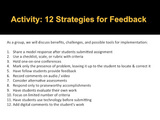
In our second summer TeachT@lk webinar on Assessment Techniques - Avoid Overload in Grading, Peter van Leusen, PhD and Amy Pate presented strategies for balancing effective and efficient feedback. As a group, we discussed benefits, challenges, and tools for several strategies including student created rubrics, peer feedback, and checklists. Many shared first-hand experiences and examples included using model responses and pre-tests.Below are some of the resources mentioned during the webinar, along with the slides and recording.Webinar Recording (60 minutes)Webinar SlidesBonk, C. J., & Zank, K. (2008). Empowering online learning: 100+ activities for reading, reflecting, displaying, and doing. Jossey-Bass.Faculty Focus - Effective feedback strategies for the online classroomFaculty Focus - Be efficient, not busy: Time Management Strategies for online teachingTo Register for future TeachT@lk Webinars: http://utotraining.eventbrite.comAs always, feel free to make comments to this post, and share your experiences! (Also post a comment below, and SHARE the blog, and help us get the word out!)
Amy Pate & Peter Van Leusen
.
Blog
.
<span class='date ' tip=''><i class='icon-time'></i> Aug 23, 2015 02:17pm</span>
|
|
Field Trips are a great way to motivate students, get them excited about content and create memories. But often the locations are too expensive, or would be geographically impossible to get to during class times. One option is to create a virtual field trip!Our TeachT@lk Webinar on August 4, focused on how instructors can create virtual "experiences" for students that include location videos, images, interactions with experts in the field and guided discussions between students and their peers about their Dr. Jim Elser's Drone Videoexperiences. We shared 3 experiences by ASU Faculty:Jim Elser's Drone Tours (sample clip)Mike Angilletta's Expert Interviews with Robbie Wilson using Vidyo"Live" synchronous field trip at the ASU Natural History Collection with Liz Makings using Adobe ConnectFinally, we talked about using existing resources like the wildlife webcams, and having students create their own virtual fieldtrips as a final class project showcasing their interests for real and fictional locations. (to see ASU's Digication Example, click here.)Dr.Angilletta's Expert Interview VideoAlthough virtual field trips may not completely replace live field trips, with some planning, they can create similar experiences and enhance learning.Resources:Recording of Webinar: https://connect.asu.edu/p1mubmy2x9j/PowerPoint SlidesAlameda Facility: https://sols.asu.edu/about/asu-natural-history-collections Articles:Focus on Technology: Virtual Field Trips: Going on a Journey, to Learn Without Leaving School, Hani Morgan, a University of Southern Mississippi, Hattiesburg, Mississippi., Published online: 12 May 2015. Revisiting Virtual Field Trips: Perspectives of College Science Instructors, Simon A. Lei, ITT Technical Institute Experiential learning: Using field trips to see the science of real-world issues. H. Wang, CIRTL Network. ASU Technologies: Digication Tutorials: https://asu.digication.com/asu_eportfolio_resources/Welcome23/ Vidyo Information: https://uto.asu.edu/vidyo Adobe Connect Information: https://asu.service-now.com/kb_view_customer.do?sysparm_article=KB0010602
Amy Pate & Peter Van Leusen
.
Blog
.
<span class='date ' tip=''><i class='icon-time'></i> Aug 23, 2015 02:17pm</span>
|
|
We’re currently working on a research project looking at team-based learning, the methodologies used to support this type of learning and the technologies that are put in place to aid collaboration. One of the first stages in this study has been to ask students which technologies they feel have been the most useful for communicating and working with their team. Although the initial results have not been incredibly surprising it has provided us with a starting point from which to ask students why they choose the tools they do and to look at the strengths and weaknesses of them. A total of 48 students were surveyed, with 40 students providing a response to this question.16% of students mentioned software such as Perforce or Hansoft. Due to the nature of the courses that the students are on (Games Design, Business entrepreuneurship) it was expected that version control software and software to support an Agile working methodology would be included.By far the most commented on and used technologies were Facebook (45%) and Google Drive/docs (40%). Students had set up their own groups and shared folders through which to collaborate on documents and communicate with their team. We had predicted that Facebook would be used by many of the students due to comments from teaching staff when setting up this project.The use of Google drive for collaborative work was less expected but pleasing. It showed students were creating truly collaborative documents and understood the need for this type of tool.Skype also featured in the survey, with 25% of students naming it as a useful technology to support communication with many using this to keep dialogue active during the breaks between semesters. Disappointingly there were no responses that indicated students used the VLE to assist or enable collaboration. We now want to investigate if this is a result of students preferring different tools or the teaching staff not promoting or setting up their VLE space for students to use it in this way.This is just a snapshot of our initial findings and we intend to delve deeper into how students choose the tools they use and how they may be influenced by academic staff. We are also keen to see if students feel there are any gaps in provision not fulfilled by the technologies they currently use and whether this is something as a team we can help provide either from within the institution or with guided to support to external resources.
TeamET Blog
.
Blog
.
<span class='date ' tip=''><i class='icon-time'></i> Aug 23, 2015 01:46pm</span>
|
|
With increasing pressures on HEI’s to accomodate increasing student numbers and enabling wider access to learning, a fully online or blended delivery is becomming a popular means to manage this.
With reference to modern web design, we take a look at some considerations for appropriate online learning content.
Screen real estate
It’s really important to make content that meets the needs of our learners as quickly and efficiently as possible.
A recent survey suggests that our current cohort of students exist in a "a world that offers them instant access nearly everywhere to nearly the entirety of human knowledge, with incredible opportunities to connect, create and collaborate" and as such any content we produce must get our learners’ attention as quickly as possible, and hold it for as long as possible. We must make important information available up front, leaving lesser or secondary information until later; such as further down the page, or on secondary pages. We can also omit decorative or non-content elements, such as decorative images, allowing students to focus easily on the content that matters to them the most.
Here’s an example of how bookmarking tool Pocket takes article content from a site and re-fromats it without any additional ‘noise’ from the original post.
Writing for the web
We tend to be less comfortable reading online, so it’s important our writing communicates efficiently.
Keep texts short
Keeping word count to a minimum is a good way of increasing reading speeds, which tend to be around 25% slower online. Reduce by half, and then half again.
The guiding voice
Humour and attitude play an important role in information retention. By using our own voice, we can guide learners through our content in a personal and human way to help develop their understanding of the ideas and concepts we are presenting.
Writing in a language the audience understands
Avoid use of "eduspeak", acronyms or unfamiliar terms when writing learning content. Learning outcomes or assessment criteria should be clear and easy to understand and may need to be translated from institutional lingo to modern language appropriate to the audience.
Scannable content
Around 79% of people scan web pages on the first visit and ascertain whether the content is relevant. By designing content that is easy to scan, we make it easier for learners to pick out, analyse and synthesise relevant information.
Be concise
When writing text, reducing word count by around half is known to increase a user’s ability to scan. You may be able to remove unnecessary words (often adjectives and adverbs) without the text losing meaning.
Scannable layout
A scannable layout can be achieved using properly formatted content, using elements such as headers, bullets and lists.
Headers, given appropriate titles, can aid readability by being informative and acting as a resting place for the eye whilst scanning.
Bullets can be used to clump important ideas together, whilst keeping the word count to a minimum.
Numbered lists can be used where the number of bullet points becomes excessive, aiding readability and information retention.
The online presence for the UK government is a good example of minimal content that is in a language that users understand.
Page titles
Page titles play an important role in the navigation of online content. Provided they are given an informative title, they explain what will be found of the page.
An optimal page title, designed for quick scanning, should include information-carrying terms towards the start, beginning with a word that meets the learner’s immediate needs. Page titles should also be around 40 - 60 characters in length, aiding scanning.
Page titles need not be grammatical sentences, and may read more like advertising slogans drawing people to the content and maximising impact.
Mobile-friendly content
It is important to consider the constraints as well as the affordances of mobile devices to make sure the content we produce is always available to, and consumable by, our learners.
Large and unnecessary images are one of the main culprits for a poor mobile reading experience. Due to slower mobile download speeds, it is important that images be information-carrying and of importance to the user, and optimised to allow them to be downloaded as quickly and efficiently as possible.
Screen size also affects our reading ability online. Secondary material should be linked to as ‘extended reading’ or omitted altogether.
The context of mobile use also means that learners expect content to be instantly available, so ensuring content is concise and scannable means learners can engage at a time and/or place suitable to them.
The process of making our content adaptable will benefit learners using a range of devices; phones, tablets, laptops, desktops, so the benefits outweigh the cost of designing mobile friendly content.
If you don’t have a mobile device to hand, the emulation mode available in Google Chrome allows you to view content as you might see it on mobile.
Images
As mentioned, use of images should be minimised due to download speeds, especially on mobile.
Eye tracking studies have shown that images with little or no use are simply ignored by learners; therefore decorative or non-informative images should be omitted from your content. However, learners do want to see images containing important information; a course/module introduction might contain an image that represents the theme and engages the learner in the same way that a Title might.
Avatars or profile pictures are also known to positively affect user behaviour online, as they add a human touch that is often missing in online content. This is particularly relevant to fully online courses, who might make use of Forums for posting content.
Including meta-data, such as an image description within images posted on the web aids accessibility and means those with slower internet connections or who make use of screen readers get useful information about that image.
Video
Like images, internet bandwidth must be considered for use of video. Home based/Off campus learners may be relying on mobile internet speeds to access content and whilst they may be able to view a one minute introduction to the course/module, they may not be able to view an hour long lecture recording or interview.
Video is a good way of giving the learner a sense of personality and to introduce your voice. Avoid "talking heads" and opt for showing movement in video, as this adds to the user experience and gives context. A Screencast may be able to explain a concept much better than presenting it in a lecture and allow learners to follow along at their own pace.
However, video may be more expensive and time-consuming to produce, compared to other content types, so consider whether another mode of delivery might do the same job. Also, due to the visual nature of video, audio quality is often overlooked, making for a frustrating experience; spoken word may be more difficult to understand and becomes a problem, particularly for those with impaired hearing or non-native speakers. Consider making use of closed-captioning to make the video more accessible.
Audio
Audio is a welcome and often overlooked alternative to text content on screen as it provides a separate channel to the visual information on the page.
Audio can often supplement commentary or help information, without obscuring any visual elements that the user may be interacting with.
Using voice overs, we can give a sense of personality to what might otherwise be monochrome text
As well as being an alternative to text, audio may be more favourable than video due to the lower production costs.
Staff at Falmouth University can subscribe to this module to find out more about presenting content in Learning Space.
TeamET Blog
.
Blog
.
<span class='date ' tip=''><i class='icon-time'></i> Aug 23, 2015 01:46pm</span>
|
|
In conversation with the marketing manager for one of the leading suppliers of Educational software the other day, he confirmed what I had suspected but didn’t really appreciate the enormity of, that a large percentage of their learning provider customers still hadn’t rolled their system out across their organisations. Despite one or two departments proving […]
Collin Gallacher
.
Blog
.
<span class='date ' tip=''><i class='icon-time'></i> Aug 23, 2015 01:45pm</span>
|
|
Today, more than ever, organisational leaders must be able to orchestrate winning, innovative partnerships with external parties if they are to get ahead and stay ahead. Leaders must act as influential connectors who can win the minds and trust of those people they potentially have no direct control over - but who are nonetheless paramount to success.
KnowledgeBrief
.
Blog
.
<span class='date ' tip=''><i class='icon-time'></i> Aug 23, 2015 01:43pm</span>
|
|
Most people in the field of technical communications would agree that successful technical writing involves a great deal of collaboration: with subject matter experts (SMEs), project managers, high-level reviewers, and, of course, editors, peer reviewers, graphic artists, and other specialists, depending on the size and scope of the project and team.
But I’d go even further and claim that technical writing is a social endeavor. Particularly in a medium-to-large organization, the skills you’ll be using the most are communication (especially oral and real-time), negotiation, persuasion, and psychology. And perhaps nowhere are these so-called soft skills more critical than when you’re first introduced to the SMEs you’ll be relying on for the bulk of the information in your content.
EntireNet
.
Blog
.
<span class='date ' tip=''><i class='icon-time'></i> Aug 23, 2015 01:43pm</span>
|
|
You finally managed to get all your subject matter experts (SMEs) together to review your draft, and the first 15 minutes is spent wordsmithing a single sentence on the first page. You still have 10 pages to go, and only 45 minutes left in the meeting. What happened?
We’ve all been there. You desperately want technical feedback, but your reviewers keep veering off into editorial concerns. Despite your assurances that the copy edit will deal with these, getting reviewers to focus proves challenging. You may not like it, but the best answer in this situation is to reschedule the review: your draft is NOT ready for their input.
EntireNet
.
Blog
.
<span class='date ' tip=''><i class='icon-time'></i> Aug 23, 2015 01:43pm</span>
|