Blogs
|
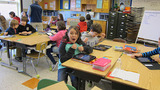
There’s been a lot of discussion in my learning networks lately warning of the horrors of students learning from screens and relegating teachers to the status of robot babysitters. Here’s one such snippet from the Stop Common Core blog.==For a while teachers will be on the sidelines to coach kids through the modules, check the data dashboards, and sign off on community projects. But over time, taxpayers will start to think "maybe we don’t really need actual school buildings or teachers anymore." "It’s so much easier to just have learning hubs with mentors who don’t have tenure or pension benefits and are paid through grants.""Who wants to shoulder a property tax increase for new roofs or boilers?" "Surely we can recoup some funding by selling off our aging buildings to condo developers." And so slowly that people don’t even realize what is taking place, schools, as real physical entities, will be dissolved. Schools will have become diffused within the community, the exact opposite of an anchor.So if you hear people start talking about "any time, anywhere, any pace learning," pause. Do you want to outsource your child’s education to uncertified partners or computer modules? ==I’m an educator....and none of this sounds terrifying or disturbing to me. The above author asks parents if they want to outsource their child’s education to uncertified partners and computer modules. What’s really wrong with that? Industry experts and peers who share interests provide a wonderful way to learn, if it’s chosen by young people who enjoy the content and the method. Textbooks are often no competition for interactive learning that could take place online. The question is this: Does technology really mean the end of teaching as we know it? I hope so. I want more »
Lisa Nielsen
.
Blog
.
<span class='date ' tip=''><i class='icon-time'></i> Dec 04, 2015 03:02am</span>
|
|
I receive lots of questions and see lots of posts about the effective use of Google Apps for Education in the K-12 environment. Following are some of my thoughts.We used a separate domain for the staff and students since staff mail had to be archived (as per the eDiscovery regulations) and student email does not. We purchased staff email archiving from Gaggle who have a Gmail API that makes it simple. We do not use Gaggle for email accounts, however.Google Apps for Education works the same way as Google Apps Premier, with a tad less online storage space per user. The wonderful things about it is that any user can limit any publication to just those who are on the domain, if they wish. We use this when we are publishing something for only district staff. In addition, users can always selectively choose outside users (like our students on the other domain) to see their Docs, Calendars, Sites, etc.When you administer Google Apps for Education, you can chose to allow access (or dis-allow access) to the suite of tools -- Email, Calendar, Docs, Talk, Sites, Video, and Web Pages -- for all users. Google Groups and Blogger are not in the suite, but, of course may be easily used.We received explicit permission from our parents in grades 6-8 to give their students email accounts. Here is the permission slip we used for this special purpose. If I were to set this up again, I might simply create three domains-- one for staff, one for the middle and high school students with email turned on, and one for the younger students with email turned off, but with log-in access to Docs and Sites, to allow collaborative work to take place in a closed environment. You do not need to have email turned on to use these tools.We used the last two digits of YOG-last name-first initial for the student accounts. In addition, so their real name did not show up in the header of mail they sent, when setting up the accounts, I used the YOG-last name for the last name of the student and their first initial for their first name.The use of these Google Apps has moved technology ahead rapidly in our district. Between shared calendars for school-based meetings to internal Google Sites acting as mini-Moodle packages, both teachers and students have made good use of the apps for communication, collaboration, and creation.Here are some links to Nauset Google pages:Superintendent's Newsletter : this is coded to look like one of our Web pages, but is a Google Doc that the Superintendent's assistant updates each month. This is an easy way to distribute some of the updating of Web page info to others. She simply overwrites the content in the Google Doc each month and republishes, thus the hyperlink on the Web page remains the same.Cache the Wave: this is a summer professional development announcement and sign-up Google Site with embedded Google formsGoogle Goodies: this is a Google site with three parts-- a round-up of a weekly tip I sent to all staff and students, embedded screencasts for the basic Google Apps usage, and an RSS workshop I created for our adminstrators.Middle School Newsletter: although dated, this can give you some idea on how to distribute the work involved in your school-produced newsletter since each user can update their own pages of the shared Site. There is one thing different about Sites than Docs, though. When you make a change to a Google Sites page, it automatically goes live and with Docs you can choose to do it that same way or manually publish it when you are ready.Updated information 10/11/09We continue to use Google sites inside the domain for teacher/student sharing.Many teachers have begun to create resource pages for their students using Google docs.We make extensive use of the calendaring functionality in Google Apps for Ed for staff purposes. IEP meetings, vacation schedules, literacy meetings, couselors' student meetings, etc. are scheduled with invitations to staff on non-public calendars.With the addition of Google video, which provides internal-only storage and access to videos, we have been able to post some school-wide items that we would not have wanted outside.Students are beginning to use Google Sites as a personal portfolio, attaching their work to the file cabinet page and embedding those items that are embeddable.We are using Google Forms for all types of data collection-- everything from registering for workshops to survey data of parents and community members, and much more.We have changed the student naming convention to start with the entire 4 digits of the year of graduation. The administrative sort and search is easier that way.We have made use of the offline capabilities of Google Calendar in a school that was having Internet-connection problems. Although the calendars are static on the machine, at least they are accessible.
Visit Kathy's Web pages:
Kathy Schrock's Home Page
Kathy Schrock's Guide for Educators
Kathy Schrock
.
Blog
.
<span class='date ' tip=''><i class='icon-time'></i> Dec 04, 2015 02:24am</span>
|
|
I recently attended a workshop covering the use of the iPad for administrators. I went to support my administrators as they learned everything from unboxing to syncing to installing apps. As I was sitting there, I realized what was needed, to move the "one-to-one with tablets" initiative ahead, was a workshop which covered the reasons to use these devices to support teaching and learning, included an overview of successful practices already in place, and showcased lots and lots of apps in all content areas at all grade levels. I am in the process of developing such a presentation (The iPad as ePad) and it could not be more fun to put together!
My first step was to create a Web page to include links to tutorials, reviewed apps lists created by others, items specific to special education using the iPad, and pointers to some articles by those already using the iPad with students. Take a look at it if you get a chance. http://linkyy.com/ipad
There is also a Google form on that page to add your favorite "iPad in education" list of apps or blog or lesson plan or ideas page. Please take the time to share if you know of a great resource!
iPads in the Classroom Support site (http://linkyy.com/ipad)
Visit Kathy's Web pages:
Kathy Schrock's Home Page
Kathy Schrock's Guide for Educators
Kathy Schrock
.
Blog
.
<span class='date ' tip=''><i class='icon-time'></i> Dec 04, 2015 02:24am</span>
|
|
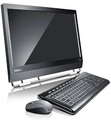
I am part of the second round of the giveaway promotion of the Lenovo ThinkCentre M90z. This promotion, administered by The Influential Network on behalf of Lenovo, has people in various jobs create a contest to support their area of expertise. Each giveaway is run for 5 days and, once it is closed, a single winner from each contest is chosen to receive a ThinkCentre M90z from those who participate in the contest.
There are a few of us in the educational technology field participating in the giveways, and, since one of the participants has his contest running first and had the same idea as I did, I am going to change my parameters. Richard Byrne will be gathering the information I was interested in and there is no reason to have it duplicated.
I posted a blog entry about my initial impression of the Thinkcentre M90z here a few months ago. You might want to read it and read up on this great new machine!
My contest runs from April 18, 2011 at 6am (UTC -4:00) until April 22, 2011 at 7pm (UTC -4:00). The winner will be chosen randomly and announced on this site at 8pm (UTC -4:00). My contest will be open to anyone in education (whether practicing teachers, undergrad or graduate education students, or educational consultants) and will ask participants to contribute an online resource that works well (and is pedagogically-sound) using the touchscreen of the Lenovo.
Our students are very "into" touchscreens with the influx of tablets into schools and their own personal lives. I have seen young children try to use a desktop computer's screen as a touchscreen, and, of course, it does not work!
However, this model of the Lenovo Thinkcentre M90z DOES have a touchscreen, so I will be asking you to find some good resources to take advantage of that capability.
The link to my contest page is here. Below, you will also find links to all of the others who are participating in this giveaway and the dates of their contests (and you will find some really cool new blogs to follow, too!)
Update April 18, 2011: Link to my contest page!
Lenovo M90z Giveaway Participants
Site Start End Date
Free Tech 4 TeachersApr 14 Apr 18
Ilja Coolen \ ICSSApr 15 Apr 19
Physician MomApr 16 Apr 20
Scrubd InApr 17 Apr 21
Kathy Schrock's KaffeeklatschApr 18 Apr 22
Steve Harg
adon.comApr 19 Apr 23
Box of TricksApr 21 Apr 25
Clinton Fitch.comApr 22 Apr 26
Around the CornerApr 23 Apr 27
Tech Savvy EdApr 25 Apr 29
Small Biz TechnologyApr 26 Apr 30
Ablet FactoryApr 27 May 1
Click NewzApr 28 May 2
Geekazine Apr 29 May 3
21st Century Education TechnologyApr 30 May 4
A GeekyMomma's BlogMay 1 May 5
Marsha Collier's MusingsMay 2 May 6
VA NetworkingMay 3 May 7
Your Virtual AssistantMay 4 May 8
Jake Ludington's Media BlabMay 5 May 9
Mobile PC WorldMay 6 May 10
Dangerously IrrelevantMay 7 May 11
Bud the TeacherMay 8 May 12
KikolaniMay 9 May 13
Geeks To GoMay 10 May 14
Chad Lehman.comMay 11 May 15
Visit Kathy's Web pages:
Kathy Schrock's Home Page
Kathy Schrock's Guide for Educators
Kathy Schrock
.
Blog
.
<span class='date ' tip=''><i class='icon-time'></i> Dec 04, 2015 02:23am</span>
|
|
http://www.flickr.com/photos/timlauer/5407980960/
As many of you know, I have created an "iPads in the Classroom" support page here: http://linkyy.com/ipad. I include tutorials, lists of apps and related materials, a special education section, a Blooms/iPad app section, and a section dealing with successful uses in the classroom.
Since school has started, I have been monitoring a Google Alert in my Google Reader, selecting "iPads in the classroom" as the key phrase I am interested in. I am amazed at the number of posts on this single topic in such a short period of time! The posts come from media outlets, parent Web sites, teacher blogs and wikis, school district media briefs, and many other places.
It is interesting to me that many of the posts are extolling the fact there are now iPads in the classrooms in their school, district, state, etc. I am waiting patiently for follow-up information on how the devices are being utilized to impact teaching and learning.
I know we are early in the game, but let's get to it, fellow educators! Those of you that are lucky enough to have a 1:1 tablet initiative, please post your findings on a daily basis. Even a simple Twitter post (hashtag #edtablet) with the URL of your blog, wiki, Weebly page, Google doc, or to where ever you are publishing your insights, data, or cautions, can help others convince their administrators or school boards that a personal portable device, with a student 24x7, can impact teaching and learning in a real way!
Thanks in advance for your help!
Visit Kathy's Web pages:
Kathy Schrock's Home Page
Kathy Schrock's Guide for Educators
Kathy Schrock
.
Blog
.
<span class='date ' tip=''><i class='icon-time'></i> Dec 04, 2015 02:23am</span>
|
|
I took advantage of the iStopMotion app for iPad and the iStopMotion Remote Camera to create two versions of this video for two different purposes. One has already been submitted and the second does not have to be submitted since I am unable to participate in the required week-long institute. I wanted to share the stop-motion videos with you. More about the process later!TRANSFORMATIONTransformation is defined as a thorough and dramatic change. Is education thoroughly transformed from the industrial model? Not yet, but there are some very exciting things being implemented into teaching and learning.From lectures to flipping, STEM to STEAM, desktop to mobile, text to infographics, consuming to publishing, labs to BYOD, group teaching to personalized learning, and networks to peer-to-peer, technology is becoming the conduit for it all.Transformation of the traditional, teacher-centered or even the student-centered classroom, to one in which all members of the educational community have a part in planning, implementing, and creating, is becoming the norm. Collaboration is the way educators now work—from their PLN on Twitter to the global projects they and their class participate in.Are we there yet? Not quite. Education systems, infrastructure, funds, and the "old" ways of doing things are still getting in the way at times. But, with the number of successful practices and hard data coming out to support these transformations’ positive impact on student learning, education seems to be ready to forge ahead with these and other, yet undiscovered, innovative practices.I wanted to showcase, in a unique way, the transformation that can occur with the use of mobile technologies in the classroom. I hope you enjoy it!iOS version Android version It was a steep learning curve to get the apps to drop into the respective tablets. I finally found the solution by using motion paths in PowerPoint, setting timings, and using Camtasia to record the single slide with all the motion paths. I simply took a screenshot from the video of the tablet before it entered the backpack and put that into PowerPoint. I then created one and two motion paths and just kept replacing the images. The all were stacked on top of one another. Here is what that looked like in the Android version of the movie. (Update 3/14/13: I re-did the apps for the iPad version using icons instead of screen shots. I realize now that I could have used FLY IN from upper right and left and FLY OUT to bottom right and left. PowerPoint would have allowed me to put the time between the two animations in order to pause the icon.)Set-up of motion paths in PPT for Android movieI was able to get the apps to drop "into" the tablet by creating a layer at the front of the slide that included half of the tablet. The image was at the back, and the items fell down in-between them.Thoughts? Comments?
Visit Kathy's Web pages:
Kathy Schrock's Home Page
Kathy Schrock's Guide to Everything
Kathy Schrock
.
Blog
.
<span class='date ' tip=''><i class='icon-time'></i> Dec 04, 2015 02:23am</span>
|
|
The Hewlett Packard EliteDesk 800 G1 Mini PC is a tiny desktop computer with lots of big features!Its footprint is 6.9 x 1.3 x 7.0 inches and it weighs only 2.92 pounds, less than a lot of laptops! The HP EliteDesk 800 G1 Mini PC has a 4th generation Intel processor and runs the newest Windows operating systems. The front of the computer includes two USB 3.0 ports (one of which is a USB fast charge port) and an audio-out and microphone jack.Shown with optional stand, monitor, keyboard and mouseOn the back, it has an additional four USB 3.0 ports, a VGA connection, an Ethernet port, 2 Display Ports, and an audio-out jack. The bottom of the HP EliteDesk 800 G1 Mini PC has a VESA mount.A wireless card is an option as is an external DVD/RW drive. With a 500GB standard hard drive or up to a 1TB solid state drive, the HP EliteDesk 800 G1 Mini PC packs a great computer into a "mini" package. Also, due to its small size, it has more than 3 times the energy-efficiency of a tower desktop.The unit I received has a 2.9gHz i5 processor and is running Windows 7 Professional, but the upgrade disk to Windows 8.1 was also included in the package. It has 4GB RAM, a 128GB solid state hard drive, and the WiFi card.Here is more detailed specs and information about the HP EliteDesk 800 G1 Mini PC.USE IN SCHOOLSIn the education arena, the HP EliteDesk 800 G1 Mini PC can solve any number of problems as well as help schools think "out of the box".Teacher’s desks are notoriously cluttered with the tools of the trade…their teaching materials, stationery supplies for student use, and much more. The diminutive footprint of the HP EliteDesk 800 G1 Mini PC can free up a ton of usable space on a teacher’s desk and also eliminate the "big box" on the dusty floor! Teachers can easily get access to the USB ports and audio jacks on the front of the EliteDesk G1 Mini PC when they need to, too.Another plus for teachers is the WiFi capabilities of the device. In the past, teachers were tied to classroom area of the Ethernet jack and VGA connection. Now, with wireless projectors and wireless network access, the HP EliteDesk 800 G1 Mini can sit anywhere in the room. In addition, with the plethora of collaborative apps that can have students share over WiFi, the teacher and students can share documents, collaborate in real-time on virtual whiteboards, and students can mirror their mobile devices to the teacher’s desktop.In schools where security of computers in a lab setting or classroom is a concern, this tiny HP EliteDesk Mini 800 G1 Mini PC can be easily locked up at night in a drawer or closet. It does have the traditional cable lock port, but locking them up at night might be a better option.The low cost and energy-efficiency also make this mini computer a perfect replacement for the bigger CPUs in a computer lab setting. The SSD drive makes them fast to boot up and, again, space is saved on the computer lab tables for other student project-based or reference work.One creative idea, if students have a monitor, keyboard, and mouse at home, is to have the HP EliteDesk 800 G1 Mini PC become a school’s 1:1 device of choice. The light 2.92 lb. weight, the SSD drive which would not be subject to problems when carried in a backpack, and the built-in WiFi could allow students to bring it back and forth from school to home. In school, there would be labs of monitors, keyboards, and mice and extra sets of these in the classroom, library, science labs, and even the cafeteria! A student would just hook-up his or her HP EliteDesk 800 G1 Mini wherever there was a "workstation" spot. THE CONTESTHP graciously provided me with the opportunity to give away a new HP EliteDesk 800 G1 Mini PC to a lucky US or Canadian PreK-16 educator or pre-service or graduate education student! In order to have a chance to win the Mini PC, educators were asked to make a mini-- a mini-infographic that is!As you know, an infographic is a visual representation of data. Having students create them as a formative or summative assessment can help them practice their information literacy, visual literacy, data literacy, and technology literacy skills.When starting off with this type of lesson or unit, it is best to start small. Have students research to find one piece of interesting data, decide who the audience for the infographic is going to be, consider the type of data visualization that would work best to showcase the information, and then create a mini-infographic showcasing just that single piece of interesting data.USA Today, since beginning publication, has offered a mini-infographic they call a "snapshot" on the front page of each issue of the newspaper. Researchers, reporters, and editors in each of the primary departments of News, Money, Sports, and Life account for most of the ideas and research for these snapshots. Once the research is complete, the information goes to a graphic artist who creates the infographic. This process usually take between three and four hours.Here are some links to sample USA Today snapshots in the area of news.http://usatoday30.usatoday.com/snapshot/news/2001-07-02-gas-prices.htm http://images.usatoday.com/graphics/snap/news/julygas.jpg http://usatoday30.usatoday.com/snapshot/news/2001-07-06-familysize.htm http://images.usatoday.com/graphics/snap/news/familysize.jpg http://usatoday30.usatoday.com/snapshot/news/2001-04-24-email.htm http://images.usatoday.com/graphics/snap/news/emailnews.jpg http://usatoday30.usatoday.com/snapshot/news/2001-08-13-cellphone.htm http://images.usatoday.com/graphics/snap/news/n.cellphone.jpg http://usatoday30.usatoday.com/snapshot/news/2001-09-11-america.htm http://images.usatoday.com/graphics/snap/news/america.jpg CONTEST OVERVIEW (CONTEST CLOSED DECEMBER 7, 2014)In order to participate in the contest to win an HP EliteDesk 800 G1 Mini PC desktop computer, the educator had to create a mini-infographic or "snapshot" and submit it to me. The winner of the HP EliteDesk 800 G1 Mini PC was randomly chosen from those educators who submit the mini-infographic.The topic of the infographic had to be in their content area, an education or educational technology-related topic, or anything else of interest to K-12 educators or students. The infographic could have been intended to inform or persuade. I provided the entrants with the background image to use for the infographic.To find out more about infographics, visit my infographics page here: http://www.schrockguide.net/infographics-as-an-assessment.htmlCREATING THE MINI-INFOGRAPHICThe easiest way to create a mini-infographic is to create a single slide in PowerPoint, Keynote, or Google Slides. For this contest, I had created a PowerPoint, Keynote, and JPEG version of the background entrants were required to use. The background illustrated the "clean" desk teachers would have by using an HP EliteDesk 800 G1 Mini PC!On that single slide/image, entrants had to add the text and data information, and include the citation to the sources used for their infographic information. All of that information had to be that single slide. Here is a sample I created:When entrants were finished with the slide, in PowerPoint they picked FILE- SAVE AS PICTURES, in Keynote picked FILE-EXPORT TO- IMAGES, and in Google Slides picked FILE- DOWNLOAD AS- JPEG IMAGE. They saved the image to their desktop or Google Drive (or their Camera Roll or Gallery if they were using a tablet).Entrants emailed the single JPEG image to me at kathy@kathyschrock.net. They also put "Mini" in the subject line of the email and their name, email address, and Twitter handle (if they had one) in the body of the email.Here were the links to the background image in the three different formatsPowerPoint slideKeynote slideJPEG image REVIEWEducators had to locate some small bit of data they wanted to share with other educators or students. Using the background on the single slide, they added --a title for the infographica labeled chart or graphtext to explain what the viewer is seeing URL to the page(s) where they obtained the dataSaved the slide as JPEG to their computing deviceSent the JPEG as an attachment to kathy@kathyschrock.net with the subject of "Mini"Included their name, email address, and Twitter handle, if they had one, in the body of the emailThe contest was open to PreK-16 educators and pre-service and graduate education students in the United States and Canada. By submitting the mini-infographic entry, entrants had a random chance to win the HP EliteDesk 800 G1 Mini PC and they were giving me permission to possibly post your infographic on my blog site whether they won or not. Their name would not appear on the Web page, just the mini-infographic itself.By submitting the entry, if they were chosen as the winner, they were are also allowing me to share their name, email address, and mailing address with HP (or an HP associate) so they could send the winner the HP EliteDesk 800 G1 Mini PC. The winner’s name would be announced on the blog (but not tied to their submission) and on Twitter.The email address of all who submit entries will remain private except for the winner, whose email address will be shared with HP (or an HP associate).The submissions were due on: December 7, 2014 by 11:59 PM Eastern Time and the contest is now closed.UPDATE DECEMBER 8, 2014SUBMITTED INFOGRAPHICSHere are some of the great mini-infographics that were submitted! Thank you to all who re-tweeted about the contest and for those that submitted an entry! THE WINNERThe randomly-chosen winner of the giveway of the HP EliteDesk 800 G1 Mini PC was Mark Case! I used the DecideNow app on the iPad to pick the winner-- congrats to Mark!
Visit Kathy's Web pages:
Kathy Schrock's Home Page
Kathy Schrock's Guide to Everything
Kathy Schrock
.
Blog
.
<span class='date ' tip=''><i class='icon-time'></i> Dec 04, 2015 02:21am</span>
|
|
I received a note today from a teacher who wound up with a classroom set of iPad 1's for her classroom, and she was looking for lesson ideas that would work with that "older" device. Of course, many of the lesson ideas, tips, and tricks that are on the Web for any generation of the iPad will provide a good starting point for planning, like those I have on this site, but there are some specific things to consider when using the older iPad.There were some limitations on the first gen iPad-- it had no camera and only projected certain things through the VGA connection. Back in 2010, I asked people to add apps that would project with an iPad to a Google form. I have no idea if this is of any use now, but here is the link. The iPad first generation can run up to iOS 5.1.1, so, when looking at current lessons that use iPad apps that require a newer operating system, and doing a search for comparable apps in the iTunes App Store, look for the operating system requirements listed on the app page. It will probably take a bit of searching to find those that will work, but it will be worth it! For instance, one of my favorite iPad apps, Sock Puppets, only requires iOS 4.3. And I am sure there are plenty of good creation apps that still work with the older operating systems.Sock Puppets only needs iOS 4.3I also figured out if you do a Google search on "iPads in the Classroom" or "iPad in the Classroom", and limit the date span of the search from the day the iPad 1 was announced to the day when the iPad 2 was launched, the resulting series of hits will provide lots of great ideas on the use of the original iPad to support teaching and learning.Here is how to conduct that search. Do a search in Google, pick the SEARCH TOOLS drop-down menu, pick the date area and pick a "custom date". I searched Web pages that were put up from January 27, 2010-March 2, 2011. (Of course, this does not mean there were no useful Web pages put up after that time.) I did the limited date search to find pages that could only have included ideas and successful practices for the iPad first generation.Of course, even though the iPad first gen cannot take pictures, students can still download images and edit them using certain photo-editing apps. And there are collage apps, like CollageIt Free, that only require iOS 5.0. It takes a bit of work to find apps that will run on the older iPad, but it is not impossible. And don't forget to search for iPhone apps, which will run nicely on the iPad, too.I came across this PC World article from 2013 that states you might be presented with the ability to download an older version of an app that will work on your older iPad device. (I don't usually have an "older" device, so do not know if this is still happening.) If it is, it would allow installation of older versions of popular education iPad apps to be installed on the first generation iPad. Anyone have any additional ideas for those with the first generation iPads? Are you using one or more of this generation of iPad in your classroom and would like to share the list of creation and editing apps you have on the devices? It would be appreciated and save others a lot of App Store searching time!
Visit Kathy's Web pages:
Kathy Schrock's Home Page
Kathy Schrock's Guide to Everything
Kathy Schrock
.
Blog
.
<span class='date ' tip=''><i class='icon-time'></i> Dec 04, 2015 02:21am</span>
|
|
On the iPad, Paper by Fifty Three is the app I use most often for sketchnoting. The apps feature set makes it easy to quickly sketch, change drawing tools and colors, and to "rewind" quickly to undo my mistakes. Paper includes the ability to draw perfect auto-shapes (square, rectangle, circle, triangle, diamonds, parallelograms, line segments with arrow, etc.) and with just a tap, fill-in the shape. Paper also allows the user to move any component of the sketch by just circling it and dragging the item. You can explore the capabilities of the app by viewing the FiftyThree channel of videos on Vimeo.Today, Fifty Three released the Paper app for the iPhone! For those of you that are Paper users on the iPad, you will be excited about the new features that have been included for the iPhone version! And both the iPad version and the iPhone version are free!I have an iPhone 6+ and Paper for the iPhone works great! Paper for the iPhone has the same functionality as the iPad app for drawing, sketching and moving components, but has some very useful new features! Users now have the ability to import and resize images, something I have been hoping for. And there is a Spotlight feature included to highlight a portion of the imported image if you want. Users can type text, which is very useful for adding notes to the bottom of the sketchesWith this text input, there comes a very cool way to create a to-do list. Simply type a list item and swipe right, and it adds the checkbox for the to-do item! And swiping left makes the text at the top the header for the list.Users can combine the text, drawings, and images all on a single sketch.MY SAMPLE PAPER IDEA WITH DRAWING, IMAGE, SPOTLIGHT, AND TO-DO LISTSimplicity and ease-of-use continue to be how Fifty Three develops and re-develops this app!When I use Paper, I use Pencil by FiftyThree as my drawing tool since, with its Bluetooth connection to the iPad or iPhone, with used with the Paper app it has pressure sensitivity, the ability to erase with the "eraser", a blending of colors mode, and a palm rest area. I use Pencil with all my drawing apps and you can see from this page the Pencil-ready functionalities that exist when using Pencil with apps from other companies.Here are a few company screenshots from the new Paper by Fifty Three for the iPhone...give it a try right now!
Visit Kathy's Web pages:
Kathy Schrock's Home Page
Kathy Schrock's Guide to Everything
Kathy Schrock
.
Blog
.
<span class='date ' tip=''><i class='icon-time'></i> Dec 04, 2015 02:20am</span>
|
|
Microsoft has a great new initiative for K-12 education called "Bing in the Classroom" which can help support digital literacy in schools. The program was created to do three things-- to provide a safe environment for students to learn their digital literacy skills, to offer digital literacy lesson plans for teachers, and to provide an easy way for schools to get more hardware.1. AD-FREE SEARCHTechnology directors can sign up their school district for an enhanced search option for Bing that provides an ad-free search environment for the staff and students. This option eliminates the ads that usually appear when searching. It enhances privacy protection for students and teachers and includes the ability to filter adult content via SafeSearch.2. DIGITAL LITERACY LESSON PLANSThe Bing in the Classroom program offers daily mini-lessons focused on search and digital literacy skills. These lessons include mapping to the Common Core Standards and have been created by the educators who are members of the Microsoft Educator Network. This network includes a collection of over 1500 lesson plans.The lesson plans can be narrowed down by grade level, subject, the 21st century skill set, and instructional approach. Here is a sample of a search page for one of the digital literacy lesson plans.Bing in the Classroom digital literacy lessonsEach lesson includes the learning objectives as stated in the Common Core standards, as well as an overview which contains the skills, instructional approach, Microsoft tools needed, and any required hardware. There are details to help the teacher use the lesson plan, and many lessons include an attached product, such as the Microsoft PowerPoint attached to this searching lesson. Sample digital literacy lessonThe PowerPoint presentation presented with the lesson above contains a teacher guide, slides to use with students with speaker notes, and a background slide about the lesson creator.Support material for a lesson planIn addition to these digital literacy lesson plans, Bing already has many features that make it a good choice as a district-wide search engine. Here are my favorites!Search by "calculator" in the Bing search box to get a working calculatorSearch by "unit conversion" in the Bing search box and convert almost anythingWhen searching Bing for images, students can limit the search to Creative Commons-licensed itemsAnother useful search limiter in Bing Images is to search for images that have no background3. SCHOOLS CAN EARN CREDITS FOR TABLETSThe third component of the Bing in the Classroom initiative allows those (13 years or older) who sign up for Bing Rewards, an program that allows users to earn credits while using Bing to search, to donate their credits to a school of their choice. The schools can earn free Microsoft Surface tablets through this reward program! Take a look at Bing in the Classroom for your schools!Disclosure: This is a sponsored post to raise awareness for Bing in the Classroom.
Visit Kathy's Web pages:
Kathy Schrock's Home Page
Kathy Schrock's Guide to Everything
Kathy Schrock
.
Blog
.
<span class='date ' tip=''><i class='icon-time'></i> Dec 04, 2015 02:19am</span>
|