Blogs
|
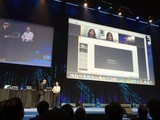
We recently explained in this ebook how best to prepare for a blended event, including event preparation, logistics and audio. A "blended event" is one that includes a live, in-person audience and remote participants.
To supplement that learning, today I’ll go over how to set up video conferencing for a blended event using GoToMeeting, GoToWebinar and GoToTraining. I’ll speak broadly to the topic, as conference room and auditorium setup needs vary greatly. Please feel free to reach out to us, the Citrix Onboarding and Consulting Services team, if you have any questions.
Webcam setup
First, determine whether your presenter will be seated or standing.
Seated. Position your camera relatively close to your presenter. Consider framing them like you would see on a news broadcast with a tight view of the presenter from the chest up. You want to be able to see the presenter’s facial expressions without them feeling exaggerated from too much zoom. Reflective background surfaces, like windows, should be avoided. Lighting should hit the presenter head on, not from behind.
Standing. The ideal frame should include the whole stage so the presenter has room to move while staying in the camera’s frame of view. If you can’t get the camera far enough back to frame the entire stage, use masking tape on the floor of the stage to indicate to the speaker where he will step out of the camera frame. You may even want to look at more advanced cameras with the ability to zoom and pan. You’ll need an AV bridge to connect your external camera to the computer. An AV bridge can connect to your camera’s HDMI outlet and into your computer’s USB plug. The camera will then be a selectable camera source in GoToMeeting, GoToWebinar, and GoToTraining preferences.
Remote presenters
Is your presenter in another location? Using video conferencing to get them into the same room as the audience is invaluable for presentation engagement and personalization. If your presenter has any trouble turning on their own webcam, you can send a request to them to turn on their webcam by clicking the gray camera icon next to their name in the attendee list.
Also consider your presenter’s audio set up. While speakerphone is fairly accessible and easy to use, it may not provide the clearest audio. Headsets offer the best sound quality, but if the presenter prefers not to wear one on camera, I recommend a discreet, in-ear headset with a small microphone stem. Another option is to use a stationary microphone with an ear bud-like headset. Whenever possible, meet with this presenter in advance to establish the setup and avoid last-minute stress and troubleshooting.
Other webcam tips
Turn your camera off. In many instances, it will not be necessary to keep your webcam on the presenter for the entire presentation. Some presenters will prefer to be on camera only during their introduction and perhaps the end of the event. They can turn off the webcam themselves using the webcam button in the event control panel at the right of their screen. As an organizer, you can also disable their webcam for them by clicking the green camera icon in the attendee list next to their name.
See eye to eye. With a close frame shot, make sure that your camera is as close to the presenter’s eye level as possible. Have your presenter look directly into the camera. If your presenter is using a prompter or computer, place it beneath the camera for best results. Using a laptop’s built-in camera, for instance, will give your attendees an up-the-nose view of the presenter if it’s on a desk or table. Elevate the laptop on a stand and adjust the tilt of the lid to improve the angle.
Share your tips and ideas. I’m willing to bet you have a good idea or two about setting up for blended events. Share your ideas or questions in the comments below or visit our Ask the Community forum to communicate directly with other users.
Good luck on your video conferences! If you need more help, get familiar with the consulting and onboarding services we offer. We’re here to help.
Photo Credit: Citrix Online via Flickr
Bob Lee
.
Blog
.
<span class='date ' tip=''><i class='icon-time'></i> Jul 29, 2015 08:06am</span>
|
|
GoToMyPC can make for great experiences with its simple remote access, but have you really brainstormed what else it can do? Here are 6 innovative ways to use GoToMyPC.
1. Troubleshoot for a friend.
If you and your friend are both using a PC, you can walk him or her through computer problems via GoToMyPC’s Guest Invite feature. Use drawing tools to enable greater communication, or better yet, fix it yourself with keyboard and mouse control. If you find yourself helping out a lot, try GoToAssist Remote Support.
2. Watch while you’re away.
Create an instant security camera and view it remotely! Just set up a webcam on your host computer, turn it on and point it in any direction you want. Voilà - an instant security camera, accessible from anywhere.
3. Turn your mobile device into a computer. Tablets and smartphones are great for browsing but poor for working - that is, unless you can access your full computer with our apps for iPhone, iPad and Android devices.
4. Print remotely. PC users can easily print remote files to a local printer with our Remote Printing feature. No need to transfer files before printing - just enable the GoToMyPC printer and go!
5. Save power. Limited battery life on your laptop? Connect with GoToMyPC and run resource-heavy programs through your host computer instead.
6. Save time.There’s no need to connect through the GoToMyPC website - just log in to your computer in seconds using Desktop Shortcuts.
Have you discovered another cool way to use GoToMyPC? Let us know us on Facebook or Twitter.
Photo credit: Dan Barbus via Flickr
Bob Lee
.
Blog
.
<span class='date ' tip=''><i class='icon-time'></i> Jul 29, 2015 08:06am</span>
|
|
With Valentine’s Day quickly approaching, you may be thinking about vowing your everlasting love to someone or renewing the vows you already gave. Well, we’ve got another one for you, one that your coworkers will appreciate: vow to be a better meeting participant.
Really, there is nothing more annoying than the sound of your teammate’s typing blaring through the speakers during your weekly standup meeting. We’ve all been there - most likely on both sides of the annoyance. So today, in the third installment of our Better Meetings series, we give you The Online Meeting Vows. Say ‘em, repeat ‘em and please, please abide by ‘em.
Thou shalt mute whilst typing.
Thou shalt be the first to turn on thy webcam.
Thou shalt put thy dog outside or in a different room during meetings.
Thou shalt put thy light source in front of thy face, not behind it, so as to not look like a giant shadow blob.
Thou shalt remember to record.
Under no circumstances shall people in the same room have side conversations whilst online participants try to listen in.
Those in the same room shalt be mindful to prompt participation from people both in-person and on the web.
Thou shalt monitor the chat panel.
Thou shalt never selecteth End webinar for all when made an organizer.
Thou shalt not hoggeth the sixth webcam slot in GoToMeeting from a presenter.
Thou shalt breathe quietly, move the microphone away from thy mouth or toucheth the mute button.
Thou shalt use a headset microphone instead of speakerphone.
Thou shalt dress completely, not just from the waist up.
Thou shalt remember to brush thy teeth after eating kale salad - but do not concern thyself with garlic breath.
Thou shalt not chat or type emails whilst someone is presenting.
Thou shalt remember thou art screen sharing before checking personal email or Facebook on screen.
Thou shalt never forget that thou art the organizer before asking other attendees, who art not organizers, to start the session.
Thou shalt turneth off desktop notifications from email or IM if thou art sharing thy screen.
Thou shalt avoid the dire echo by having only one speaker on in the room. Verily, one speaker component, be it telephone or VoIP, shalt be chosen, whilst all others in the room must select telephone, though they shalt not call in.
Thou shalt mute thyself and pause thy webcam whilst eating, coughing, answering urgent telephone calls and disciplining one’s offspring or pets.
Thou shalt not leave a mess that is visible on camera.
Thou shalt not yawn on camera.
Thou shalt remember that the dancing light upon your face exposes your multitasking and web trolling.
Thou shalt not accidentally message the entire group in the chat window with a personal message.
Can thy thinketh of any others? Send forth your vows to us on Twitter. @gotomeeting.
Bob Lee
.
Blog
.
<span class='date ' tip=''><i class='icon-time'></i> Jul 29, 2015 08:05am</span>
|
|
Whether you’re running a video conference, moderating a webinar or teaching a digital course, video sharing is a powerful way to engage your audience. It can be an excellent resource to help illustrate a point or demonstrate specific functionality, but it’s only really effective if it is being used correctly.
Below you’ll find three crucial exercises to consider when planning for your next presentation or meeting. Like all live events, online events don’t leave a lot of room for error as you coordinate collaboration across multiple locations, so these tips are designed to help you utilize on-demand video content successfully the first time.
Use a video in your presentation if it…
1. Is brief. Consider your audience’s attention span and keep your videos as viewer-friendly as possible. Videos longer than 5 minutes will lose audience interest. Also, longer videos equals larger file size, which could result in bandwidth or visibility issues.
2. Is interesting. Your attendees have spent a good deal of time watching and listening to you talk, so only add content that will benefit your audience, whether that means providing them with a (on-topic) laugh or showing them how to do something. Finding content that is visually dynamic and engaging will foster better information retention.
3. Is mobile-friendly. With smartphones and tablet adoption at a record high, you may have remote attendees joining from mobile devices. Smaller screens and data limitations could make streaming content difficult, so before you add on-demand content to your presentation, try playing it on your smartphone or tablet. And consider keeping on-demand content towards the end of the presentation, so if mobile attendees have a bad experience, they won’t miss anything if they decide to skip the video.
Now you’re ready to start using on-demand video in your online presentations -great timing, since GoToMeeting, GoToTraining and GoToWebinar now let you stream content live during web conferences. Learn more at www.gotomeeting.com.
Photo Credit: Imagine Cup via Flickr
Bob Lee
.
Blog
.
<span class='date ' tip=''><i class='icon-time'></i> Jul 29, 2015 08:04am</span>
|
|
Have you ever wished that you could manage GoToMeeting, GoToWebinar, GoToTraining and OpenVoice accounts from a central admin center? If so, please allow us a moment to put on our genie outfits and unroll our magic carpet before telling you that your wish has just been granted!
The Citrix unified admin center gives account managers easy access to account usage details and lets you manage user settings across products from one place. Adding and removing users and distributing seats has never been easier. In a few clicks, you can change user permissions and activate accounts across GoToMeeting, GoToWebinar, GoToTraining and OpenVoice.
Within the unified admin center, you can also keep track of product usage easier than before.
Account managers using Citrix collaboration tools receive one bill, use one support center and now manage users from one place. To get started with the unified admin center, log in to your account today or learn more about Citrix web conferencing tools at www.gotomeeting.com.
Photo credit: SJ Liew via Flickr
Bob Lee
.
Blog
.
<span class='date ' tip=''><i class='icon-time'></i> Jul 29, 2015 08:04am</span>
|
|
Saying goodbye has always been awkward for me. So during my dating years, I actually planned exit strategies for that moment at the door, because I knew that how I ended the date would affect the future of the relationship. Guys I wanted to kiss got "the look," and guys I didn’t got the stiff-armed pat on the shoulder.
Now, as a teleworker who hosts frequent online meetings - often with a video component - I’m faced with saying goodbye in a business setting several times each day. And I’ve realized the need for a good exit strategy is just as great in business as in romance. Ending a meeting on a good note will help projects move forward faster and build relationships. Ending on a bad note will slow down your project, reduce your credibility and leave you looking and feeling like a social clod.
I can’t say I’ve mastered the online meeting goodbye yet, but I’ve gathered a few best practices that I think help me exit with a little more grace.
Have an agenda and stick to it. When you’ve covered everything on it, you’re very close to being done. Never drag a meeting out just to fill up the time allotted. People will thank you for giving them their time back and they will leave feeling a sense of accomplishment.
Ask if anyone has any additional questions or concerns. Some people may not participate until they are asked to, because they aren’t comfortable interrupting others. Allow a little time for people to digest the meeting content and respond.
Sum up key decisions and action items. This gives you the final say and helps people remember it. They will leave the meeting with a clear understanding of what you wanted them to know and do.
Thank attendees for coming, tell them you’re closing the meeting and wish them well. Good manners are good business. It helps to give people a little warning that you are turning off the meeting software - otherwise, they feel like you’re slamming the door in their face. You want people to leave feeling appreciated and happy they met with you. You can’t shake their hand, but you want them to feel as if you did.
Close the meeting - and your mouth. Here’s a trick I still need to work on - put your finger on the "Close meeting for all" button BEFORE you say goodbye. Then, you don’t have that awkward silence between when you cease interacting and you turn off the meeting software. Also, if you are using video conferencing, the last image of your face may be frozen for a few seconds when you close the meeting. You don’t want your last impression to be codfish face. So stop talking and flash a quick smile when you press that button.
By the way, "the look" and the stiff arm worked pretty well on dates, but I don’t recommend either of them for business meetings.
Do you have a tip for better online meetings? Let us know on Twitter or Facebook, #bettermeetings.
Photo credit: Ian Levack via Flickr
Bob Lee
.
Blog
.
<span class='date ' tip=''><i class='icon-time'></i> Jul 29, 2015 08:03am</span>
|
|
It’s pretty safe to say that we here at Citrix know a thing or two about webinars. We have facilitated thousands of webinars worldwide and learned how to promote our events effectively - but not before we messed it up a few times.
Promoting webinars anywhere is essential to getting a good turnout, but few channels are more valuable from an engagement perspective as social media. Announcing and linking to the registration page of your webinar on Twitter, Facebook, LinkedIn and whatever other channels you’re active on gives your audience the opportunity to connect with you before the event - and maybe even shape the content.
If you get multiple tweets asking about the same topic, you may consider adding a section to your presentation where you’ll cover the topic. Doing so makes the webinar more valuable to the people who come and will improve your reputation for hosting relevant and informative webinars
With that in mind, here are a few suggestions to help you develop your webinar’s social promotion strategy.
Establish a presence on the appropriate social channels (i.e. Facebook, Twitter, etc.). That’s where a lot of potential audience members are looking for the information you’re holding. So join them. Try looking through your company’s LinkedIn or intranet forums for discussions and resources.
Start conversations online and monitor interactions about your topics. This helps you get an idea of what information your audience is looking for. Don’t be a passive consumer! Actively join in on conversations to establish yourself as a helpful resource and a thought leader.
Use your social interactions to tailor future content. Once you have started interacting with you audiences, make sure to take note of what they are asking for and add custom content to your presentation that will answer your audiences’ most pressing questions.
Start an evergreen hashtag campaign. The best kinds of hashtags are ones that will stay relevant as your topics and conversations evolve and grow bigger or more specific. Start out with a phrase that’s unique and speaks directly to your topic. So if you are an organization for protecting sloth habitats, you could start with the hashtag #Care4Sloths and evolve that phrase to encompass audience questions or comments, such as #Care4SlothsQuestion. Try to keep your hashtags concise, as some social platforms only allow a certain amount of characters.
When it comes to bringing in an audience for your webinar, remember that great content is only half the battle. Connecting with your audience through social media lets you tailor your content to their needs, which will increase the value of your event to your audience.
For more suggestions and best practices to promoting your upcoming webinar socially, check out the white paper, 6 Steps to Using Social Media to Promote Your Internal Webinar to Employees.
Photo credit: Lau via Flickr
Bob Lee
.
Blog
.
<span class='date ' tip=''><i class='icon-time'></i> Jul 29, 2015 08:01am</span>
|
|
There are three ways to go about Valentine’s Day: throw money at it, take the thoughtful approach or do some combination of the two.
Flowers, chocolates, gifts and prix fixe dinners are great, but, in my opinion, most people just want to feel special. And nothing accomplishes that quite like something that takes thought. A hand-written card. A fun activity. Giving something you made yourself, whether it’s something crafty or a special meal.
And - SURPRISE! - there are even a couple ways you can use GoToMeeting to earn your Valentine’s Day merit badge. These are them:
Get a head start. Valentine’s Day falls on a workday this year. And since businesses don’t usually close the office for Hallmark holidays, most folks will be scrambling to squeeze their celebration into the evening after work.
But, with GoToMeeting, who needs the office? Spend the day at home with your loved one or hit your Valentine’s destination early and attend all those work meetings online.
Have a real conversation. If you’re separated by distance and not able to visit each other for Valentine’s Day, skip the faceless phone call and use HDFaces video conferencing to express how much you miss your loved one. The face-to-face conversation will keep you from being distracted by your TV or computer, and the object of your affection will appreciate the attentiveness.
And if you’re going in for the virtual kiss, remember to aim for the webcam, not the lips. Otherwise your Valentine will just get a HD close-up of your forehead. (And be sure to have some glass cleaner handy to remove the lip-print from your webcam.)
Those are our tips. Have any of your own? Please spread your sage ways and send them to us on Twitter: @gotomeeting.
Photo credit: Brent Moore via Flickr
Bob Lee
.
Blog
.
<span class='date ' tip=''><i class='icon-time'></i> Jul 29, 2015 08:00am</span>
|
|
Anyone can give out relationship advice. But put the words "New York Times best-selling author" in front of your name and all of a sudden people expect that advice to actually work.
Just ask Laura Doyle. She is a relationship coach with a string of best-selling books to her name. Laura is also the founder of multi-national relationship-coaching company Laura Doyle Connect, and she understands that clients expect Laura Doyle-level coaching from anyone under her banner.
That’s why Laura uses GoToMeeting with HDFaces to work with her network of relationship coaches. A phone call is fine for checking in, but Laura needs to connect with her people - to take in the emotions and details that facial expressions say better than words.
With GoToMeeting, she and her coaches experience real interactive communication, keeping them all on the same page and protecting Laura’s brand. And, most importantly, protecting people’s marriages.
Check out the video below to hear it all in Laura’s own words.
Photo credit: Samantha Celera via Flickr
Bob Lee
.
Blog
.
<span class='date ' tip=''><i class='icon-time'></i> Jul 29, 2015 07:59am</span>
|
|
"All right students, please find a seat, turn on your phone and log in to your Twitter and Facebook accounts."
Sound incredible? Not for some lucky students with top teachers leading the student-centered revolution in learning. These avant-garde teachers are using technology to tear down outdated educational practices and rebuild an educational system that engages students and helps them blaze their own educational paths while teachers serve as mentors and coaches.
Citrix recently sponsored a free ebook called Mobile Education: Lessons from 35 Education Experts on Improving Learning with Mobile Technology. Each of the 35 experts referred to in the title was asked to share a personal experience about how they incorporate online and mobile technology into their classrooms. The individual essays are fascinating, but, when read together, the book becomes proof that we’re on the cusp of an educational revolution that’s turning traditional education upside down.
Growing up, most of us listened to teachers lecture, attended classes at set times, did homework assignments out of books and followed very rigid curricula. On rare occasions, we were given the opportunity to do a self-directed project, like a science fair project, where we could freely explore a topic of interest. While some of us loved school, many of us found it a chore. We were bored and often tried to do as little as possible to get a decent grade.
Collaborative technology and social networks are changing all of that, and they’re driving the idea of student-centered learning - the new educational model where students choose their educational paths and motivate themselves while teachers serve as mentors, coaches and guides.
Teachers are starting to incorporate collaborative technology and are encouraging their students to use social networks to learn in new ways. Here’s what you can expect to happen as education moves from its traditional learning model from instructor-centered to student-centered.
1) Learning can happen at any time and in any place. The classroom and specific meeting times become less important. Instead, students can experience more hands-on learning by visiting a museum, zoo or park while using Internet-connected mobile devices to seek more information and even complete assignments, What’s more, students can seek further instruction from teachers and collaborate with fellow students through either in-person interaction or web conferencing.
2) Learning to create. Mobile devices contain complete production studios with audio, video, text and photographs. Student-centered learning encourages students to create projects to showcase their understanding. And, most importantly, these projects help students to obtain feedback from peers and experts during and after the creation process.
3) Using collaboration and feedback. Traditional learning requires absorbing a body of material and then demonstrating that you understand it. The feedback comes primarily from one person - the teacher. In student-centered learning, learners use their social networks to tap into knowledge during the learning process. As learners express their ideas and show off their creations, frequent feedback from peers, teachers and people from around the world help them refine and expand their understanding.
4) Learning is customized by the student. No two individuals learn in the same way, nor do they grasp ideas in the same amount of time. When students direct their own learning, they can jump past things they understand or take the additional time they need to learn the more difficult concepts. In short, while the learning paths can be different, no one needs to be left behind.
5) Students can challenge ideas. Have you ever heard something said that didn’t sound quite right? Learners now have the opportunity to research what they’re being told at their fingertips while they’re hearing it, resulting in more relevant questions. When a student feels empowered to question what they’re being told, they’re far more engaged in the learning process.
6) Content in many forms and sizes. Rather than read one big chapter, students have the opportunity to tap into different kinds of content. Some content will be meant to familiarize and provide an overview, whereas other content will be performance-based. Performance-based content help learners use small chunks of content to accomplish very specific things that they’re interested in doing.
As with any revolution, change is never easy. It requires teachers and students to learn new skills, and it will require parents to adjust their expectations. However one thing is clear: students who take responsibility for their learning will learn more, learn faster and have fun along the way.
About the author: David Rogelberg served as editor of the Mobile Education ebook. He is currently the co-founder of Studio B Productions, Inc., a two-time Inc. 500 company specializing in high-tech content marketing. Prior to founding Studio B, he was a textbook editor with Addison-Wesley and the youngest person to assume the title of publisher at Simon & Schuster, where he published numerous best-selling titles for the trade and educational markets.
Bob Lee
.
Blog
.
<span class='date ' tip=''><i class='icon-time'></i> Jul 29, 2015 07:59am</span>
|