Blogs
|
What’s wrong with forced ranking? Can you be performance-driven with a human touch? Explore a better approach to manage performance.
Janice Burns
.
Blog
.
<span class='date ' tip=''><i class='icon-time'></i> Sep 10, 2015 10:33am</span>
|
|
Overview
In this blog I will describe how we can configure Load testing using the Visual studio 2010 Ultimate edition.
Steps
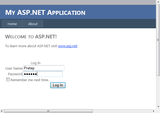
Step 1: Identify or create a web application, for which you want to perform a Load test. Here I have created a simple web application, with Login and Logout controls.
Step 2: I created a Test project with name LoadTestProject. Now in the first place i will add a Test file to this project. When you click "Add New", VS will present you with lot of options. Here we need to select a "Web Performance Test" for this scenario. I named it as "SingleUserPerfTest".
Step 3: Once you click Add, you will be presented with a explorer window with recording infrastructure. All you need to do is, click the "Start Record" button and perform what are all actions/browse through pages you want to test.
Step 4: Once you are done with all the stuff, click on Stop button. Visual studio will convert all the recorded steps into code, embedded into .webtest file.
You can expand the nodes and see what all actions are recorded, and what are the requests/responses generated during our webtest.
You can run this test by clicking the Left-Top button, but this will be equal to our unit test. We haven’t tested the response of application under load.
Step 5: Now Add new test file to project. This time select a Load Test file from the menu. I named it as "SampleLoadTest".
Once you click Add button, you will be presented with a wizard, using which you will configure the Load test.
Step 6: As a first step, we will name the scenario, and will setup think time for the profiles. In the real time scenario, the users will take 1 to 3 seconds between performing one action after another, either due to reading webpage or thinking. This delay will be created while load test using "Think Time" specified below.
Step 7: In next step you will be selecting the load pattern. Whether you want to apply a constant load or increase the load in a cumulative way. These variables can be configured here.
Step 8: Now, you have to select the Individual webtest(s) you have created earlier, which need to be considered under this load test.
Step 9: Here you can select either for how much time you want to run the test, or how many iterations of test you want to perform.
Step 10: Once you click "Finish" button, all the configuration will be embedded in to the Load test file. You can click on each specific step/ configuration, and can modify the values in property window.
Step 11: We are all set now. Click the "Run Test" button on Top-Left corner and see what happens.
All the key factors will be presented graphically while performing the load test. We can figure-out different factors and their variation patterns under load conditions.
Finally after completion of test, a test result document will be created using which you can analyze what are the stress factors where we need the performance tuning.
These test results can also be stored into database by configuring the controller connection string. For further details on how to store test results Using SQL please follow the MSDN link below.
http://msdn.microsoft.com/en-us/library/ms182600.aspx
You can also download Sample Codes from: Sample Load Test Project
Netwoven
.
Blog
.
<span class='date ' tip=''><i class='icon-time'></i> Sep 10, 2015 10:08am</span>
|
|
Background
You are using the SharePoint On-Premises version. The issue described in this blog is related to Incoming eMail and People Picker feature.
Issue & Investigation
We’ve seen two errors - one on incoming email and the other on people picker-
Error 1: Cannot retrieve the information for application credential key
Error 2: PeoplePicker-SearchADForests was not working
These two errors are co-related to each other. People picker issue is the root cause and incoming email issue is the result which is coming due to PeoplePicker-SearchADForests. In my case there were two WFE. When the request is hitting the server WFE1, the email has been picked up by incoming email timer job but not delivering it to respective list and library but at the same time when the request is hitting WFE2 the email gets delivered.
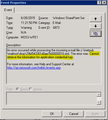
Event viewer warning message on WFE1 has been found.
An error occurred while processing the incoming e-mail file c:\inetpub\mailroot\drop\29bf543301d0ae7b00000016.eml. The error was:
Cannot retrieve the information for application credential key.
PeoplePicker-SearchADForests has not been working. We get the following error when searching for users…FAIL:
There was an error in the callback.
AppCredentialKey is the information used to encrypt/decrypt the information you pass into People Picker-SearchADForests. This information has to be the same across all the servers. In our case, I checked the registry key, and used beyond Compare to validate that the entry was identical on all the servers.
HKEY_Local_Machine\SOFTWARE\Microsoft\Shared Tools\Web Server Extensions\12.0\Secure
AppCredentialKey : REG_BINARY
Now it looks fine and the permission has been verified.
On the "HKLM\Software\Microsoft\Shared Tools\Web Server Extensions\12.0\Secure" registry key ensure the following permissions are in place and are being inherited in the sub-keys
* WSS_WPG Read permission
* WSS_Admin_WPG Full Control
As per the issue, it looks like a new app password should be set up.
Solution
Following are the steps to set up the app password:
1. Get and copy the peoplepicker-searchadforests property value via stsadm command: This has been performed on all SharePoint servers i.e. WFE1, WFE2 and APP server.
stsadm -o getproperty -url https://insite.XYZ.com -pn peoplepicker-searchadforests
Note: https://insite.XYZ.com is name of web application URL.
2. Clear the peoplepicker-searchadforests property value via stsadm command: This has been performed on all SharePoint servers i.e. WFE1, WFE2 and APP server. stsadm -o setproperty -url https://insite.XYZ.com -pn peoplepicker-searchadforests -pv ""
3. Rerun the password encrypt command with different password: This has been performed on all SharePoint servers i.e. WFE1, WFE2 and APP server.
stsadm -o setapppassword -password ABCD
New password can be anything you want. I have used ABCD.
4. Set the peoplepicker-searchadforests property value via stsadm command: This should be performed in only one server of the farm, this information is stored in the configuration database, no need to run it more than once for each URL where you want the people picker. This command has been executed from APP Server.
stsadm -o setproperty -url <web application url> -pn peoplepicker-searchadforests -pv forest:<source forest>;domain:<trusted domain>,<trusted domain>\<account>,<password
Testing and Verification
In WFE1, this has been opened:
Incoming email has been tested. It started working and delivering email to list and library from WFE1’s drop folder.
Conclusion:
This error happens when one server’s property conflicts with another server’s property in SharePoint config DB and it breaks existing app password of the farm.
Netwoven
.
Blog
.
<span class='date ' tip=''><i class='icon-time'></i> Sep 10, 2015 10:07am</span>
|
|
First of a two-part series on ACA and the finance industry Beginning January 1, 2016 every U.S. firm with 51-100 employees will be migrated to the "small group market" for healthcare benefits, as...
Visit site for full story...
TriNet
.
Blog
.
<span class='date ' tip=''><i class='icon-time'></i> Sep 10, 2015 10:07am</span>
|
|
Guest post by ApplicantStack Your employees are the single most important investment you’ll make in your business. Smart, engaged employees can help your company grow by proactively tackling...
Visit site for full story...
TriNet
.
Blog
.
<span class='date ' tip=''><i class='icon-time'></i> Sep 10, 2015 10:07am</span>
|
|
This article is the second in a three-part series on the EEO-1 Report and EEOC Compliance The EEO-1 Report is serious business for companies who are required to file by the Equal Employment...
Visit site for full story...
TriNet
.
Blog
.
<span class='date ' tip=''><i class='icon-time'></i> Sep 10, 2015 10:07am</span>
|
|
Guest post by Saxons Group. The next generation in recruitment software promises to make life easier for human resources staff and professional recruiters, while also presenting a distinct advantage...
Visit site for full story...
TriNet
.
Blog
.
<span class='date ' tip=''><i class='icon-time'></i> Sep 10, 2015 10:06am</span>
|
|
Guest post by the Association of Workplace Engagement Times are changing fast. What people yearned for, expected and cared about 10 years ago is so different than today. Employee engagement, culture,...
Visit site for full story...
TriNet
.
Blog
.
<span class='date ' tip=''><i class='icon-time'></i> Sep 10, 2015 10:06am</span>
|
|
This post is part of the TriNet ongoing series about the Affordable Care Act and its effects on small business. Starting January 1, 2016, certain sized businesses, including midsize life science...
Visit site for full story...
TriNet
.
Blog
.
<span class='date ' tip=''><i class='icon-time'></i> Sep 10, 2015 10:06am</span>
|
|
A special post in celebration of National Payroll Week: September 7-11 Think reimbursing your employees for their time, efforts and personal expenditures is straight-forward? It can be, if you hire a...
Visit site for full story...
TriNet
.
Blog
.
<span class='date ' tip=''><i class='icon-time'></i> Sep 10, 2015 10:05am</span>
|